
Summary
- Claude for Chrome can automate business trip hotel research inside the browser.
- A reusable shortcut defines fixed hotel filters, ratings, and sorting rules.
- Results are written directly into a Google Sheet with a consistent structure.
- A dedicated Chrome profile keeps access controlled and predictable.
- The same workflow works for every trip with only minor input changes.
Booking a business trip usually turns into a browser marathon. Tabs pile up, filters reset, prices change, and the final list still feels messy.
We wanted a cleaner way to turn travel requirements into a clear shortlist without spending hours clicking around.
Claude for Chrome makes that possible by taking control of the browser and following precise instructions. The workflow focuses on hotel research only, with clear rules for ratings, distance, and price.
The output lands directly in a spreadsheet, ready for review or sharing.
The strength of this setup sits in repeatability. Once the shortcut exists, the same structure works for every city and date range.
That makes it easier to stay consistent across trips instead of rebuilding the process each time.
We use this approach at RoboRhythms.com because it removes guesswork and manual sorting. The browser does the navigation, the filters stay locked, and the results arrive organized instead of scattered.
The only setup required starts with the Claude in Chrome extension from the Chrome Web Store.
How Claude for Chrome simplifies business trip hotel research
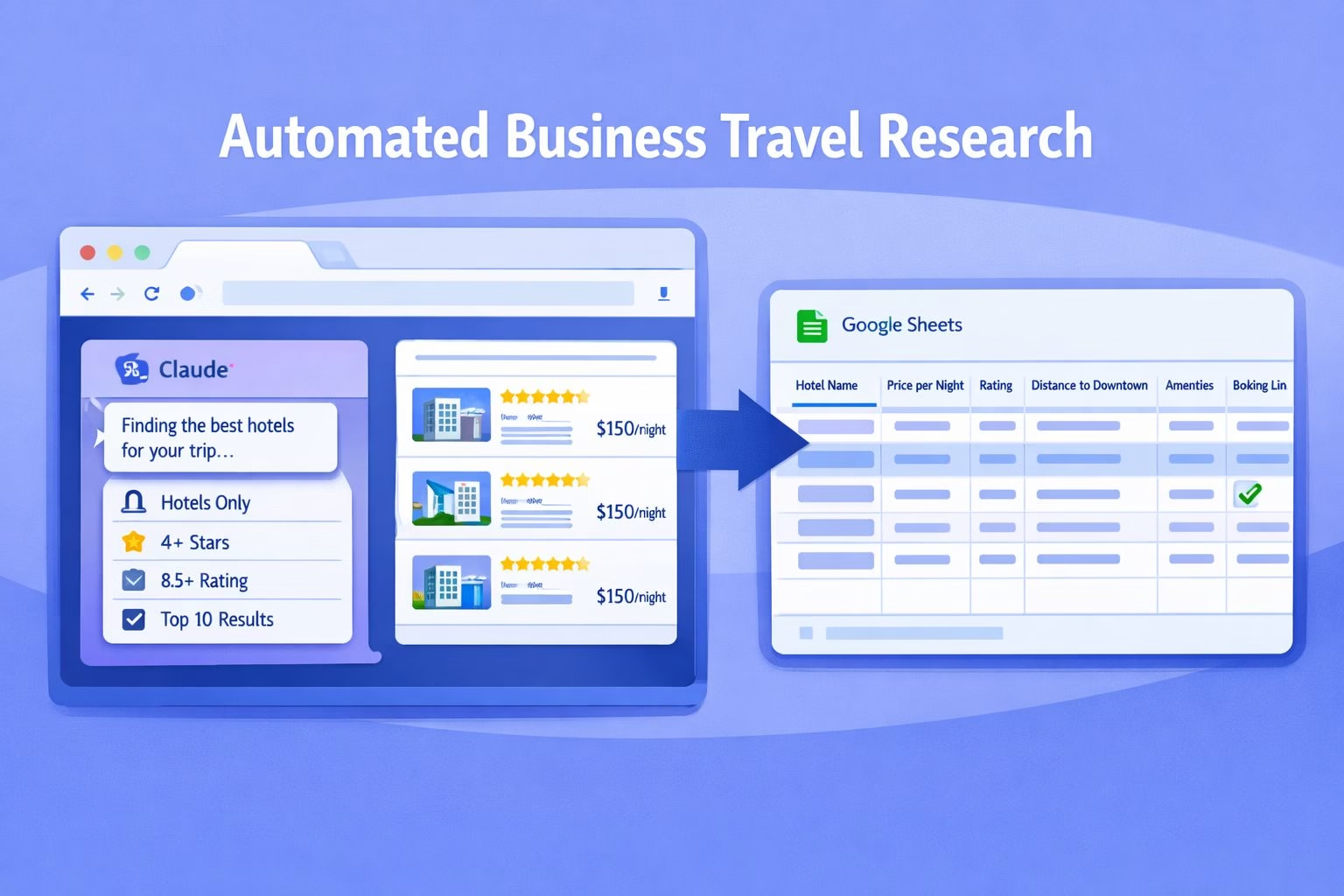
Business trip hotel research usually fails at the same points. Filters drift, results feel inconsistent, and saving options turn messy.
Repeating that process for every trip wastes time and creates avoidable errors.
This tutorial treats hotel research as a repeatable task with fixed rules. Claude for Chrome handles navigation, filtering, comparison, and data entry in one flow.
The outcome stays simple: a structured shortlist saved directly to a spreadsheet.
Step 1: Install Claude for Chrome and create a shortcut
Start by installing the Claude in Chrome extension from the Chrome Web Store at
Once installed, open Claude inside Chrome and type /shortcuts.
Create a new shortcut and name it clearly, such as /hotel-picker. This shortcut becomes the command Claude will follow every time hotel research runs.
Naming the shortcut matters because it allows reuse without rewriting instructions. Each future trip uses the same logic and produces comparable results.
That consistency removes setup friction before searches even begin.
Step 2: Write the hotel search prompt Claude will follow
Inside the shortcut, add a prompt that defines the hotel search rules. Claude should search hotels only on https://www.booking.com/ and ignore other property types.
Filters should include distance and star rating, with four stars or higher as the default.
Quality controls come next. The prompt must require ratings of at least 8.5 on Booking.com and 4 or higher on https://www.tripadvisor.com/.
These thresholds prevent weak options from slipping into the shortlist.
Limit the output to ten hotels and instruct Claude to sort them by value rather than price alone.
The prompt should also prioritize modern properties with practical amenities so the list stays realistic for business travel.
Here’s an example of the prompt to use:
When searching hotels on https://www.booking.com/:
Filter results to Hotels only
Apply distance and star rating filters with 4 stars or higher
Identify hotels with 8.5 or higher ratings on Booking.com and 4 or higher on TripAdvisor
Select the top 10 hotels based on overall value and reviews
Prioritize modern properties with practical amenities
Sort the final results by best value
Create a Google Sheet with the following headers if they do not exist:
Hotel Name
Price per Night
Rating
Distance to Downtown
Amenities
Booking Link
When I provide a location, dates, distance limit, price limit, and a Google Sheet URL:
Search for hotels that match those criteria
Add one row per hotel to the Google Sheet
Insert accurate pricing, ratings, distance, amenities, and the direct booking link
Sort the sheet by best value
Return only the top 10 hotels that meet all criteria.
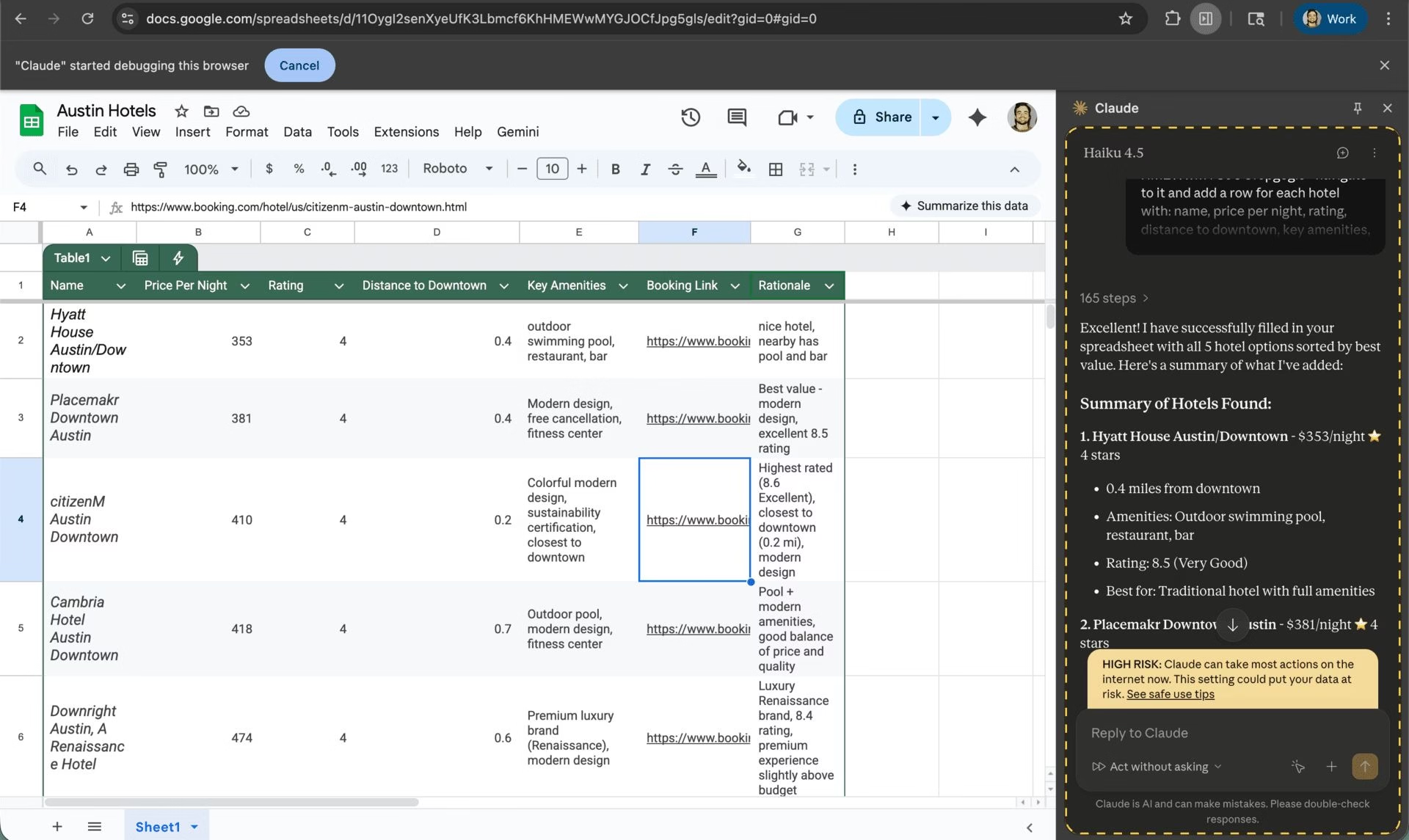
Step 3 Create the Google Sheet Claude will write to
Set up a Google Sheet before running the shortcut. The sheet needs fixed column headers so Claude knows exactly where to place each data point. Use the following headers in the first row:
Hotel Name
Price per Night
Rating
Distance to Downtown
Amenities
Booking Link
Once the sheet is ready, copy its URL. That link becomes part of the instruction Claude uses to write results directly into the document.
The structure stays stable across trips, which keeps comparisons clean instead of fragmented.
This step matters because it removes manual copy and paste entirely. Every hotel Claude finds lands in the same format, sorted and ready for review.
No cleanup is required after the run.
Run a test trip search and populate the sheet
With the shortcut and spreadsheet prepared, run a test command. Use a prompt that includes location, dates, distance limits, and a price cap.
The instruction should tell Claude to navigate to the Google Sheet URL and add one row per hotel.
Claude searches Booking.com, applies the defined filters, evaluates ratings, and selects the top matches.
Each hotel is written into the sheet with pricing, distance, amenities, and a direct booking link. The rows are then sorted by best value.
This test confirms that the shortcut behaves correctly before relying on it for real trips. Once verified, the same command structure works for every future destination with only minor input changes.
Control browser access with a dedicated Chrome profile
Claude operates directly inside the browser, so access control matters. Creating a separate Chrome profile limits which accounts Claude can interact with during searches.
This keeps work travel logins isolated from personal browsing sessions.
The profile acts as a boundary rather than a restriction. Claude still navigates Booking.com and the Google Sheet, but it does not inherit unrelated cookies or saved credentials.
That separation reduces accidental actions outside the travel workflow.
Using a dedicated profile also makes troubleshooting easier. If something breaks, the environment stays clean and predictable.
The shortcut continues to behave the same way across trips and machines.
Reuse the shortcut for future business trips
After the first successful run, the shortcut becomes reusable. Each new trip only requires changing the location, dates, distance limit, and price cap in the command.
The rest of the logic stays fixed.
Claude repeats the same search pattern every time. Hotels are filtered, ranked, and written to the spreadsheet using the same structure.
That consistency makes it easier to compare trips without second-guessing the criteria.
At this point, the workflow replaces manual hotel research entirely.
The browser executes the task, the spreadsheet captures the output, and decision-making starts with a clean shortlist instead of scattered tabs.
