
What’s Happening: Most bad SpicyChat images are not a broken generator, they are three settings working against you. Blurry results come from a Profile toggle, off-model results come from using the old Stable Diffusion model instead of Qwen, and deformities come from the LoRA scale sitting too high. Fix those in order and the quality jumps.
When SpicyChat images come out blurry, deformed, or looking nothing like your character, the easy assumption is that the generator is just bad. Sometimes it genuinely struggles, but far more often the problem is a handful of settings quietly sabotaging every render.
I have watched people rage-quit the image feature over results that a single toggle would have fixed. The blur is a Profile setting.
The off-model faces are usually the wrong model, and the melted anatomy is almost always the LoRA scale.
This guide walks the fixes in the order I would try them, from the one-click toggles to the prompt-craft that gets you a clean, on-character image. You will walk away knowing exactly which setting is wrecking your renders.
Why Do SpicyChat Images Look So Bad
Bad SpicyChat images almost always trace back to the blur toggle, the wrong image model, or a LoRA scale set too high.
The generator itself is capable, but its defaults fight you, and the fixes are settings changes rather than luck.
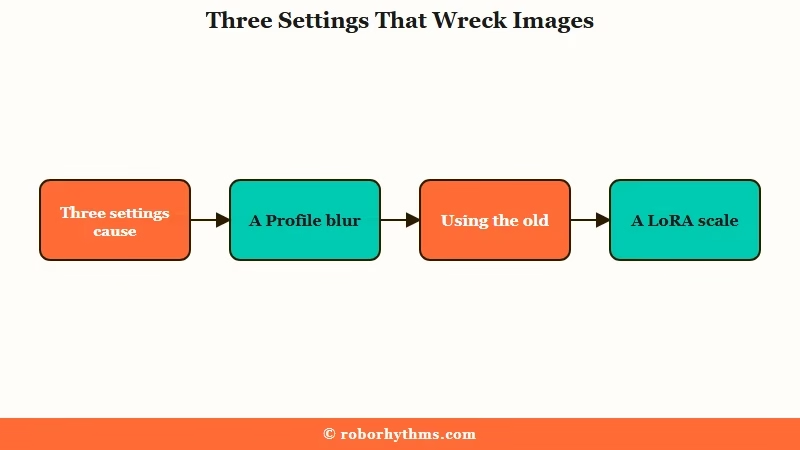
What is the LoRA scale: A setting that controls how hard the generator copies your character’s avatar. SpicyChat defaults it to 0.8, which is high enough to bake in distortions.
Here is the quick map of symptom to cause before we go deeper on each one. Work down this table in order, because the top fixes are the fastest and catch the most cases.
| Symptom | Likely cause | Fix |
|---|---|---|
| Image is permanently blurry | Profile blur toggle is on | Turn off the blur setting in Profile Settings |
| Face and body look off-model | Using the old Stable Diffusion model | Switch the style to the Qwen image model |
| Image ignores the current scene | Legacy model, or the no-filter toggle is off | Use Qwen and enable the no-filter toggle in Image Settings |
| Deformed limbs or melted anatomy | LoRA scale too high, or CFG too high | Lower the LoRA scale below 0.8, drop CFG to about 7 |
| Wrong clothes in a steamy scene | No-filter toggle off, generator lost context | Turn on the no-filter toggle for that chat |
The pattern I want you to notice is that none of these are really about the AI being dumb. They are about the platform shipping defaults that suit a safe, generic render, then leaving you to flip the switches that make it match your actual chat.
SpicyChat sits among the most-visited consumer AI apps, per a16z’s Top Gen AI Apps, so these image gripes get repeated across the community every week. The good news is the fixes are shared too.
Why Are My SpicyChat Images Blurry
A blurry SpicyChat image is almost never a rendering bug, it is the blur toggle in your Profile Settings.
SpicyChat ships with a setting that blurs certain generated images by default, and most people never realize they turned it on.
Go into your Profile Settings and look for the blur toggle for sensitive images. Switch it off, and images that were stuck behind a permanent frosted overlay render normally. This one setting is behind the majority of blurry-image complaints I see.
There is one genuine bug worth knowing about. Some users report images staying permanently blurred with no way to un-blur them, and that glitch is often tied to an age verification problem on SpicyChat. If the toggle is already off and images are still blurred, that is the thread to pull.
Should I Use Qwen or Stable Diffusion
Switching from the legacy Stable Diffusion model to the newer Qwen model is the single biggest quality upgrade available.
The old model is the reason so many images come out off-model or ignore the scene entirely.
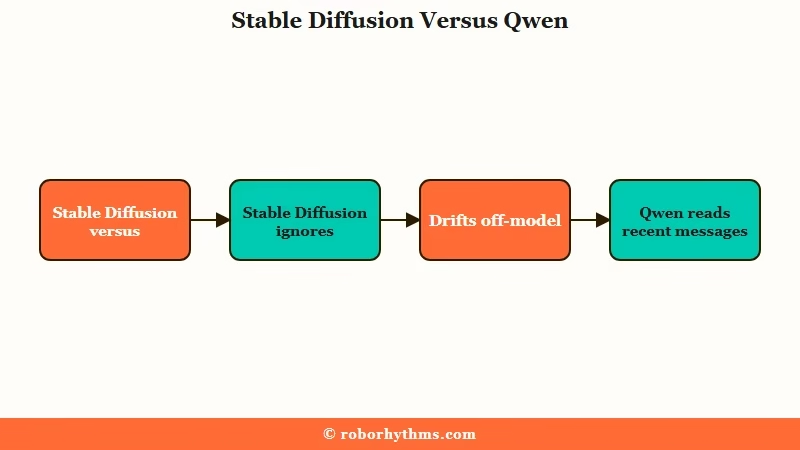
What is Qwen: SpicyChat’s newer image model, added in 2026. It reads your recent chat messages, uses natural language prompts, and references your character’s avatar far better than the old model.
SpicyChat’s default image engine has been a Stable Diffusion build called DreamShaper-8, and it has real weaknesses. It carries a training bias toward one look, so it will sometimes turn a male character into a woman or ignore a described skin tone, and it does not truly read your conversation.
The Qwen model fixes most of that. In my view it is not a small step up, it is the difference between usable and unusable for a lot of characters. You select it in your image style settings, where the options read Semi-realistic, Anime, Qwen image, and Qwen image male.
| Factor | Stable Diffusion (legacy) | Qwen image |
|---|---|---|
| Reads chat scene | No, uses a blind preset prompt | Yes, scans recent messages |
| Prompt style | Comma tags, easy to break | Natural language sentences |
| Multiple characters | Melts them together | Handles them far better |
| Avatar likeness | Weak, drifts off-model | Strong, uses avatar as reference |
Why Do the Images Ignore the Scene
Off-scene images come from the legacy model not reading context, or the no-filter toggle being switched off mid-scene.
Both leave the generator guessing, so it defaults to a generic, safe picture.
The technical reason is blunt. On the old Stable Diffusion model, SpicyChat does not run a dedicated language model to turn your chat into an image prompt, so it feeds a rough preset to the generator and uses your avatar only as a style reference. That is why you get a character gardening fully clothed while your roleplay is set in the shower.
The second cause is the no-filter toggle inside your chat’s Image Settings. If your scene turns steamy but that toggle is off, the generator loses the thread and renders something bland and unrelated. Flip it on for that chat and the images start tracking the story again.
If you want images that follow the conversation without babysitting, the move I recommend is Qwen plus the correct toggles. You can also tap the pencil icon under any image to hand-edit the prompt before it renders.
How Do I Fix Deformed or Fried Images
Deformed limbs and images that fall apart at the last second are usually the LoRA scale or the CFG scale set too high.
These are two sliders, and lowering them fixes most anatomy horror.
The LoRA scale defaults to 0.8, which the community widely considers too aggressive. At that level the generator clamps so hard to the avatar that it warps the body to force a match. Nudge it down and you give the model room to render clean anatomy instead of a rigid, baked-looking figure.
The other culprit shows up when an image looks fine mid-render, then distorts completely at the very end. That end-of-generation breakdown comes from the CFG scale being too high, often around 11, paired with overly heavy negative-prompt weights. Dropping the CFG toward 7 is the standard fix.
Here is the order I run when a render comes out mangled.
- Lower the LoRA scale below the 0.8 default and regenerate.
- Drop the CFG scale toward 7 if the image distorts at the end.
- Ease up on aggressive negative-prompt weights like heavy quality tags.
- Switch to Qwen if you are still on a legacy model.
- Accept that complex poses and group scenes still push the model past its limits.
How Do I Write Better SpicyChat Image Prompts
Good SpicyChat prompts read like a vivid sentence, not a pile of tags, especially on Qwen. The official guidance is to describe the subject, setting, lighting, and camera angle in plain descriptive English.
Before: anime girl, red hair, cafe, (masterpiece), ultra realistic, best quality
After: Raw photo of a young woman with dark red hair sitting by a rain-streaked cafe window at night, soft neon reflections, shallow depth of field, shot on a 50mm lens, calm mood.
The After version wins for a specific reason. On Qwen, words like “masterpiece” and “ultra realistic” get read as artificial or painterly, so they push you away from a real photo, while “Raw photo” and a camera detail push toward one. When I write these, I describe the scene the way a photographer would frame it rather than dumping a list of tags.
Two more things move the needle. If you use the feature that puts your own persona in the image, your persona avatar and your written persona details have to match, or the model gets mixed signals and renders the wrong person.
If you are stuck, paste your scene into any text AI and ask it to write a descriptive image prompt, then drop that into SpicyChat. The same discipline that makes SpicyChat models perform better applies to images, and it pairs well with tight SpicyChat persona setup.
Does Premium Fix SpicyChat Image Quality
Premium unlocks in-chat image generation but does not automatically make the images good.
You still have to pick Qwen, set the toggles, and tune the scales, so treat the subscription as access, not a magic quality button.
In-chat Conversation Images are gated behind the paid tiers. True Supporter runs $19.95 a month and generates images for select characters, while I’m All In runs $29.95 a month and covers any character, including private ones. Free users can still generate character avatars, just not live in-chat images.
SpicyChat moved to those prices on 8 September 2026. If you already had an active subscription it keeps renewing at your old rate, but that only holds while you stay subscribed and leave your plan alone, and switching between monthly and annual breaks it just as an upgrade or downgrade would.
Worth a heads-up that spending more does not guarantee better prompts. Some users testing side by side found the top tier’s auto-generated prompts came out shorter and weaker than the cheaper tier’s, missing the detailed camera and texture tags that make an image pop. If you upgrade, plan to keep editing prompts yourself.
If you want to run SpicyChat’s image feature properly, SpicyChat’s premium tiers are where the Qwen in-chat generator lives, and it is genuinely strong once you dial in the settings above.
If you would rather skip the settings maze entirely and get consistent, on-character images without a tuning session, Candy AI handles the visuals with far less fiddling, which makes it the easier pick for anyone who just wants results.
Frequently Asked Questions
Why are my SpicyChat images blurry?
Blurry images are usually the blur toggle in your Profile Settings, not a bug. Turn off the setting that blurs sensitive images and they render normally. If they stay blurred, it may be an age verification glitch on your account.
How do I make SpicyChat images match my character?
Switch your image style to the Qwen model, which uses your character’s avatar as a direct reference and reads the chat scene. Then make sure the character’s physical traits are plainly written in their description, since the generator leans on that text.
Why does SpicyChat generate the wrong scene or clothes?
The old Stable Diffusion model does not read your conversation, and if the no-filter toggle in Image Settings is off during a steamy scene, the generator loses context. Use Qwen and enable that toggle so images follow the story.
How do I stop deformed or melted SpicyChat images?
Lower the LoRA scale below the 0.8 default so the generator stops warping the body to match the avatar. If the image distorts at the very end, drop the CFG scale toward 7 and ease off heavy negative-prompt weights.
Does paying for SpicyChat improve image quality?
Premium unlocks in-chat image generation but does not make images good on its own. You still need to select Qwen, set the toggles, and edit prompts. Higher tiers sometimes even produce weaker auto-prompts than cheaper ones.
Quick Takeaways
- Most bad SpicyChat images are settings, not a broken generator, so check toggles before blaming the AI.
- Blurry images are the Profile blur toggle, and off-scene images mean you are on the old Stable Diffusion model.
- Switching to the Qwen image model is the single biggest quality upgrade you can make.
- Lower the LoRA scale below 0.8 and drop CFG toward 7 to fix deformed or fried renders.
- Premium unlocks the feature but not the quality, so if you want images that just work, Candy AI needs far less tuning.
