
What’s Changed: SillyTavern has no official Android app, and SliiyTaver on Google Play is an unrelated app with ads and in-app purchases. The real options are opening SillyTavern from your PC in the phone’s browser, installing it in Termux, or using an unofficial runner such as ST-android or TauriTavern. Whichever you pick, run version 1.18.0 or later, which fixed a flaw that let anyone who could reach your SillyTavern delete your extensions without logging in.
SillyTavern on Android is possible, but there is no SillyTavern Android app to download. Search for it and the closest thing to an app is SliiyTaver, an unrelated roleplay app on Google Play that sells in-app items.
SillyTavern’s own docs send you to your PC or a terminal app instead.
The setup is what stops most people. One Janitor AI user who got it running after a few tries called it “extremely complicated,” and I hesitate to recommend SillyTavern to casual phone users for exactly that reason.
This guide compares the four real ways to run it on a phone and walks through the two routes SillyTavern documents.
It also shows how to tell a copycat from the real project, and when a phone-first roleplay app makes more sense than any of them.
Is There an Official SillyTavern Android App?
SillyTavern has no official Android app. Its docs offer two routes instead: open it in your phone’s browser while it runs on a PC, or run it on the phone through Termux, which the docs call not officially supported.
What is Termux: A free terminal app that gives Android a small Linux environment, which is what SillyTavern needs to run on the phone itself.
SillyTavern is a free, open-source web app that runs on a small Node.js server, published under the AGPL-3.0 license on GitHub. The docs FAQ says iPhones and iPads cannot run it, and that a Termux install on Android comes with no guarantee it will work.
If all you want is character roleplay on your phone without servers or terminals, Nectar AI runs in a phone browser with nothing to install.
The listing people trip over is SliiyTaver: AI Chat & Roleplay from a developer called FranciAwusiDev, which shows 50K+ downloads. It shows ads, sells in-app items from $3.49 to $59.99, and its description never mentions SillyTavern.
One reply on r/SillyTavernAI put it bluntly: “They use familiar name to get money.” I would not install anything from the Play Store that borrows SillyTavern’s name.
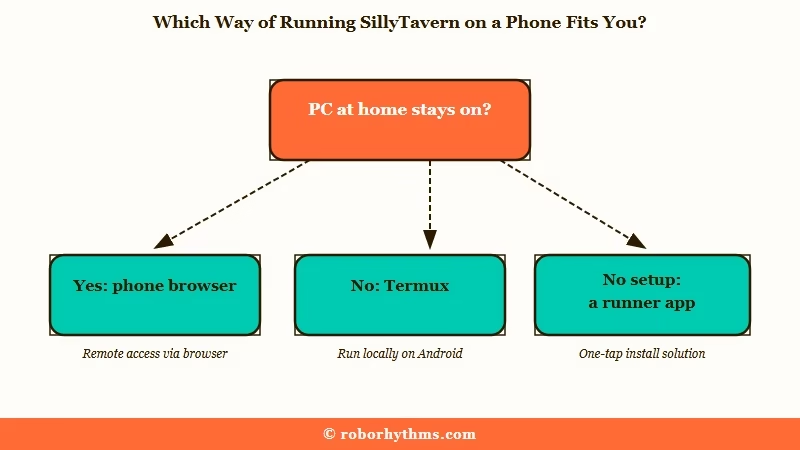
Which Way of Running SillyTavern on a Phone Fits You?
The right way to run SillyTavern on a phone comes down to one question: is there a computer at home that stays on?
With one, open SillyTavern in the phone’s browser; without one, use Termux or an unofficial runner.
| Route | Needs a PC | Setup | The catch |
|---|---|---|---|
| PC plus phone browser | Yes, switched on | Two config.yaml edits | Works only while the PC runs |
| Termux | No | Six commands | Not officially supported |
| ST-android | No | One APK | Unofficial, extensions not fully supported |
| TauriTavern | No | One APK | Unofficial, one release behind, no Node-only plugins |
The PC route is my default recommendation, because the phone only displays SillyTavern and every extension keeps working on the PC. Termux comes next for anyone without a PC, since every command comes from SillyTavern’s own docs.
The two runners trade official support for convenience. Both are open source under the same AGPL license as SillyTavern, and both say plainly that they are not part of the project.
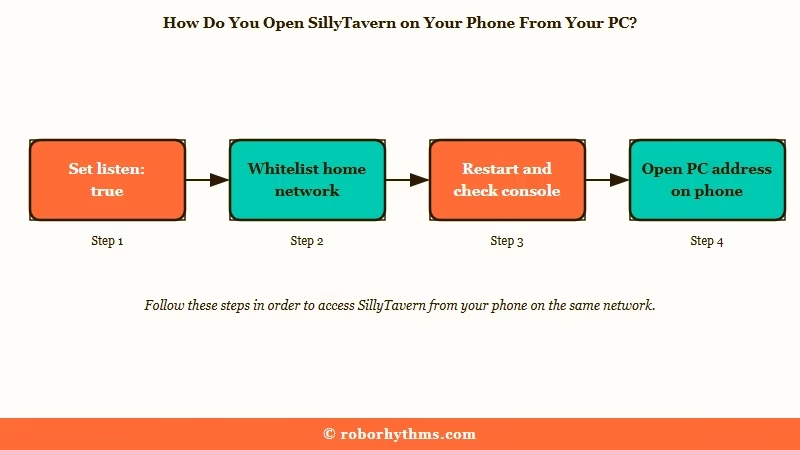
How Do You Open SillyTavern on Your Phone From Your PC?
Opening SillyTavern on your phone takes two edits to config.yaml on the PC, turning on listen and adding a whitelist.
Then restart it and type the PC’s local address into the phone’s browser.
SillyTavern accepts connections only from its own machine until you change that, per the remote connections guide. I keep listen switched off until I need the phone, and I set a password before I switch it on.
- Start SillyTavern once on the PC so it creates config.yaml, then open the copy in the SillyTavern root folder, not the one inside the default folder.
- Set
listen: true. - Add your home network to the whitelist. With listen on, SillyTavern will not start until at least one access control method is set.
- Restart SillyTavern and check that the console reads “SillyTavern is listening on IPv4: 0.0.0.0:8000”.
- Find the PC’s address (on Windows, run ipconfig and read the IPv4 line), then open it on the phone, for example http://192.168.0.5:8000. Use http, not https.
listen: true
whitelist:
  - ::1
  - 127.0.0.1
  - 10.0.0.0/8
  - 172.16.0.0/12
  - 192.168.0.0/16
That whitelist is the docs’ own example for letting in any device on a home network. Add a password if anyone else shares your Wi-Fi: setting basicAuthMode: true with a username and password makes SillyTavern ask for them, though the docs warn both travel as plain text without HTTPS.
Update before you open it to the network. CISA’s vulnerability summary for the week of May 25, 2026 lists six SillyTavern flaws fixed in version 1.18.0.
The worst, rated 9.8 out of 10, let a single request delete your whole extensions folder with no login in the default setup. The current release, 1.19.0, carries those fixes too.
Away from home, skip port forwarding. The docs recommend a VPN or tunnel instead, and their VPN and tunneling guide says Tailscale stays free for one person’s everyday use.
Why Does SillyTavern Say Forbidden on Your Phone?
A Forbidden message means your phone reached SillyTavern, but its address is not on the whitelist.
The console prints “Forbidden: Connection attempt from” followed by the phone’s IP, and tells you to add that address to the whitelist.
Add the address rather than switching whitelist mode off, since the whitelist is what decides which devices get in. If the attempt never shows in the console, the problem is the network: on Windows, let Node.js through the firewall, and on Windows 11 set the network to Private.
If the console still says 127.0.0.1, SillyTavern never read your config.yaml edit.
How Do You Install SillyTavern on Android With Termux?
Installing SillyTavern in Termux takes six commands, as long as Termux itself comes from F-Droid or GitHub and never from the Play Store.
The Android install guide warns that the Play Store version of Termux is no longer maintained. Termux is the route I trust most without a PC, because every line below comes from that guide.
termux-change-repo
pkg update && pkg upgrade
pkg install git nodejs-lts nano
git clone https://github.com/SillyTavern/SillyTavern -b release
cd ~/SillyTavern
bash start.sh
Pick a nearby mirror when termux-change-repo asks, and SillyTavern then runs at http://127.0.0.1:8000 in the phone’s browser. To update later, run cd ~/SillyTavern and then git pull --rebase --autostash. On a 32-bit phone, run pkg install esbuild before the install, or it stops with an “Unsupported platform” error.
The guide also suggests three config.yaml changes for phones: lazyLoadCharacters: true, useDiskCache: false, and switching off automatic chat backups to save storage. Android can also put Termux to sleep mid-chat, which the termux-wake-lock command prevents.
Are ST-android and TauriTavern Safe to Use?
ST-android and TauriTavern are open-source projects whose code anyone can read, but neither is official.
Treat both as community builds, and back up your chats before you try either one.
ST-android describes itself as a “SillyTavern runner for Android” for Android 8.0 and up on arm64 phones. Its README says it is not affiliated with SillyTavern, bundles SillyTavern’s own code without modifications and sends no telemetry. Extensions are not properly supported yet, by its own account, and version 0.5.0 is the current release.
TauriTavern rebuilds SillyTavern’s server in Rust and ships Android APKs plus an iOS TestFlight build. Its README calls it “not an official SillyTavern client,” keeps the interface synced to SillyTavern 1.18.0, and does not support Node-only server plugins.
One TauriTavern user found the Summaryception extension would not run there, while a reply says a fork of it does, and Summaryception is one of the main SillyTavern memory extensions.
My take is that ST-android is the safer first try, because it runs SillyTavern’s own code unchanged while TauriTavern is a rewrite. Back up before switching: in SillyTavern, User Settings, then Account, then Download Backup saves your chats and characters, and ST-android can import that file.
Both install from outside the Play Store, and Android is tightening that. Google requires developer verification for apps installed outside its store, starting in September 2026 in Brazil, Indonesia, Singapore and Thailand and rolling out globally in 2027.
For apps from unverified developers, Google’s developer blog describes an advanced install flow that still lets power users sideload them.
How Do You Spot a Fake SillyTavern App?
A fake SillyTavern app is any store listing that uses the name or a near-miss spelling, because the real project publishes no store app at all.
The spelling is the first thing I check, since a real port has no reason to hide the name.
- Check the source. SillyTavern lives at github.com/SillyTavern and docs.sillytavern.app, and both runners above publish their APKs on GitHub.
- Read the developer name and the description. SliiyTaver’s developer is FranciAwusiDev, and its description never says SillyTavern.
- Look for ads and in-app purchases. SillyTavern is free and open source, so a store listing that sells items is not the real thing.
- Watch for near-miss spellings like SliiyTaver, which are built to catch a quick search.
What If You Just Want AI Roleplay on Your Phone?
If you only want AI roleplay on your phone, a hosted roleplay app takes minutes, while every SillyTavern route needs setup plus a model behind it.
SillyTavern is an interface, so a phone setup still needs a model provider such as OpenRouter behind it. The OpenRouter setup guide covers the free models, and the best models for SillyTavern covers what a long story costs.
Nectar AI is the one I would hand a phone-only roleplayer first, since it runs in the browser with nothing to configure.
Candy AI is the other option, though its free tier is only 5 messages, so treat it as a short test before paying $13.99 a month.
You do give up SillyTavern’s control over prompts, models and character cards. If that control is why you came, what SillyTavern is explains what you would trade away.
Quick Takeaways
- SillyTavern has no official Android app, and SliiyTaver on Google Play is an unrelated app with ads and in-app purchases.
- With a PC that stays on, set listen and a whitelist in config.yaml and open the PC’s address in your phone’s browser.
- Without a PC, Termux runs the real thing in six commands, as long as Termux comes from F-Droid or GitHub.
- Run SillyTavern 1.18.0 or later before opening it to your network, since that release fixed six flaws CISA listed in May 2026.
- My pick for most people is the PC route, because the phone only has to display it.
