
Quick Answer: NotebookLM defaults to summarizing what’s already in your sources rather than challenging it. To get deeper insights, you need prompts that explicitly force it into analysis mode: finding gaps, contradictions, and blind spots instead of repeating what you already know. This guide covers 5 specific prompts that shift the tool from secretary to analyst.
NotebookLM has a politeness problem. You upload your research, ask what it thinks, and it hands back a tidy recap of what you already put in. Nothing surprising. Nothing you didn’t already know. Just your own notes with better formatting.
I noticed this after my third or fourth notebook. The summaries were clean, well-organized, covered the main points. But they never told me anything new. After a while it felt like asking a yes-man for feedback.
What changed things was stopping the summarization requests entirely. Instead of asking “what does this say?”, I started asking “what is this missing?” and “where does this contradict itself?” The outputs shifted completely.
NotebookLM stopped acting like a secretary and started acting like an analyst who had read the material and formed opinions about it.
If you’re just starting out, the NotebookLM basics guide covers the fundamentals. This article is for people who’ve used the tool, felt underwhelmed, and want to know why the outputs are so flat.
The 5 prompts below are the ones that moved the needle for me.

Why NotebookLM Defaults to Safe Summaries
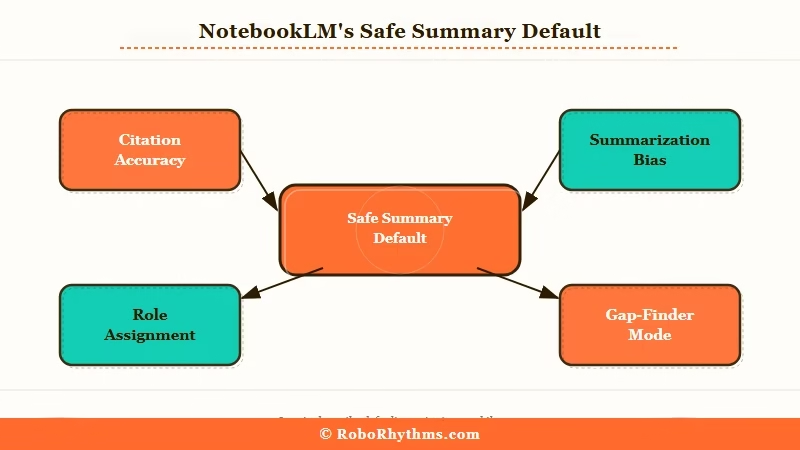
NotebookLM defaults to safe summaries because it is designed to stay within your sources and not make claims it cannot back up.
The tool is built around citation. It connects every answer to a specific passage. This is genuinely useful when you need accuracy.
It becomes a problem when you want the model to challenge your thinking, because challenging your thinking often requires pointing to what’s not there, and there’s no passage to cite for an absence.
From what I can tell, there are two reasons the defaults feel shallow. First, the query itself matters more than most people think. “Summarize this” is a retrieval instruction. You’re asking the model to compress content, not evaluate it. The model does exactly what you asked.
Second, NotebookLM is conservative about inferring things it can’t directly support. It won’t invent connections. That epistemic caution is valuable for accuracy, but it makes the default outputs feel hollow when you’re looking for analytical depth.
The fix is giving it a specific analytical role before asking any question. Not “what does this say?” Something more like “act as a red-team analyst looking for what this fails to account for.” The model can do that. It just will not do it unless you tell it to.
The 5 NotebookLM Prompts That Challenge Your Thinking
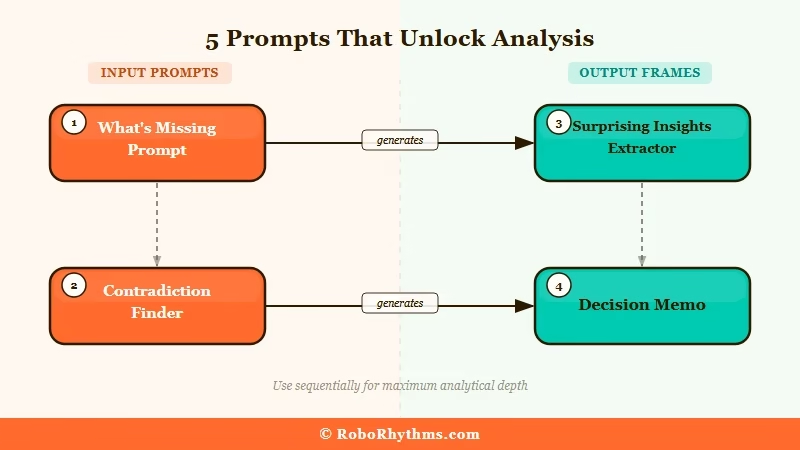
These five prompts shift NotebookLM from retrieval mode into analysis mode, each one targeting a different kind of blind spot.
Before you use any of them: upload your sources first, let them process, then paste the prompt as your first real question.
Do not open with a summary request. Once you ask for a summary, the conversation tends to stay in that register.
1. The What’s Missing Prompt
This is the one I use most. Instead of asking what is in the document, you ask what is absent.
Paste this into your notebook:
“` Review all uploaded sources together. Your task is to identify what is MISSING, not what is present. Look for: critical data that should be here but isn’t, unsupported assumptions treated as settled fact, questions the sources raise but never answer, and evidence gaps that would need to be filled before acting on these conclusions. Format as a numbered list with a one-line explanation per item. “`
What comes back is usually the most valuable output NotebookLM produces. I ran this on a competitive analysis I’d been sitting on for two weeks, and it flagged three assumptions I’d treated as facts, none of which I had verified.
That single output saved a bad strategic decision.
2. The Contradiction Finder
Paste this into your notebook:
“` Search across all uploaded sources for contradictions and disagreements. For each one: quote the conflicting claims directly, identify which source each came from, explain why they conflict, and suggest what additional research would resolve the disagreement. If no direct contradictions exist, look for tension between what sources claim versus what they demonstrate. “`
This works best with 3 or more sources covering the same topic from different angles. A single-source notebook won’t give you much.
Put in four articles on the same market, and you often find they disagree on the exact numbers, timeline, or root cause, without any of them acknowledging the disagreement. Seeing those gaps mapped out clearly is worth the time.
3. The Surprising Insights Extractor
Paste this into your notebook:
“` What facts, claims, or data points in these sources would most surprise an expert in this field? List only non-obvious findings. For each one, give the direct quote and explain specifically why it is surprising or counterintuitive. Do not include anything that confirms what most people in this field already believe. “`
This kills the “I already knew that” feeling. It forces the model to filter out the expected and surface only what’s genuinely counterintuitive.
I’ve used it on industry reports where the headline findings were useless but something buried in section 4 of a 60-page doc turned out to be the most important number in the whole thing.
4. The Decision Memo
Paste this into your notebook:
“` Review these sources as if preparing a decision brief for a senior leader who has 5 minutes to read it. Structure your output in exactly three sections: (1) User Evidence, direct quotes showing real evidence of behavior or market conditions, (2) Feasibility Checks, technical, resource, or timing constraints that would affect any decision based on this material, (3) Blind Spots, what critical information is missing that would change the recommendation. Be specific. Cite passages. “`
The difference between this and a standard summary is the structure. You’re forcing the output to map onto a real decision framework.
The “Blind Spots” section in particular tends to produce things that standard summaries never touch. For strategy documents or research that needs to inform an action, this is the prompt I reach for first.
5. The Meta-Prompt Architect (for power users)
This is the most complex and the most powerful. Instead of asking for analysis directly, you ask NotebookLM to generate the best analytical prompts for your specific material, then use those generated prompts as follow-up queries.
Paste this into your notebook:
“` Your task is not to summarize or analyze this material. Your task is to design 3 high-quality analytical prompts that, when run against this material, would expose non-obvious insights, identify hidden risks, or shift how a reader interprets the content. Each prompt must target a different analytical vector. For each one, include: (a) what question it targets, (b) why standard reading misses this, (c) the ready-to-use prompt text in a code block. “`
The prompts it generates are calibrated to your specific source material, not to a generic template. Running them as follow-up questions usually surfaces something the four prompts above would have missed.
I use this for any document set where I feel like I’m not seeing the full picture, it consistently finds angles I wouldn’t have thought to ask about.
How to Use NotebookLM Across Multiple Sources
NotebookLM’s real differentiator from single-document AI tools is cross-source synthesis, and most users never use it this way.
Free accounts can upload up to 50 sources with each source supporting up to 500,000 words.
That capacity means you can load an entire competitive landscape into a single notebook and run analytical queries across all of it at once. For document research workflows, that cross-source capability is the core value proposition.
Here’s the sequence I follow when starting a new analytical notebook session:
- Upload at least 3 sources covering the same topic, more is better for the Contradiction Finder.
- Wait for all sources to process fully before asking any questions.
- Start with the What’s Missing Prompt to map the gaps in the material.
- Follow with the Contradiction Finder to identify disagreements across sources.
- Use the Surprising Insights or Decision Memo prompt depending on whether you need analysis or action.
- Run the Meta-Prompt Architect last for any material where you still feel like you’re missing something.
For competitive research, I’ve found that uploading 5-8 articles on the same topic and running the Contradiction Finder gives you something no individual article reading could: a map of where the industry disagrees with itself.
That’s often more useful than what any single source says.
The Hidden Connections prompt also works well across a full notebook:
“` Identify non-obvious connections between concepts, findings, or claims across all uploaded sources. Specifically look for: patterns appearing in multiple sources that none of them connect explicitly, relationships between findings in different domains, and any case where a claim in one source challenges or reframes a claim in another. “`
The more diverse your source set, the better this works. If all your sources come from the same author or publication, you won’t find much. Cross-disciplinary notebooks produce the most interesting outputs.
Here’s a quick reference for choosing the right prompt based on what you’re working with:
| Source Type | Best Starting Prompt | What You Get |
|---|---|---|
| Single long document | Surprising Insights Extractor | Non-obvious facts buried in the text |
| Multiple articles on same topic | Contradiction Finder | Where sources disagree and why |
| Research or strategy docs | What’s Missing Prompt | Gaps and unsupported assumptions |
| Meeting transcripts or notes | Decision Memo | Action-oriented structured output |
| Any document set | Meta-Prompt Architect | Custom prompts calibrated to your material |
When to Route Through Gemini Pro Instead
For very long or complex prompt chains, Gemini Pro handles the input better than NotebookLM’s built-in query interface.
The practical limit I’ve hit is with detailed analytical frameworks, the kind where you want to specify a role, rules, and output format all in one prompt. NotebookLM’s query field sometimes truncates or rejects very long inputs.
When that happens, the workaround is to upload your sources to Gemini Pro directly (it accepts file attachments) and run the complex prompt there.
For most queries, the prompts above run fine inside NotebookLM. But if you want to chain multiple analytical passes together or run a very long system-level prompt, Gemini Pro gives you more room.
If you’re already working across multiple AI tools in a single research session, Sider AI puts ChatGPT, Claude, Gemini, and others in one interface so you’re not switching tabs to move context between them.
NotebookLM Free vs Plus for Power Users
The free tier handles everything in this guide. The upgrade is only worth it if you need 300+ sources per notebook or team collaboration features.
Here’s how the tiers break down from a research perspective:
| Feature | Free | Plus ($19.99/mo) |
|---|---|---|
| Sources per notebook | 50 | 300 |
| Words per source | 500,000 | 500,000 |
| Audio Overviews | Yes | Yes, customizable |
| Video Overviews | Limited | Full access |
| Sharing and collaboration | View-only sharing | Full sharing, team features |
| Priority model access | Standard | Priority queuing |
According to Google’s NotebookLM documentation, both tiers use the same Gemini model under the hood. From what I’ve seen, the 50-source limit only becomes a real constraint when working on large-scale literature reviews.
The upgrade makes sense if you’re working in a team, need the full video overview feature set, or genuinely need more than 50 sources per notebook.
For checking which AI tools are worth keeping paid subscriptions for, NotebookLM Plus is a marginal case for most individual users.
Frequently Asked Questions
Why does NotebookLM just give summaries instead of real insights?
NotebookLM defaults to summarization because it’s designed to stay within your uploaded sources and avoid unsupported claims. It won’t challenge your thinking unless you explicitly tell it to. The five prompts in this article force it into analysis mode by giving it a specific analytical job.
Can I use these prompts on a single document?
Yes, but multi-source notebooks produce better results. The Contradiction Finder and Hidden Connections prompts specifically need multiple sources. For a single document, the What’s Missing and Surprising Insights prompts work best.
Does NotebookLM work better than ChatGPT for document analysis?
NotebookLM is purpose-built for multi-source synthesis and gives you citations pointing to specific passages. ChatGPT’s file analysis handles complex reasoning chains better for single documents. For cross-source research where citation accuracy matters, NotebookLM is the stronger pick.
What’s the difference between NotebookLM free and Plus?
Free gives you 50 sources per notebook with standard model access. Plus ($19.99/month) raises that to 300 sources and adds team collaboration and priority access. For individual use, free covers everything in this guide.
Can I run these prompts through Gemini Pro instead?
Yes, and for very long prompt frameworks, Gemini Pro handles the input better. You can attach your sources directly to a Gemini Pro chat when NotebookLM’s query field feels limiting. The outputs tend to be more detailed for complex analytical chains.
Is NotebookLM useful for content planning and SEO research?
It’s one of the fastest ways to find angles competitors haven’t covered. Upload 5-8 competitor articles on a topic, run the What’s Missing or Contradiction Finder prompt, and you get a map of the content gaps across the whole space in minutes.
