
The Short Answer: A Janitor AI lorebook is a set of entries that each add a piece of lore to the prompt when one of its keywords comes up in chat. Open yours from the profile picture menu under </> Scripts, assign it to a character from the panel on the right, and if it never fires, check Probability, the Active toggle and that assignment first.
Janitor files lorebooks under Scripts, so anyone looking for a menu item called Lorebooks finds nothing. Its help center describes a Lorebook as the beginner type of script, next to Advanced scripts that follow more complex rules.
This guide covers how to open and read lorebooks, including the ones on other creators’ bots, how to add one to a character, and how to find public ones. The second half fixes lorebooks that do not trigger, which usually comes down to one setting rather than your writing.
If you would rather the bot simply remember without you building entries at all, Nectar AI carries persistent memory across sessions automatically. Candy AI covers the same ground and adds voice and image features in one app.
What a lorebook is not: a wiki the AI looks things up in. An entry reaches the model only on a turn where its keyword appears, so lore nobody mentions is never seen.
How to Open and Use Lorebooks in Janitor AI
Janitor AI stores lorebooks in the Scripts menu, which you reach by clicking your profile picture (top right on desktop, bottom right on mobile) and choosing </> Scripts. Every lorebook on your account is listed there for reading and editing. To use one, assign it to a character, and its entries then fire whenever their keywords come up in that character’s chats.
This is the step that sends most people in circles.
They open the bot, hunt for a book icon somewhere near the chat window, find nothing, and decide the feature was never enabled on their account. The chat screen has no control for editing your own lorebooks, so the hunt cannot succeed. The icon that matters is </>, and it sits in the profile menu rather than anywhere near the chat.
A lorebook is created as a script rather than as its own separate object, which is why the menu reads Scripts and never reads Lorebooks. The official Scripts walkthrough documents the full path.
- Open the profile picture menu and select </> Scripts.
- Click Create New Script, choose Lorebook, name it, then click Create Script.
- Click Add Entry and fill in Category, Entry Name, Keys, Content and Probability, then Save.
- In the “Assign to your Characters” panel on the right, select your character and click Assign to Script.
- Open Test Chat, start a new chat, click Show Debug Panel at the bottom, then send a message containing your keyword and watch the Changes tab.
That Changes tab is the check Janitor actually documents, and it tells you whether an entry fired without you having to guess from the bot’s reply.
How to Add a Lorebook to a Character in Janitor AI
Open the lorebook from </> Scripts, find the Assign to your Characters section on the right side, select the character and click Assign to Script. Creating a lorebook attaches it to nothing on its own, so a book that exists but was never assigned never fires.
The panel lists your characters, including ones made before the lorebook existed, so an existing bot does not need rebuilding to gain lore. Assign the book, then start a new chat and send one of its keywords with the Debug Panel open to confirm the entry fires.
How to Find and Read Lorebooks on Other Creators’ Bots
Only through the bot that uses it, and only if its creator made the lorebook public. Janitor has no lorebook search or public library, and the Scripts menu lists only the scripts on your own account. A lorebook attached to a character shows on that bot’s page, and a public one normally opens so you can read its entries.
Users were still asking for a lorebook search in September 2026, so finding one means finding a bot that uses it. In practice that is a lore-heavy bot in the fandom you want, opened to see whether its lorebook is public.
A hidden lorebook still shows on the bot page but will not open, and Janitor hides lorebooks by default, according to creators discussing why so many stay hidden. Some keep them closed to avoid spoilers or copying, and some never find the toggle. Public is not a guarantee either, since one user reported public lorebooks that never open for them.
That is what people are hitting when they can see a lorebook on someone else’s bot but cannot click into it. The entries still do their job inside that chat. You just have no read access to the text.
Reading a book is not the same as owning a copy. Some creators publish their entries as JSON on the character card or in the bot description, and Janitor’s Scripts guide documents a JSON Editor inside any Lorebook script that accepts a pasted entries array, so a book the creator chose to share can be brought into your own account.
If you want a book you can actually read and edit, the workable route is to build your own entry from the Scripts menu, and the five steps above cover it from an empty script to an assigned character.
Why Your Janitor AI Lorebook Is Not Triggering
A Janitor AI lorebook fails to trigger for one of a handful of reasons: a probability set too low, a keyword that does not match, the book not being linked to the bot, scan depth set too shallow, or token budget overflow dropping the entry.
Almost every “not working” case is one of these.
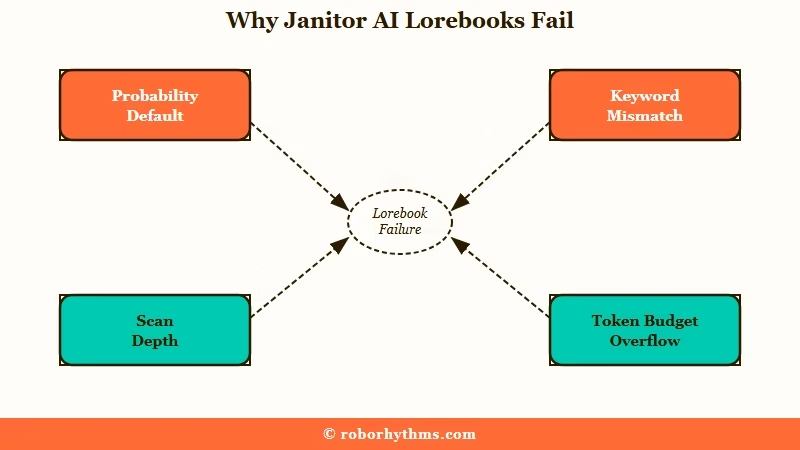
The frustrating part is that none of these throw an error. The lore just silently never appears, so the bot acts like the entry does not exist. People assume the writing is wrong when the real culprit is a setting they never opened.
Here is the fast diagnostic table I would run through first.
| Symptom | Likely cause | Fix |
|---|---|---|
| Entry never appears, even with the keyword | Probability set too low, sometimes carried over from an import | Set probability to 100 |
| Keyword is used but nothing fires | Match Whole Words on, or Case Sensitive mismatch | Turn off whole-word match or fix capitalization |
| Lore worked early then vanished in long chats | Scan depth too shallow or token budget overflow | Raise the Depth setting |
| Bot ignores the lore entirely | Lorebook not linked to the character | Assign it from the panel on the right in </> Scripts |
| Bot gives contradictory facts | Multiple entries firing on the same keyword | Use secondary keys or put the entries in one inclusion group |
Check the Probability on Imported Lorebooks
An imported Janitor AI lorebook keeps each entry’s probability exactly as the source set it, so an entry that came in with a low probability rarely fires.
Probability rerolls on every message, which makes a low value look like a broken entry.
Janitor’s step guide says a JSON import brings each entry in with its settings, probability included, intact. So open every imported entry and read the Probability field before you touch anything else, because an entry at 1 fires about once in a hundred messages that carry its keyword.
Janitor’s own guide uses 50 as the starting value for a beginner’s first entry, which fires about half the time. For lore that must appear whenever its keyword does, set 100, and I keep 90 to 95 for entries that should fire often but not on every single message.
Before: Entry “Brittany’s backstory”, keyword “Brittany”, probability 1 percent. The bot has met Brittany 40 times and still describes her wrong.
After: Same entry, probability set to 100 percent. The backstory now injects every time “Brittany” comes up in the chat.
How Janitor AI Lorebooks Work and What Triggers Them
A Janitor AI lorebook entry fires when one of its keywords appears in the messages Janitor scans, and by default that includes the bot’s replies as well as yours.
The match also has to pass your case and whole-word settings, which is the second biggest cause of dead lore.
If the definition itself is being ignored rather than just the lorebook, that is a separate fault with its own causes. We covered it in why Janitor AI stops reading your character definition.
Janitor’s Scripts overview is explicit that both sides of the conversation can trigger an entry, so a bot reply that names a character can pull in that character’s lore. If you want only your own messages to count, it says to set Depth to 1, which scans just your most recent message.
Lorebooks behave the same on Janitor’s own JLLM and on an external proxy such as DeepSeek, because the entry text is added to the prompt before the request goes to the model. The proxy only changes how the replies read.
Two match settings quietly break triggers. With Case Sensitive enabled, “Apple” will not fire for “apple”, and with Match Whole Words enabled, “Apple” will not fire inside “Applebottom”. I keep Match Whole Words on for clean triggers but always double-check my capitalization.
Scan depth, which Janitor’s settings call Depth, is the other silent killer. A low Depth means Janitor only checks the last message or two for keywords, so lore mentioned several turns ago stops counting.
If your bot forgets lore mid-scene, raise the Depth so older messages still count toward triggers. For deeper steering, Janitor AI OOC commands pair well with a working lorebook.
How to Fix a Janitor AI Lorebook That Will Not Work
To fix a broken Janitor AI lorebook, raise the probability, confirm the keyword match, link the book to the character, then test it with an out-of-character command.
This sequence resolves the large majority of cases.
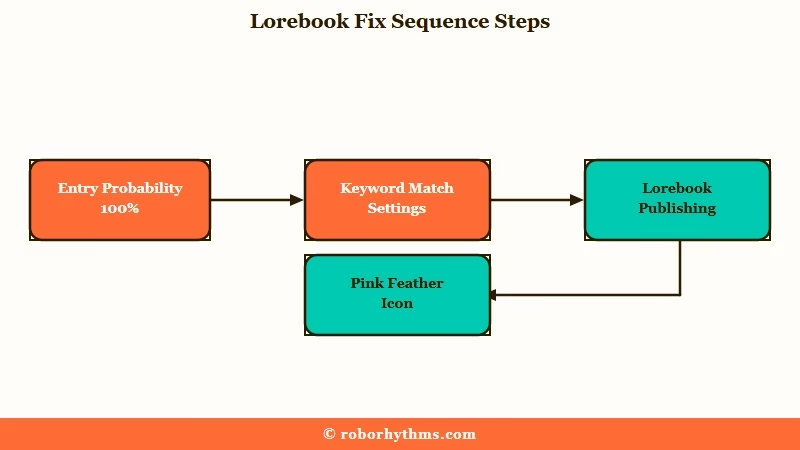
The order matters here, because you want to rule out the silent settings before you start rewriting entries. Here is the exact path I would walk.
- Open each entry and set probability to 100 for critical lore, 90 to 95 for frequent lore.
- Check the keyword. Turn off Match Whole Words if your trigger is part of a larger word, and fix capitalization if Case Sensitive is on.
- Confirm the entry is Active (enabled), and check that Min Messages is not set higher than the number of messages in your current chat. Janitor’s own troubleshooting checklist names both, and either one silently blocks an otherwise correct entry.
- Click Save on the entry. An unsaved entry never fires, so confirm the save landed before you test. If the save will not stick, fill every field the form shows, including Keys, and save again.
- Open the lorebook from </> Scripts and confirm the bot is selected in the Assign to your Characters panel, not just that the book exists.
- Raise Depth if the lore needs to survive several messages, since the keyword still has to fall inside that window for the entry to fire.
- Test it. Send an out-of-character message like “(OOC: Tell me about [keyword])” and see if the bot returns your exact lore.
Users also report that when an entry activates, a small pink feather icon appears in the chat where the lilac doge icon normally sits. Janitor does not document it, so treat the Changes tab as the reliable confirmation and the feather as a bonus signal.
If you never see it, the entry is not triggering, and you are back to step one. If steps like this keep failing, Janitor AI roleplay prompt fixes cover the next layer.
Priority and Insertion Order Are Not the Same Thing
Priority decides which triggered entries matter most when too much lore fires at once, while Order decides which entry speaks first and, in a group set to use insertion order, which one is picked.
Confusing the two is why “important” lore still gets ignored.
Which end of the scale counts as important is less clear than it should be. Janitor’s step guide says to give important entries high numbers like 10, while its Scripts overview, describing Order, calls 1 the high priority for important rules and 10 the low one for flavor text. Check which entries actually fired in the Debug Panel’s Changes tab before you rely on either reading.
Order is the other lever, and Janitor’s overview describes it two ways. Entries near the top of the list speak first, and a group with Use insertion order switched on always picks the entry with the highest Order value.
There is a “more is better” trap here too. Stuffing in hundreds of entries can overflow the token budget, which then drops your core character data and makes replies inconsistent.
Plenty of new Janitor AI users hit this exact wall. Lean books built around the essentials beat sprawling ones every time.
Character AI handles the same job differently, and its entries stay private by default rather than riding along with a shared bot. We walk through setting one up on Character AI if you are comparing the two systems.
When to Stop Fighting the Lorebook
If you are spending more time tuning probability and scan depth than chatting, a platform with automatic memory is the better fit.
Lorebooks reward tinkerers, and they punish everyone who just wants the bot to remember.
The honest truth is that Janitor’s lorebook system is powerful precisely because it is manual, and that manual control is exactly what frustrates casual users. If you want a companion that remembers names, history, and preferences across sessions without you building a single entry, the platform you pick matters more than your settings.
For that hands-off experience, Nectar AI is the one I point people to first, because it carries persistent memory across sessions automatically. If you also want voice and image features in the same app, Candy AI covers that ground without asking you to learn a token budget.
If you would rather stay in the roleplay-frontend world, the best Janitor AI alternatives lays out the trade-offs. Janitor+ does buy a bigger context window, which helps crowded entries survive, but it will not set a probability, fix a keyword match or attach a book for you, and what Janitor+ actually buys you goes through the subscription line by line.
If a bot disappears entirely instead of just ignoring its lore, our explainer on moderated versus deleted Janitor AI bots shows how to tell which state it is in.
Quick Takeaways
- Janitor AI keeps lorebooks under </> Scripts in the profile menu, and a lorebook only works once it is assigned to a character from the panel on the right.
- An imported lorebook keeps whatever probability its source set, so open each entry, check the Probability field and set critical lore to 100.
- Lorebook entries trigger on keywords from both sides of the chat by default, and whole-word or case settings can silently block the match.
- Confirm the entry is saved and the book is assigned to the character, then test with an “(OOC: Tell me about [keyword])” command and watch the Changes tab.
- Priority and Order do different jobs, Janitor’s own help pages number priority in opposite directions, and bloated books overflow and drop your core lore.
