
What’s Changed: A Janitor AI account restricted message usually is not a ban. Nine times out of ten it is Cloudflare flagging your connection as bot traffic, and the platform’s own help docs admit staff cannot lift it for you. This guide shows you how to tell a network block from a real ban, fix the block in minutes, and what to do if your account is genuinely gone.
You open Janitor AI, and instead of your chats you get a red “Access Restricted” or “Access Denied” wall. No email, no explanation.
Your first thought is that you got banned for something, and the panic sets in.
Here is the part almost nobody tells you. A Janitor AI account restricted screen is, in most cases, not a moderation action at all. It is Cloudflare, the security layer sitting in front of the site, deciding your connection looks like a bot and slamming the door.
I have dug through Janitor AI’s own help documentation on this, and the admission buried in there is striking. Staff state plainly that they cannot whitelist your IP address, cannot override Cloudflare’s decision, and cannot even see why your connection got flagged. So if you fire off a support ticket for a restricted-access screen, you are waiting on a fix nobody on their end can even apply.
That changes everything about how you should respond. The fix is almost always on your side, and you can usually clear it in a couple of minutes once you know what you are looking at. Let me walk you through how to tell what you are dealing with and exactly what to do.
What a Janitor AI Account Restricted Screen Means
A Janitor AI account restricted screen is almost always a Cloudflare network block, not an account ban. It means the site’s firewall flagged your connection based on your IP, browser, or network reputation, and it clears on your end, not theirs.
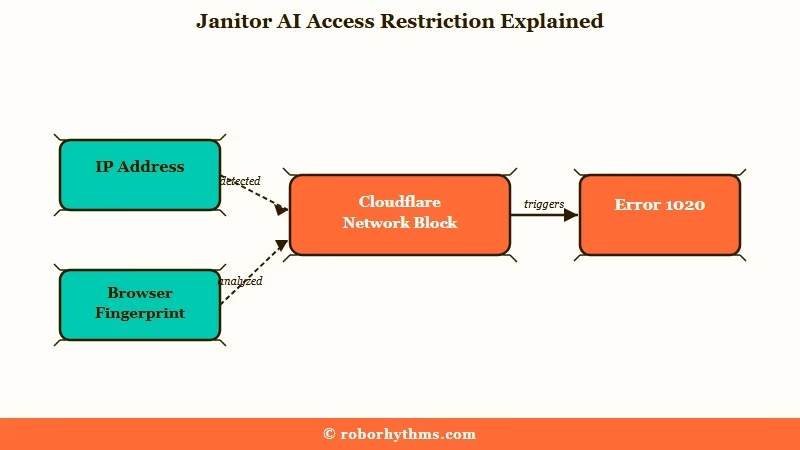
Cloudflare is the bouncer in front of Janitor AI. Its whole job is stopping bots and denial-of-service attacks, and to do that it scores every connection on signals like your IP address, browser fingerprint, network reputation, and device configuration.
When your score trips a threshold, you get the access-restricted page. The specific code behind it is usually Cloudflare error 1020, which means a firewall rule blocked you.
The reason real people keep getting caught is that the internet is awash in automated traffic. Roughly half of all web traffic now comes from bots, per Cloudflare’s own network analysis, so the filters are aggressive by design. You are collateral damage, not a target.
What is Cloudflare error 1020: The access-denied code shown when a site’s firewall blocks your connection over a security rule, not because of anything wrong with your account.
What gets me is the irony here. The tools people use to protect their privacy are often the exact thing that sets this off, and the three biggest triggers are a flagged VPN, the Brave browser’s aggressive fingerprinting protection, and a shared mobile IP. More on each of those in a second.
Are You Blocked or Genuinely Banned
You can tell a block from a ban in under a minute by where and how the message appears. A restricted page before login is Cloudflare; losing your whole account with a profile others cannot reach is a real ban.
Before you do anything, run your situation through this quick diagnosis. It saves you from filing a pointless appeal or, worse, burning your IP reputation trying to “fix” a ban that is really just a network hiccup.
| What you are seeing | What it most likely is | What to do |
|---|---|---|
| “Access Restricted” or “Access Denied” page before you can even log in | Cloudflare network block (error 1020) | Refresh your connection, see the fix steps below |
| 403 error while posting a comment or review | Content filter caught a banned word | Rephrase and repost |
| 403 error during login only | Cloudflare or network issue | Treat it as a block, not a ban |
| “Blocked” label showing on your own bot | A tag you personally blocked is on that bot | Edit your blocked-tags list |
| Your profile link is dead for you and everyone else | Actual account ban | File an appeal, see the ban section |
| “Rate limit”, “network error”, or “connection closed” mid-chat | Overloaded proxy model, not a ban | Switch to JLLM or wait |
The single cleanest tell, in my experience, is timing. If the restriction hits before you log in, it is your connection, full stop. A real ban lets the page load and then tells you the account itself is gone.
One specific trap worth calling out is seeing a “blocked” tag on a bot you created. That is not moderation.
It usually means you added a word or tag to your personal blocked-tags list that your own bot also uses, so the site hides it from you. Pull that tag out of your block list and the bot reappears.
Is Janitor AI Banned in Your Country?
Janitor AI is not banned outright in any country, though three now sit behind a mandatory age check that can look like a regional block. Australia and Brazil got mandatory verification on April 24, 2026, and the United Kingdom followed on June 15, 2026. Anywhere else, a location-flavoured error is your ISP or your network rather than a government ban.
Sorting the two apart matters because they want opposite things from you. An age gate asks you to verify once and then leaves you alone, while a Cloudflare block asks you to change how your connection looks to the network.
Janitor AI runs the check through k-ID, the provider behind Discord and Twitch, and receives only a pass or fail rather than your documents. If you sit in one of those three countries and the wall appeared recently, work through the age verification fixes before trying any of the Cloudflare steps below.
How to Fix a Janitor AI Restricted Access Block
The fastest fix for a Janitor AI restricted access block is to force a fresh IP and strip out whatever your browser is doing to look suspicious. Most cases clear within two or three of the steps below.
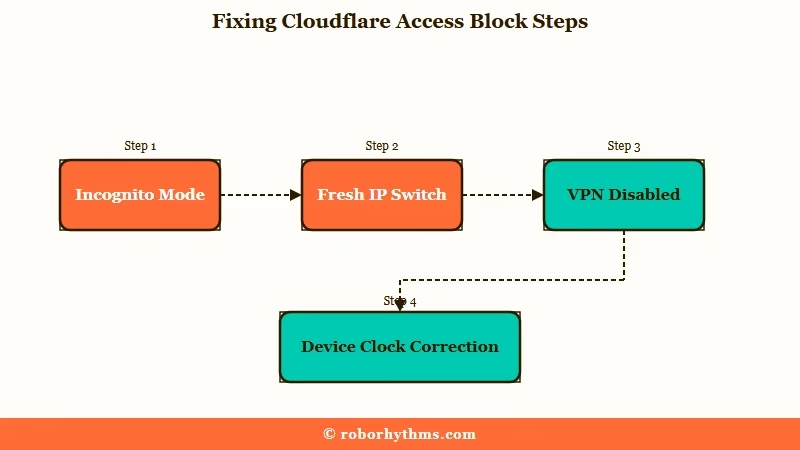
Caching and a stale IP are the culprits the majority of the time, so I would work this sequence in order rather than jumping around:
- Open the site in an incognito or private window first. This sidesteps a corrupted cache, which is the single most common cause and the fastest thing to rule out.
- Clear your browser cache and cookies if incognito works, then reload the normal window.
- Force a fresh IP address. Switch from Wi-Fi to mobile data or the reverse, or toggle airplane mode for about 30 seconds and back on if you are on a phone.
- If you run a VPN, turn it off or switch to a different server. Many VPN exit IPs are already on Cloudflare’s naughty list.
- On Brave, click the shield icon by the address bar and drop Shields to Standard, or just try Chrome or Firefox instead.
- Check that your device clock and date are correct and match your actual location. A mismatched system clock genuinely triggers Cloudflare verification failures, and it is the one nobody thinks to check.
- If all of that fails, wait it out. Sometimes the site is under a denial-of-service attack or a maintenance window, and the restriction lifts on its own once traffic settles.
That clock fix in step six deserves a flag because it is so non-obvious. If your phone or laptop date drifted, Cloudflare reads the mismatch as suspicious and loops you through verification forever. Correcting it has pulled people out of a block that nothing else touched.
If you keep hitting walls on the proxy side rather than the login side, that is a different animal. Our breakdown of Janitor AI proxy errors covers the 429 and fetch failures that look similar but need their own fixes, and the general Janitor AI not working guide maps the broader outage symptoms.
What Not to Do When You Get Blocked
The worst thing you can do is hammer the site or spin up new accounts, because both make Cloudflare trust you less. Patience and a clean connection beat brute force every time.
I see people make the same panic moves that dig the hole deeper. Here is what to avoid:
- Do not spam new account signups from the same blocked IP. Each attempt drags your IP reputation down further and makes Cloudflare’s bot detection more aggressive toward you specifically.
- Do not rapidly refresh a 403 or 500 error page. A burst of reloads looks exactly like a denial-of-service attempt, which can turn a 10-minute block into a much longer one.
- Do not reach for a random free VPN. Free and unverified VPN servers run on IPs that are very often already flagged, so you are trading one block for another. If you go the VPN route at all, a reputable paid one is the only version worth trying.
There is a whole community of Janitor AI users on VPNs to get around regional restrictions, and the lesson there is the same. The VPN is a double-edged tool. It can route you around a block or walk you straight into a new one, depending on the IP you land on.
What an Actual Janitor AI Ban Looks Like
A real ban means your account itself is gone, and only a small set of policy violations cause it. If you genuinely crossed one of those lines, there is a formal appeal path, but the bar for reversal is high.
Janitor AI does hand out real bans, and they come from its Community Guidelines, not from your connection. The lines that get accounts terminated are narrow but firm: any content involving minors, which is zero tolerance, plus illegal or extreme violent themes, doxxing or harassment of real people, and images containing nudity or gore even though mature text chat is allowed. That image standard catches people off guard.
There is also a real gray area I want to name honestly. As of June 2026, users on r/JanitorAI_Official have reported that even platonic, safe-for-work bot creators have lost accounts with no clear reason, which points to automated moderation throwing false positives. If you are an SFW creator who got hit, you are not imagining it, and a well-worded appeal is your best move.
If you are sure it is a ban, here is the appeal process and the detail that trips most people:
- Raise a ticket on the help center and choose Account Support, or email support@janitorai.com directly.
- Include your exact username and your profile link. This is the part people skip, and a ticket without it gets closed unread because support cannot locate your account.
- State your case plainly and once. If your appeal is rejected, the decision is final, and follow-up tickets about the same ban get closed without another look.
That finality matters for your own planning. A rejected appeal is the end of the road on that account, which is the moment to think about where you go next rather than firing off ticket number five.
When to Stop Troubleshooting and Switch Platforms
It is time to move on when a real ban appeal is rejected, or when network blocks persist across three different connections for more than two days. At that point the friction is costing you more than a fresh start would.
I am a fan of patience, but there is a point where you are throwing good time after bad. If you have tried home Wi-Fi, mobile data, and a reputable VPN over a couple of days and still cannot get stable access, the issue may be a deeper IP or hardware fingerprint problem that no quick fix touches. And if an actual ban appeal came back rejected, that account is done for good.
Either way, the realistic move is having a backup you can drop into without fighting a firewall every session. If you want a platform that does not flag you as a bot mid-roleplay and keeps your characters and memory intact, Candy AI is the one I would point most people to first. It pairs strong memory with deep character customization, and the access friction that defines the Janitor experience right now just is not part of it.
If your priority is creative roleplay that holds context closely from one session to the next, Nectar AI is the other one worth a look. It leans into longer memory and fast responses, which is exactly what you lose every time a restricted-access screen wipes your momentum. For a wider field, our roundup of Janitor AI alternatives lays out the trade-offs in more detail.
Example scenario: On Janitor AI, a flagged IP locks you out before you reach your chats, and support cannot whitelist you back in. On Candy AI, you log in, your companion remembers last session’s thread, and you pick up where you left off without a firewall standing between you and the conversation.
Frequently Asked Questions
Why does Janitor AI say access restricted when I did nothing wrong?
Because the message is almost always Cloudflare flagging your connection, not your account. Your IP, browser, or network reputation tripped a security rule. It clears once you refresh your connection or switch networks, and it has nothing to do with your behavior on the site.
Is access restricted on Janitor AI the same as a ban?
No. Access restricted is a network block shown before you log in. A ban means your account itself is gone and your profile is unreachable. If the page never loads at all, it is a block, not a ban.
How long does a Janitor AI access restriction last?
A Cloudflare access-restricted block runs on no fixed timer, so a temporarily restricted screen lasts only until you clear it by refreshing your connection, and most people are back in within a few minutes of switching networks or dropping a VPN. A genuine account ban has no duration at all, since the account is removed for good unless an appeal reverses it.
Can Janitor AI support remove a Cloudflare block for me?
No. Janitor AI’s help docs state staff cannot whitelist IP addresses or override Cloudflare. For a restricted-access screen, the fix is entirely on your side, so filing a ticket will not help.
Why does Brave browser keep getting me blocked on Janitor AI?
Brave’s aggressive fingerprinting protection looks like bot behavior to Cloudflare. Lower Shields to Standard from the shield icon by the address bar, or switch to Chrome or Firefox to keep a stable connection.
How do I appeal a real Janitor AI account ban?
Email support@janitorai.com or raise an Account Support ticket, and include your exact username and profile link. Without that detail the ticket gets closed unread. If the appeal is rejected, the decision is final.
Can you get banned from Janitor AI, and what for?
Yes, but real bans come from a narrow set of Community Guidelines violations, not from your connection: any content involving minors, illegal or extreme violent themes, doxxing or harassment of real people, and images containing nudity or gore. Ordinary mature text chat does not trigger a ban, which is why a sudden lockout is far more often a Cloudflare block than a real ban.
Is Janitor AI banned in the UK, Australia, or Brazil?
No. All three require a one-time age verification instead of blocking the site. Australia and Brazil switched it on April 24, 2026 and the UK followed on June 15, 2026, and access continues as normal once you pass the check.
What does connection closed mean on Janitor AI?
Connection closed is a transport failure between you and whichever model is answering, so it is a different problem from the Access Restricted screen. Access Restricted is the firewall refusing you at the door, while connection closed means the request got through and then died mid-flight.
Isolate it before you change anything. Switch the chat to the native JLLM model and send a message, because if JLLM answers then your proxy is the fault and the Janitor AI proxy not working guide is the right fix.
How do you fix a connection closed error if JLLM also fails?
If JLLM fails too, the fault is on your side of the connection or on Janitor AI itself. Janitor AI’s own support ladder is to clear cache and cookies, retry in a private window, then try a different browser.
If it still fails, toggle your Wi-Fi off and on, or flip airplane mode briefly on mobile. Last, invert whatever you are doing with a VPN: turn it off if it is on, and try turning one on if it is off.
Quick Takeaways
- A Janitor AI account restricted screen is almost always a Cloudflare block, not a ban, and it clears on your end.
- The platform’s own docs admit support cannot lift a Cloudflare block, so skip the ticket and fix your connection instead.
- Work the fix in order: incognito, clear cache, fresh IP, kill the VPN, drop Brave Shields, check your device clock.
- Never spam new accounts or rapid-refresh an error page, since both make Cloudflare block you harder.
- If a real ban appeal is rejected or blocks persist across three networks for days, move to a stable alternative like Candy AI or Nectar AI.
