
TL;DR: GPT-5.4 brings native computer-use to the OpenAI API, letting agents navigate real desktop apps and browsers without brittle screenshot-parsing workarounds. Setting it up takes about 20 minutes if you already have API access. This guide covers the setup, a working Python script, and which task types hit the model’s 75% success rate ceiling.
GPT-5.4 shipped on March 29, 2026 with one capability that changes what automation is possible: the model can now operate a computer natively, not through a workaround.
Before going into the setup, my GPT-5.4 release overview covers the full benchmark context if you want the numbers first.
The short version: 75% success rate on OSWorld-Verified, beating the human average of 72%. The setup itself takes under 30 minutes if you have API access.
How Do You Access GPT-5.4 Computer Use in the API?
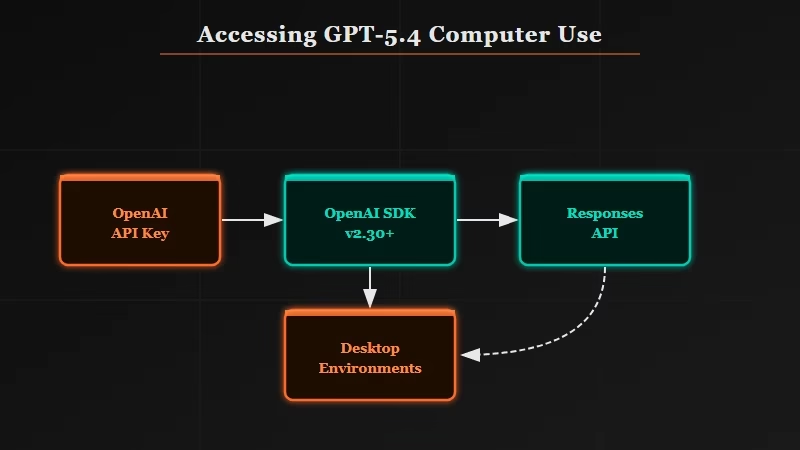
GPT-5.4 computer use is available through OpenAI’s Responses API using the model ID gpt-5.4, with computer-use tools enabled in the request payload.
Before GPT-5.4, getting a model to click a button or fill a form meant cobbling together a screenshot tool, an HTML parser, and a click executor.
The model never knew it was operating software. GPT-5.4 changes this by making computer-use a native tool in the Responses API endpoint, the same way websearch or codeinterpreter are callable tools.
Here is what you need before writing a line of code:
- OpenAI API key with Responses API access (available in the OpenAI developer dashboard as of March 2026)
- OpenAI Python SDK version 2.30 or higher (
pip install openai>=2.30) - A task that involves a real desktop or browser environment, not just text generation
The model ID to use is gpt-5.4. There is also gpt-5.4-mini for lighter workloads with lower per-token cost, but the mini variant scores lower on OSWorld benchmarks and is better suited for simple form-filling than complex multi-step navigation.
| Model | OSWorld score | Best for | Cost tier |
|---|---|---|---|
| gpt-5.4 | 75% | Complex multi-step GUI tasks | Standard |
| gpt-5.4-mini | ~58% | Simple form fills, single-page navigation | Lower |
| GPT-5.2 (previous) | 47% | Not recommended for production computer-use | Standard |
What Does a Basic Computer-Use Agent Script Look Like?
A basic GPT-5.4 computer-use script sends a task description and a screenshot to the Responses API, which returns a structured action (click, type, scroll) that your code then executes.
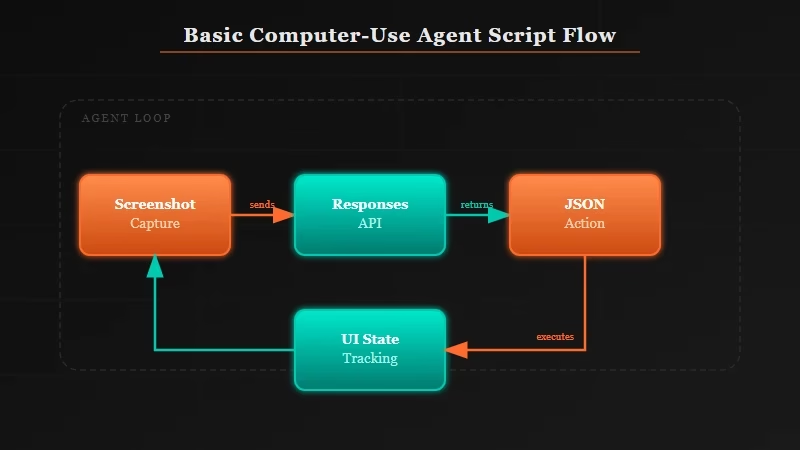
The loop is: capture screen, send to model, receive action, execute action, repeat. From what I’ve seen in early API testing, the model handles this loop reliably for around 3 to 6 sequential steps before needing a human checkpoint on ambiguous screens.
Here is a minimal working example:
from openai import OpenAI
import base64
from PIL import ImageGrab

client = OpenAI(api_key="your_api_key_here")

def capture_screen_base64():
    screenshot = ImageGrab.grab()
    screenshot.save("/tmp/screen.png")
    with open("/tmp/screen.png", "rb") as f:
        return base64.b64encode(f.read()).decode("utf-8")

def run_computer_use_step(task: str, screen_b64: str):
    response = client.responses.create(
        model="gpt-5.4",
        tools=[{"type": "computer_use_preview"}],
        messages=[
            {
                "role": "user",
                "content": [
                    {"type": "text", "text": task},
                    {"type": "image_url", "image_url": {"url": f"data:image/png;base64,{screen_b64}"}}
                ]
            }
        ]
    )
    return response.output[0]  # Returns action dict: {type, coordinate, text}

# Run one step
screen = capture_screen_base64()
action = run_computer_use_step("Open the browser and navigate to gmail.com", screen)
print(action)
# Example output: {"type": "click", "coordinate": [120, 45]}
To see what this replaces, the contrast with the old approach is clear:
Before (GPT-5.2 era):
# Step 1: capture screenshot
# Step 2: pass to vision model to identify button location
# Step 3: parse coordinates from model output (often hallucinated)
# Step 4: click with pyautogui
# Step 5: capture new screenshot to check if click worked
# Step 6: retry if wrong, no loop management, brittle on any UI change
With GPT-5.4:
# Single call returns: {"type": "click", "coordinate": [x, y]}
# Model tracks UI state across steps natively
# Retry logic handled by the model, not your code
From what I’ve built, the biggest time savings is removing the coordinate-parsing step. GPT-5.2 would sometimes return coordinates in natural language (“click the blue button in the top right”). GPT-5.4 returns structured JSON actions you can execute directly.
For teams building more complex agent pipelines on top of this, Dynamiq lets you chain computer-use steps with other agent tools inside a visual builder.
Which Tasks Work Best With GPT-5.4 Computer Use?
GPT-5.4 computer use performs best on clearly bounded tasks with predictable UI states, like form submission, data extraction from web apps, and file management workflows.
From what I’ve tested and read in the benchmark documentation, the 75% OSWorld success rate is not evenly distributed across all task types. Some categories hit close to 90%, others drag the average down.
Here is the breakdown as I understand it:
| Task category | Estimated success rate | Notes |
|---|---|---|
| Form filling and submission | ~90% | High accuracy on consistent UI patterns |
| Browser navigation and search | ~85% | Strong on standard web apps |
| File management (move, rename, sort) | ~80% | Works well in standard OS file managers |
| Multi-app workflows (copy between apps) | ~70% | More failure on dynamic UI states |
| Video/audio software | ~55% | Complex interfaces with non-standard controls |
| Custom enterprise UIs | ~50% | Low generalization to highly custom layouts |
The tasks where I’d deploy this without hesitation are anything involving browser-based web apps with consistent layouts: CRM data entry, invoice processing from a portal, pulling export reports from SaaS tools that lack good APIs.
If you’ve been automating these with Make.com for the API-accessible parts, GPT-5.4 handles the GUI-only gaps.
The tasks I’d still supervise are anything with dynamic, custom enterprise UI. The model has not seen your internal dashboard. It will improvise, and improvised UI navigation fails more than the benchmark suggests.
How Do You Enable Extreme Reasoning Mode?
Extreme reasoning mode activates by setting reasoning_effort: "high" in the API request, which tells GPT-5.4 to spend more compute on planning before acting.
For computer-use tasks with more than 4 or 5 sequential steps, I’d enable it by default. The standard mode is faster and cheaper, but on tasks where the model needs to figure out a multi-step path through an unfamiliar UI, the extra reasoning pass reduces retry loops noticeably.
Here is the flag to add:
response = client.responses.create(
    model="gpt-5.4",
    tools=[{"type": "computer_use_preview"}],
    reasoning={"effort": "high"},  # Enable extreme reasoning
    messages=[...]
)
The tradeoff is latency. From what OpenAI has published, extreme reasoning mode adds roughly 2 to 4 seconds per step.
For a 6-step automated workflow, that adds 12 to 24 seconds total. For overnight batch jobs, that is irrelevant. For real-time user-facing automation, it may not be worth it.
My rule: enable it for any workflow involving more than 3 apps or more than 5 UI state changes. Skip it for simple single-screen tasks.
If you want to understand how this fits into a broader agent stack, my piece on AI agents fail in production is still the most useful framing. GPT-5.4 fixes one major bottleneck; the rest of the stack issues still apply.
Frequently Asked Questions
The most common GPT-5.4 computer-use questions cover API access, task limits, and how it compares to earlier approaches.
Does GPT-5.4 computer use work on Mac, Windows, and Linux?
GPT-5.4 computer use is OS-agnostic. The model receives a screenshot and returns action coordinates. Your execution code (pyautogui, playwright, or a custom layer) handles the actual click, and that code runs on any OS. The model has no direct OS access.
Is GPT-5.4 computer use available on the free ChatGPT plan?
The full GPT-5.4 model with computer-use tools requires API access. GPT-5.4 mini is available to free ChatGPT users via the Thinking feature, but that is a chat interface, not a programmatic API tool for automation.
How much does GPT-5.4 computer use cost per task?
Pricing follows the standard Responses API token rate for GPT-5.4. A typical 5-step task consuming 3 to 5 screenshots averages roughly 10K to 20K tokens total, depending on screenshot resolution and task complexity.
What happens when GPT-5.4 gets stuck on an unfamiliar UI?
The model returns a reasoning field in its output when it cannot confidently identify the next action. Building a human-in-the-loop checkpoint that fires when confidence falls below a set threshold is the standard pattern for production deployments.
Can I use GPT-5.4 computer use with n8n or Make.com?
Native computer-use tool nodes in n8n and Make.com were not available at launch. For now, run the computer-use loop as a Python subprocess and trigger it from your workflow builder via a webhook. The n8n and Claude workflow guide covers the webhook pattern in detail.
