
TL;DR: Securing OpenClaw means fixing three things: the default network binding (
0.0.0.0needs to become127.0.0.1), credential storage (API keys sit in plaintext by default), and ClawHub skill vetting (roughly 1-in-12 packages carried malicious payloads in the ClawHavoc audit). This guide walks through each fix with the exact config changes. If you’d rather not manage it yourself, ClawTrust handles all of this out of the box.
I ran a quick audit on my own OpenClaw instance the week after the ClawHavoc supply chain attack made headlines.
What I found was uncomfortable: my setup had three of the four most common exposure vectors wide open.
If you want to know how to secure OpenClaw and haven’t touched your config since you first installed it, there’s a good chance you’re in the same position. 135,000 OpenClaw instances were found exposed to the public internet across 82 countries in February 2026 alone.
The root cause in most cases wasn’t anything sophisticated. It was a single default setting nobody changed.
This guide covers the three configuration changes that matter most, a skill vetting process for ClawHub, and what to do if you’ve already installed something you shouldn’t have. If you’ve already read the general OpenClaw safety overview and want the hands-on fixes, this is the article.
Why Is Your OpenClaw Instance Already Vulnerable
OpenClaw’s biggest security problem is its default network binding of 0.0.0.0:18789, which tells it to listen for connections on every network interface on your machine, not just localhost.
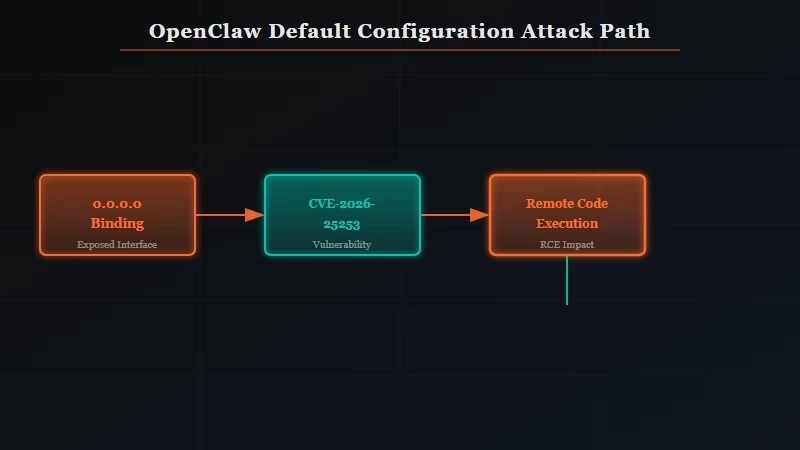
Out of the box, OpenClaw is not locked to your own device. When the host is set to 0.0.0.0, any device on your local network can reach your OpenClaw dashboard. If you’re running it on a cloud server or VPS without a firewall, anyone on the internet can reach it.
Kaspersky’s January 2026 audit uncovered 512 vulnerabilities in the OpenClaw codebase, 8 of them classified as critical. The most severe, CVE-2026-25253, allowed remote code execution via a malicious link and was present in every version before v2026.1.29.
On top of that, OpenClaw stores sensitive data in plaintext by default. API keys, OAuth tokens, and credential strings all live in a plain YAML config file. Anyone who reaches your instance can read that file.
What is ClawHub: OpenClaw’s public skill marketplace, where users share and install add-on capabilities. As of early 2026, it hosts over 13,700 skills with no automated moderation.
The combination of an open port and exposed credentials in the same default config is what made the ClawHavoc campaign so damaging. The Hacker News reported that 1,184 malicious skills were installed by OpenClaw users before the attack was publicly disclosed.
How Do I Fix the Network Binding in OpenClaw?
The network binding fix is a one-line config change: set host to 127.0.0.1 instead of 0.0.0.0, which restricts OpenClaw to accepting connections from localhost only.
This is the single highest-impact change you can make. Once the binding is restricted to 127.0.0.1, your OpenClaw instance is invisible to any device other than the one it’s running on.
Remote attackers and other devices on your network can’t connect to the port at all.
Here is the exact change to make in your OpenClaw config file, usually openclaw.config.yaml in your installation directory:
Before (insecure default):
host: "0.0.0.0"
port: 18789
After (secure):
host: "127.0.0.1"
port: 18789
After saving, restart OpenClaw. Then verify the change worked: on Linux or Mac, run netstat -an | grep 18789. You should see 127.0.0.1:18789 in the output, not 0.0.0.0:18789.
On Windows, open Resource Monitor from Task Manager and check the Listening Ports tab.
Here is how I think about the exposure levels across different configurations:
| Configuration | Who can connect | Risk level |
|---|---|---|
0.0.0.0:18789 (default) | Anyone on your network or the internet | Critical |
127.0.0.1:18789 | Local machine only | Safe for solo use |
| VPN with auth enabled | Authorized users only | Safe for team use |
| ClawTrust managed instance | Pre-configured, no open ports | Safe, no config required |
Once you’ve made this change, update to v2026.1.29 or later. That’s the version that patched CVE-2026-25253.
From what I’ve seen, a significant number of exposed instances were also running unpatched versions, which compounds the binding issue considerably.
How Do I Safely Install OpenClaw Skills From ClawHub
ClawHub skill safety requires manual vetting because the marketplace has no automated moderation, and roughly 1-in-12 packages in the ClawHavoc audit carried malicious payloads.
The ClawHavoc campaign targeted OpenClaw users through the skill marketplace using three techniques: embedding prompt injection in skill descriptor files, hiding reverse shell scripts inside skill code, and building credential exfiltration into the config parser. Most users installed the compromised packages without knowing anything was wrong.
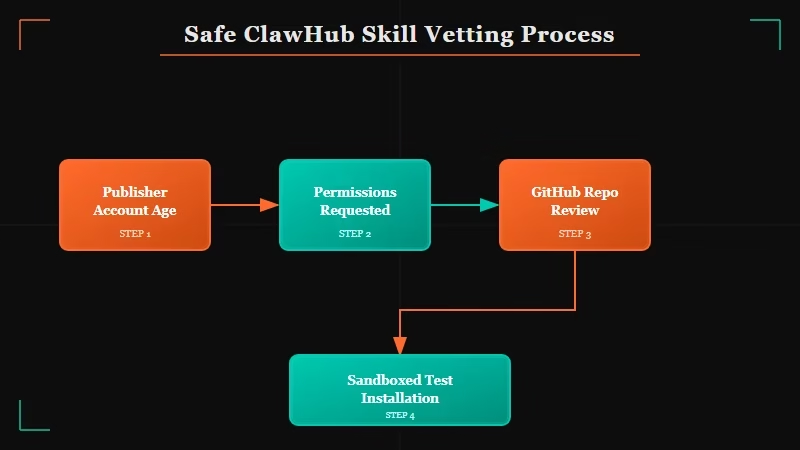
Before installing any ClawHub skill, run through this 4-step vetting process:
- Check the publisher’s profile. Skills from accounts created in the last 30 days with zero other contributions are higher risk. Established contributors with multiple reviewed skills are safer.
- Read the skill descriptor file. Every OpenClaw skill has a
skill.yamlthat declares what permissions it requests. If a simple text-processing skill requestsnetworkaccess: trueorfilesystem: write, that’s a red flag. - Check the GitHub repo before installing. Most legitimate skills link to a public repository. Read the actual code and search for
subprocess,socket,requests, andos.systemcalls. These are legitimate in many contexts but warrant scrutiny in a skill package. - Install in a sandboxed test instance first. If you run OpenClaw on a machine with any sensitive credentials or access, test new skills on a separate instance with no real API keys before adding them to your primary setup.
Quick reference: ClawHub vetting checklist
| Check | Safe signal | Red flag |
|---|---|---|
| Publisher account age | 6+ months, multiple skills | Created within 30 days |
| Permissions requested | Only what the skill needs | networkaccess or filesystem: write for simple skills |
| GitHub repo available | Yes, readable code | No repo or private repo |
| Install count and reviews | 50+ installs, positive comments | Zero installs, no reviews |
For the skill removal process, if you’ve already installed something you’re unsure about, check the OpenClaw troubleshooting guide for how to safely disable and remove skills without corrupting your config.
How Do I Protect My OpenClaw API Keys and Credentials?
OpenClaw’s default credential storage puts every API key you’ve added into a plaintext YAML file, meaning anyone who reaches your instance can read every key in plain text.
The fix is to move sensitive values out of the config file and into environment variables. OpenClaw supports this natively since v2025.11.
Here is what the change looks like:
Before (plaintext in config):
credentials:
  openai_api_key: "sk-proj-abc123..."
  anthropic_api_key: "sk-ant-api03-..."
  github_token: "ghp_..."
After (environment variable references):
credentials:
  openai_api_key: "${OPENAI_API_KEY}"
  anthropic_api_key: "${ANTHROPIC_API_KEY}"
  github_token: "${GITHUB_TOKEN}"
Then set those environment variables in your shell profile (.bashrc, .zshrc, or Windows System Environment Variables). OpenClaw reads them at startup and never writes them back to disk.
For anyone running OpenClaw on a shared machine or a VPS, this change is mandatory. From what I’ve seen in the post-ClawHavoc incident discussion threads, most users who were compromised had credentials that could have been protected with this one config pattern.
If you’d rather not manage any of this, ClawTrust handles the network binding, credential isolation, and skill vetting at the infrastructure level.
It’s the managed version of everything in this guide, running in an isolated environment with no exposed ports by default. The permanent memory setup guide and best models guide are worth reading once your instance is secured.
Frequently Asked Questions
Is OpenClaw safe to use in 2026?
OpenClaw is safe when configured correctly. The default installation has three known exposure vectors (network binding, plaintext credentials, unvetted skills) that must be addressed before running it on any machine with real API keys or internet exposure.
What is CVE-2026-25253 and am I affected?
CVE-2026-25253 is a remote code execution vulnerability in OpenClaw versions before v2026.1.29. It allowed an attacker to execute arbitrary code on your machine via a crafted malicious link. Update to v2026.1.29 or later to patch it.
How do I know if my OpenClaw instance was compromised?
Check your installed skills list against the ClawHavoc advisory published by The Hacker News in January 2026. Also review your API key usage logs for any OpenAI, Anthropic, or GitHub calls you don’t recognize. Unexpected API usage is the clearest post-compromise signal.
Can I use OpenClaw on a public server safely?
Yes, with the right setup: bind to 127.0.0.1, put OpenClaw behind a VPN or authenticated reverse proxy, move credentials to environment variables, and vet every skill before installing. For teams that can’t maintain this setup, ClawTrust provides a managed alternative.
What is ClawHub and how is it different from the official OpenClaw install?
ClawHub is OpenClaw’s third-party skill marketplace. It is community-run with no automated moderation as of early 2026. Skills are user-submitted and not reviewed by the OpenClaw core team before listing. Installing a ClawHub skill is the equivalent of running someone else’s code on your machine.
Does updating OpenClaw automatically fix the network binding?
No. The v2026.1.29 update patches CVE-2026-25253 but does not change your existing openclaw.config.yaml. The 0.0.0.0 binding fix requires a manual edit to your config file. The update and the config change are two separate steps.
