
What’s Changed: Character AI’s help center now says a data export takes 3 to 4 weeks to arrive, and the download link expires 7 days after the email is sent. The company’s sale is due to close by the end of November or early December. Request the official export today, then save readable copies of your favorite chats with the free CAI Tools extension while you wait.
Knowing how to export Character AI chats used to be a someday chore. Since the company filed for Chapter 11 bankruptcy on October 12, 2026, it is the first thing long-time users want settled.
The filing, reported by The Verge, starts a court-supervised sale that will decide what happens to the platform.
What is CAI Tools: A free, unofficial browser extension for Character AI that downloads chats, full chat histories and character cards, among other features.
There are two routes, and they solve different problems. The official export covers your whole account, but it arrives slowly and as a raw data file. CAI Tools saves one chat, or one character’s full history, as a page any browser can open, with no email involved.
I keep a local copy of every chat I care about, and this is the week to make one. The official export alone is too slow and too awkward to read to be your only backup.
Below are the steps, the real wait, readable copies, the move to SillyTavern and fixes for a missing email.

How Do You Export Character AI Chats From Settings?
Exporting Character AI chats is a one-minute request in your account settings, followed by a wait of up to four weeks for an email with a download link.
The steps below match its own help article, which Character AI updated on October 14.
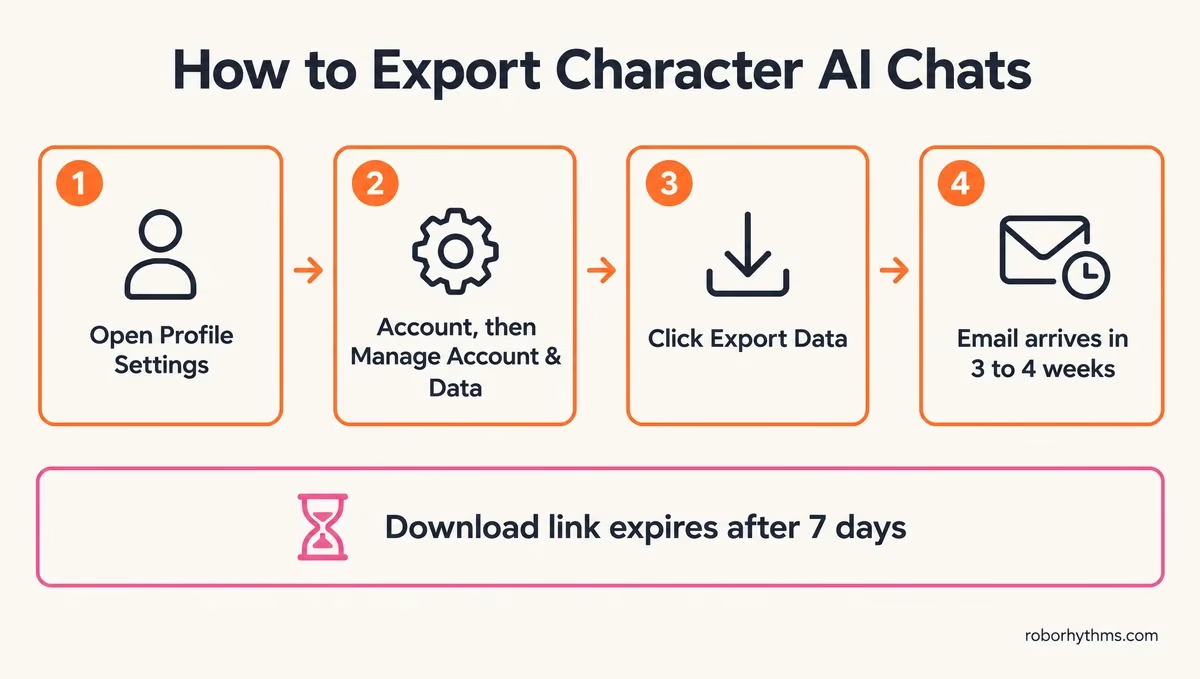
On the website:
- Open your Profile and click Profile Settings.
- Click Account, then Manage Account & Data.
- Click Export Data.
- Watch for the pop-up confirming that an email with a download link is on its way.
In the mobile app:
- Open your Profile and tap the Settings icon.
- Tap Legal & Privacy.
- Tap Export Data.
- Wait for the “Success” banner, which means the request went through.
The official export is the one I trust for completeness, since it covers your whole account rather than the one chat you have open. To Character AI’s credit, the button is easy to find and the help page states the wait in plain words.
If the news has you ready to start over instead of waiting a month for a file, Candy AI is free to start and is built around companions that remember you.
How Long Does a Character AI Data Export Take?
A Character AI data export takes 3 to 4 weeks to arrive, according to the company’s help center, and the download link stays valid for 7 days after the email is sent.
If you read somewhere that the email comes within hours and the link dies in a day or two, that no longer matches Character AI’s own page. Give yourself the full week to download once the email lands.
The overlap with the sale bothers me. Character AI’s update on the filing says the sale should be complete “by the end of November or perhaps early December 2026.” If no buyer wants to keep the service running, the same post says “the platform will be wound down.”
Here is how the wait lines up with the calendar:
| Request date | Earliest email | Latest email | Link expires (latest case) |
|---|---|---|---|
| October 14 | November 4 | November 11 | November 18 |
| October 31 | November 21 | November 28 | December 5 |
| November 15 | December 6 | December 13 | December 20 |
A request made in mid-October lands in early November, well ahead of the sale window. One made in mid-November lands in December, after the date the company gave for the sale to finish.
For now the platform “remains up and running,” in the update’s own words. Nobody outside the company can say how a wind-down would treat exports still in the queue, which is why yours should go in now.
What Is Inside a Character AI Data Export File?
A Character AI data export arrives as a raw data file that needs software to read, and Character AI does not publish a list of exactly what goes into it.
The file is JSON, a format built for software rather than people.
Long chat histories can make that file big enough that free online JSON-to-HTML converters refuse it. That is the exact wall one reader hit after exporting.
I wouldn’t fight the raw file at all unless you are comfortable in a code editor. If you are, open it in a free editor such as Visual Studio Code, which copes with larger files than online converters do, and search for your character’s name or a line you remember.
Treat the official export as an archive and get your readable copies from CAI Tools, covered next. The help page also says nothing about swipes, pinned memories or persona text, so copy anything you would miss by hand.
A plain note per character covers those gaps. This is the template I paste into a new note for each one:
Character:
Link: https://character.ai/chat/...
Greeting:
Description:
Definition (only if it is visible to you):
My persona for this chat:
Story Memory and pinned lines:
Where the story stands (3 to 5 lines):
Swipes worth keeping:
Pinned lines go into Character AI’s Story Memory, the same place as the background you write yourself, so copy that whole section into the note.
How Do You Save Character AI Chats With CAI Tools?
CAI Tools saves a Character AI chat as an HTML page that any browser opens, and its chat and history downloads are part of the free version.
It runs in Chrome or Firefox on a computer, and in Firefox for Android.
CAI Tools is the work of an independent developer, Muhammed İrşat, and has no official tie to Character AI. It shows 40,000 users on the Chrome Web Store, where it is rated 3.4 out of 5 from 319 ratings, and it is also listed on Firefox Add-ons for desktop Firefox and Firefox for Android.
On a computer, CAI Tools is the route I’d start with, because the readable file is ready the moment the download finishes. SillyTavern, a free chat app you run on your own device, points Character AI users to the same extension in its own documentation.
- Install CAI Tools from the Chrome Web Store or Firefox Add-ons.
- Log in to character.ai in that browser and open the chat you want to keep.
- Click the CAI Tools button in the top right corner of the page, or the extension icon.
- Choose the readable offline chat download to get an .html file.
- For every chat with that character, use Download History, press Start fetch and wait while it loads.
- Download the character card as well, which stores the character’s details in a file other apps can import.
The extension’s feature guide says Download History also picks up chats from Character AI’s old system. If the character’s creator hid its definition, the card comes out without that part, per the developer’s download notes.
Long histories are fine. In one thread, a reader saved a single chat with CAI Tools that “counted over 24k messages.”
On Android, use Firefox, because the extension installs there straight from Firefox Add-ons. The developer still lists Kiwi Browser as tested, but Kiwi’s own team archived the browser and stopped maintaining it after January 2025.
There is no tested iPhone route, so iPhone users should lean on the official export and the note template above.
The chat downloads sit in the free feature list, while the Patreon tier adds extras such as custom backgrounds, fonts and preloaded swipes.
| What matters | Official export | CAI Tools | Copy by hand |
|---|---|---|---|
| What you get | Your whole account as a raw JSON file | One chat or one character’s history as readable HTML, plus a character card | Whatever you paste into a note |
| Wait | 3 to 4 weeks, then 7 days to download | Ready when the download finishes | As long as your patience lasts |
| Works on | Website and app | Chrome or Firefox on a computer, Firefox for Android | Any device |
| Readable as is | No | Yes | Yes |
| Imports into SillyTavern | No documented route | Yes, in its SillyTavern format | No |
| Cost | Free | Free downloads, Patreon for extras | Free |
How Do You Transfer Character AI Chats to SillyTavern?
Transferring Character AI chats to SillyTavern takes two imports: the character card first, then each chat file saved in CAI Tools’ SillyTavern format, one chat at a time.
Import chats one file at a time rather than as one bundle.
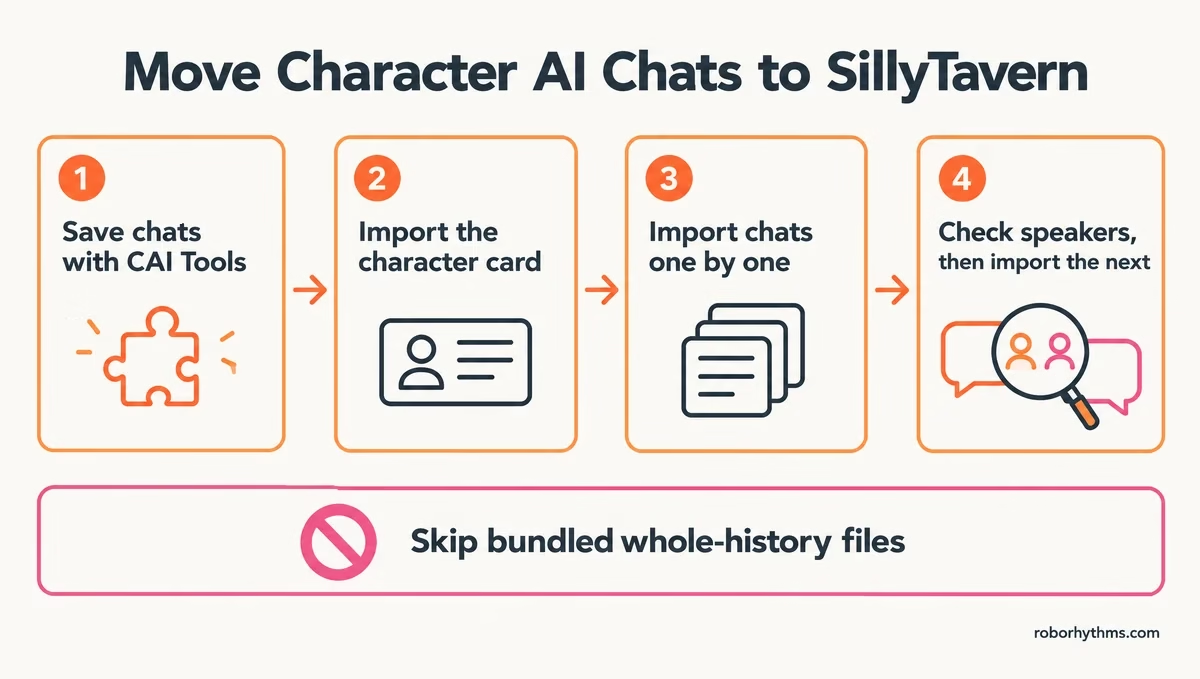
If you are new to it, what SillyTavern is covers the basics, and the guide to SillyTavern character cards explains how cards import. My rule here is one chat file per import, checked before the next one goes in.
- In SillyTavern, open the Character Management panel and import the character card you downloaded.
- Start a chat with the imported character.
- Open the options menu at the bottom left and choose Manage chat files.
- Import the chat file you saved in the SillyTavern format.
- Read the first few messages before importing the next file.
Before: one JSON file holding every chat you ever had with the character, imported in one go.
After: one SillyTavern-format file per chat, imported one at a time, each checked for swapped speakers.
Check those first messages because the extension’s known issues page warns that chats saved in its Tavern format, the one SillyTavern reads, can come out with you and the character swapped. If the speakers look reversed, stop and fix that file before you import the rest.
Skip any single file that bundles a character’s whole history. SillyTavern’s importer has a bug with that kind of file: in its 1.19.0 code, a bundled history holding even one chat fails to import.
SillyTavern runs on a phone too, and the Android setup guide walks through it.
If running your own install sounds like more work than you want, Nectar AI is built for rebuilding a character you lost, and the description you saved gives you a head start.
Why Is My Character AI Export Email Not Arriving?
A Character AI export email that has not arrived is usually still processing, since the company quotes 3 to 4 weeks. It can also sit in spam or go to an inbox you never check.
Work through the causes in order.
I only start worrying when week five arrives with no email. This table covers the common cases:
| Symptom | Likely cause | Fix |
|---|---|---|
| No email after a few days | The export is still processing | Wait, since Character AI quotes 3 to 4 weeks |
| No email after 4 weeks | It landed in spam or another tab | Search every folder for “character.ai” |
| You log in with Google | It went to the email on that Google account | Check that inbox, including Promotions |
| You log in with Apple | It went to a hidden relay address | Check Apple’s forwarding settings below |
| The link stopped working | Links expire 7 days after the email | Request a new export and download it the day it lands |
| You need the chats sooner | The official queue is slow | Use CAI Tools in a computer browser, no email needed |
What If You Signed In to Character AI With Apple?
If you signed in to Character AI with Apple and hid your email, the export goes to a relay address that forwards to your real inbox only while forwarding is switched on.
That is the exact trap in one thread, where an Apple login meant no export link ever arrived.
- On your iPhone, open Settings, tap your name, then tap Sign in with Apple.
- Pick Character AI from the list. An address ending in @privaterelay.appleid.com means you hid your email.
- Go back to Settings, tap your name, then iCloud, then Hide My Email, and select Character AI.
- Make sure Forward To is switched on, and note which inbox it forwards to.
Those settings come from Apple’s support page on managing Sign in with Apple. Apple’s developer documentation adds two details: an app has to register its sending domains before mail to these relay addresses goes through, and once forwarding is off, Apple rejects everything sent to that address.
That makes the extension the dependable route for Apple accounts. Sign in to character.ai with Apple in Chrome or Firefox on a computer, and CAI Tools downloads your chats without any email.
Does Exporting Character AI Data Delete Your Chats?
Exporting Character AI data does not delete anything, because it only sends you a copy, and deleting your account is a separate request.
You can export and keep chatting as before.
Character AI’s update on the sale lists exporting and deleting as two different options, and its help center calls account deletion permanent and irreversible. I never delete an account until the export file sits on my own drive and opens.
Treat the export as a snapshot of the day it is built. Character AI does not say whether chats you add after the request make it in, so keep saving new chats with CAI Tools as you go.
If your worry is a future owner reading your chats, export first and decide about deletion second, and the deletion explainer covers what deletion removes.
A copy made now is also far easier than getting your bots back after an account disappears.
Quick Takeaways
- Request the official export today, because Character AI quotes 3 to 4 weeks and the link expires 7 days after the email.
- Save readable copies now with CAI Tools in Chrome, Firefox or Firefox for Android, since the chat and history downloads are free.
- Move characters into SillyTavern with the card first, then one SillyTavern-format chat file at a time.
- Signed in with Apple? Make sure Hide My Email forwarding is on for Character AI, or skip the email with CAI Tools.
- Exporting deletes nothing, so export first and decide about deletion later.
