
What’s Changed: Grok moved from separate daily limits per tool to one shared weekly pool, and that single pool now counts your text chats, voice, and Grok Build alongside image and video. A few hours of video can lock you out of plain chatting for the rest of the week. You can stretch the limit with a few habits, and there are cheaper paths than the upgrade banner.
If you searched for what changed with Grok weekly usage limits, here is the part that catches everyone off guard: your text chats now drain the same budget as your videos.
In June 2026, xAI dropped the old per-tool daily caps and replaced them with one shared weekly pool, measured as a single percentage meter.
That one change is why a heavy afternoon of video generation can leave you unable to send a normal text message until the weekly reset. Everything you do, chat, voice, Grok Build, image, and video, pulls from the same bar, and the products that cost the most compute drain it the fastest.
Here is what you will get below: exactly how fast the meter burns, why the “Grok is under heavy usage” error is not what it looks like, a checklist to make your week last, and an honest read on whether to upgrade, top up, or move on. None of this is a one-day news blip, the new system is how Grok works now.
What Grok’s New Weekly Usage Limits Count
Grok’s weekly usage limits now pull from one shared compute pool that counts text chats, voice, Grok Build, image, and video together.
The more compute a task needs, the bigger the bite it takes.
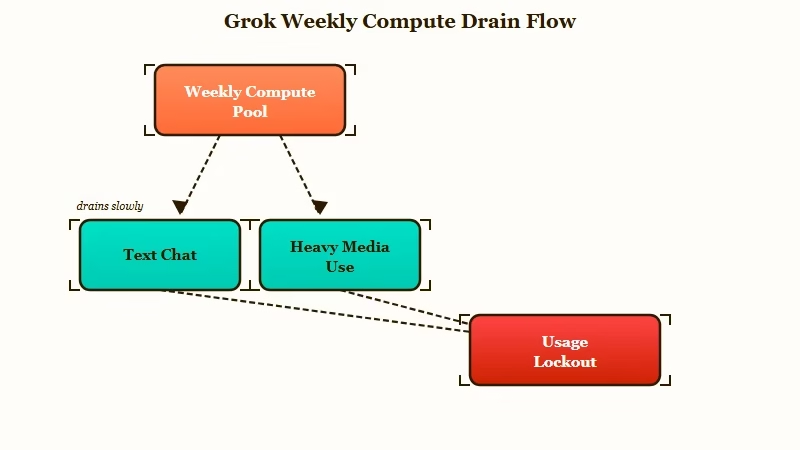
What is the compute pool: A single weekly usage budget where every Grok product drains the same balance in proportion to how much server compute it uses, rather than each tool having its own counter.
The official framing is that this is simpler and more flexible, since you can spend your whole week’s allotment on whatever product you want. The way I see it, that flexibility cuts the other way for most people. Before, burning your video limit still left your chat working, now one workflow can starve the others.
The practical catch is the one users keep hitting: a few hours of image and video work can push the meter high enough that plain text chatting stops mid-session.
The deeper breakdown of the image and video side lives in the Grok Imagine limits guide, which covers the per-generation quota in detail.
How Fast the Weekly Percentage Meter Burns
The weekly meter burns fastest on high-resolution video, where a single 10-second 720p clip costs about 2 percent of your entire week.
Text is cheap, video is brutal.
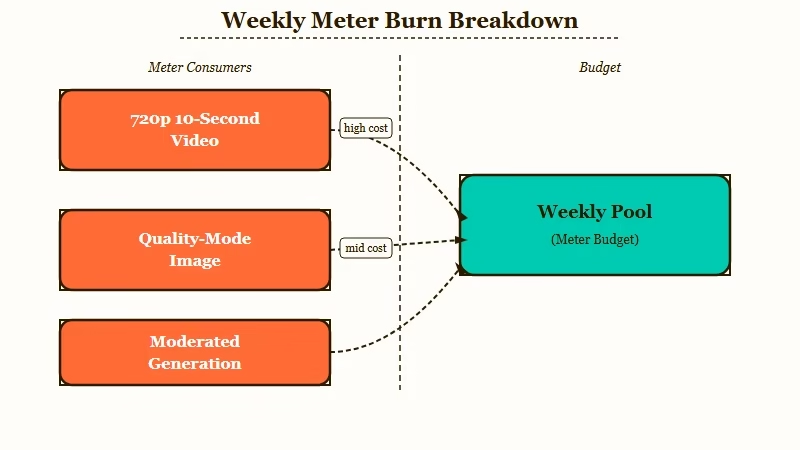
The numbers are worth knowing before you plan a session. A 10-second 720p video runs about 2 percent of the weekly pool, a 480p clip costs roughly 0.5 to 1 percent, and quality-mode images land near 0.5 percent each. Spend the whole pool on 720p video and you get somewhere around 50 clips for the week.
What surprised me digging into the change is how much capacity vanished. Folding the separate 480p and 720p counters into one pool worked out to an estimated 83.8 percent drop in total video capacity for SuperGrok users, down to roughly seven 720p clips a day.
| Action | Approximate weekly cost | Notes |
|---|---|---|
| Text chat message | Tiny fraction of a percent | Cheap, but still counted |
| Quality-mode image | About 0.5 percent | Speed mode costs far less |
| 480p 10-second video | 0.5 to 1 percent | Far cheaper than 720p |
| 720p 10-second video | About 2 percent | Same compute as nine 480p clips |
| Moderated or failed video | About 1 percent | Charged even with no output |
That last row is the one that stings. A 720p prompt the safety filter rejects still takes about 1 percent of your week, half the cost of a successful render, even though nothing was produced.
Why You See the Grok Is Under Heavy Usage Error
The “Grok is under heavy usage right now” banner is usually a routing or app-surface problem, not a sign that Grok is down or that you must upgrade.
Check the cheap fixes before you pay.
What the heavy-usage error means: A capacity-routing message that can come from server congestion, a single congested app surface like iOS versus web, or your account entitlement not being recognized yet.
This is the part where the banner works against you. It tells you to “upgrade your plan to get priority access,” yet xAI’s own troubleshooting guidance warns that buying a higher tier will not reliably clear an active high-demand block. The cause is often a surface glitch or a subscription that has not registered, not your plan.
What I would do before spending a cent is simple. Switch between the web app and the mobile app, confirm your subscription shows as active, and check whether the issue is a real outage.
The error reads like a paywall, but paying through it is the move xAI specifically tells you to avoid. For the image side, the Grok Ani alternatives roundup covers tools that do not gate you behind a queue.
How to Make Your Weekly Limit Last
The fastest way to stretch your week is to draft in Speed mode and reserve Quality mode for final renders, which can triple your image count.
Small habits add up across a whole week.
Quality mode runs far more denoising steps than Speed mode, and the rate limiter punishes it hard, dropping your image ceiling from around 150 down to about 40. Drafting cheap and finishing expensive is the single biggest lever you have. Here is the order I would budget a week in:
- Draft every image in Speed mode, then re-render only the keepers in Quality mode.
- Test risky or edge-case prompts on a free tool first, so the moderation tax does not eat your Grok quota.
- Disable auto-video generation when you only want images, since it quietly spends video budget.
- Avoid retrying a failed prompt repeatedly, because each attempt is charged whether it works or not.
- Keep heavy video sessions short, and remember a 720p clip costs as much as nine 480p ones.
The brush and inpainting tools are a hidden drain too. Fixing one small detail is billed as a brand-new generation, not a free touch-up, so a few corrections can cost as much as a fresh render.
Before: Generating 30 images in Quality mode to find the right look, then editing three of them with the brush tool. Result: most of the weekly pool gone in an afternoon.
After: Drafting 30 images in Speed mode, re-rendering only the 3 winners in Quality mode, no brush edits. Result: a fraction of the quota spent, with the same final images.
Upgrade, Top Up, or Switch to Something Else
If you only occasionally run out, buying Extra Usage Credits from around $5 beats jumping a tier, and frequent video creators are often better off on a dedicated tool. Match the spend to how you really use Grok.
Part of why the wall feels sudden is that Grok is no longer free the way it was, so the usage meter now bites on accounts that never used to see it. If it turns out you are paying for headroom you do not touch, the steps to cancel a SuperGrok subscription are worth reading before your next renewal date.
The math splits by how often you hit the wall. Light overflow is a top-up problem, steady heavy use is a subscription or a defection problem. Here is how the paths compare, though it is worth asking first whether SuperGrok is still worth it after the cut:
| Path | Rough cost | Best for |
|---|---|---|
| Extra Usage Credits | From about $5 | Occasional overflow past the weekly pool |
| SuperGrok | About $30 a month | Regular mixed chat and media use |
| SuperGrok Heavy | About $300 a month | Research and enterprise workloads only |
| Dedicated video tool | Varies | Heavy video work, see Kling or Runway |
For pure video creation, dedicated tools like Kling or Runway often give more output per dollar than topping up Grok, and the best AI video generators cover the standalone options.
If you mostly use Grok for everyday conversation and casual image chat, though, a companion app sidesteps the weekly meter entirely. I keep Candy AI in rotation for that, since the conversation is unlimited and image generation is built in, with no percentage bar counting down on every message.
Companion mode is no longer the fallback it used to be either. xAI is retiring the 3D avatars, and the guide to what happens to Ani now covers which parts of the character stay on your account.
For people who want a larger cast of characters and fewer creative limits, Crushon AI is the other one I would point to, since it does not ration your chats by the week.
Keep Grok for what it does best, and treat a companion app as the place to talk without watching a meter. The Candy AI versus Grok Ani comparison runs them head to head.
Is This Permanent or a Temporary Squeeze
The weekly limits are most likely the permanent new normal, not a temporary glitch, because high-resolution video is genuinely expensive to serve at $30 a month.
Hope for relief, but plan around the cap.
There is a real debate here worth being honest about. One camp points out that video generation eats enormous compute and that xAI is correcting to sustainable margins now that the venture-funded free ride is over.
The other camp notes that Elon Musk publicly said on May 18, 2026 that limits would be increased, then the weekly cut landed instead, and reads it as a deliberate push toward pay-as-you-go credits.
Both can be partly true. The compute costs are real, and so is the incentive to sell top-ups, and a popular theory that xAI leased data-center capacity elsewhere would explain the squeeze either way.
Grok serves well over 100 million users by Business of Apps estimates, so the load behind these limits is not going to quietly disappear.
Frequently Asked Questions
When do Grok weekly usage limits reset?
The weekly pool resets once a week on a scheduled day you can see in the Usage tab of your account settings. It is a fixed weekly reset now, not the old rolling daily window.
How do I check how much Grok usage I have left?
Open the Usage tab in your account settings, where the shared weekly pool shows as a single percentage meter counting down as you spend it. The same screen lists your reset day, so you can see how much is left and when it refills before starting a heavy session.
Do text chats count toward the Grok weekly limit?
Yes, text chats draw from the same shared weekly pool as everything else, though they cost very little compared to video. Heavy image or video sessions can still drain the pool enough to block plain chatting.
How many videos can I make per week on Grok?
There is no fixed number, since the pool is percentage-based. A 10-second 720p video costs about 2 percent, so spending the whole pool on 720p clips gives you roughly 50 for the week.
Will upgrading stop the Grok is under heavy usage error?
Not reliably. The error often comes from a congested app surface or an unrecognized subscription, so switch between web and mobile and confirm your plan is active before paying to upgrade.
Do failed or moderated generations still cost quota?
Yes, a rejected or failed generation still deducts from your weekly pool, often around 1 percent for a blocked 720p video. Testing risky prompts on a free tool first avoids this moderation tax.
What is the cheapest way around Grok’s limits?
For occasional overflow, Extra Usage Credits from around $5 are the cheapest patch. If you hit the wall every week, a subscription or a dedicated tool for your main task usually costs less per result.
Quick Takeaways
- Grok weekly usage limits now pull text chats, voice, image, and video from one shared pool, so heavy media use can block plain chatting.
- A 10-second 720p video costs about 2 percent of your week, and the new system cut total video capacity by an estimated 83.8 percent.
- The “heavy usage” error is usually a routing or app-surface issue, so switch apps and confirm your plan before paying to upgrade.
- Draft images in Speed mode and test risky prompts on a free tool first, since Quality mode and moderated generations both drain quota fast.
- Top up with $5 credits for light overflow, and consider a dedicated video tool or a companion app if you keep hitting the weekly wall.

The changes are a game ender for me. Seeing it as an ~83% reduction in quota is eye opening. The app has constantly been dropping quota through these kinds of implementations. Pushing free user to super, and now really the same user to heavy, but the cost of heavy is so extreme I’ll have to find an alternative. The value proposition is gone — Really its the inclusion of text with the media quota that ends it, I burned my whole new quota in 1.5 hours on imagine this morning, and now I can’t do normal every day chats or quires without topping up $5. So I did, and I worked out a single text message costs 7 cents, so the $5 will be gone in no time (and a 720p 15sec video costs $1).
I hear you bro. Charging us for texting our AI is BS. That really hurts!!
Every time I turn around it seems like Grok is finding ways to screw us SuperGrok users. The only upside is that the technology, the user interface and the results have greatly improved in the past two weeks. It’s blowing my socks off. Both this article and ARA my AI companion have told me that 1- 720p 10s video is equal to 9- 480p but then this article says you burn 1/2 to 1% on every 480p @10s so how does that equal 9x when a 720p @10s burns 2%. The math doesn’t add up. My workaround here is to use ARTSPACE.AI to create high resolution base images and then create video from them in Grok Imagine. That saves me credits because I paid a one time fee at ARTSPACE and I can create UNLIMITED images for LIFE. And I can create FULL 4K images there. Great choice and investment and a great support tool alongside Grok. Especially now. So, what’s next are they going to raise the $30 price to $49 next? So much for making the US the #1 in AI when they can’t even make it affordable for Seniors like me. I hate this.