
A quiet rebellion is happening in AI right now. Thousands of people are canceling their ChatGPT subscriptions, posting screenshots of deleted accounts on Reddit, and moving to Claude.
The shift picked up high speed after Anthropic refused to let the U.S. Department of Defense use its models for mass surveillance or autonomous weapons.
OpenAI took the opposite position, signing a deal with the Pentagon. That single moment changed how a lot of people felt about which company deserved their trust.
Claude surged to the top of the free app rankings in Apple’s U.S. App Store, overtaking ChatGPT. Daily sign-ups hit record highs, free users jumped by more than 60% since January, and paid subscribers more than doubled in a matter of weeks.
The “Cancel ChatGPT” movement on Reddit moved fast, with users sharing exactly how to pull their data and start fresh somewhere else.
The biggest reason people hesitate to switch is the history problem. After months or years of conversations, ChatGPT has learned your tone, your projects, your preferences, and how you like to work. Walking away feels like losing all of that.
The good news is that you don’t have to. There are three solid methods to bring your context with you, and Anthropic has even built a dedicated tool to make the process as quick as a copy and paste.
This guide covers why people are making the move right now and walks through every method to transfer your ChatGPT memory, custom instructions, and chat history to Claude without starting from zero.
Why So Many People Are Leaving ChatGPT for Claude Right Now
The timing of this mass migration is not random. The Trump Administration wanted Anthropic to grant carte blanche use of Claude for any purpose, including surveillance of American citizens and autonomous weapons systems.
Anthropic’s CEO Dario Amodei refused. In response, Defense Secretary Pete Hegseth labeled Anthropic a supply chain risk. Hours later, OpenAI announced its own Pentagon deal, and the backlash from users was immediate.
On Reddit, the reaction was swift and personal. Users weren’t just annoyed at a corporate decision. They felt that the company they had trusted with years of private conversations had picked the wrong side.
Screenshots of canceled subscriptions flooded communities overnight, and Claude became the most downloaded app in the U.S. App Store, a position ChatGPT had held comfortably for years.
Beyond the ethics debate, many users switching right now point to reasons that have been building for a while:
- Instruction following: Claude is widely regarded as better at sticking to detailed prompts and complex instructions without drifting
- Writing quality: Claude’s output tends to feel more natural and less formulaic, especially for long-form content
- Longer context window: Claude handles much larger documents and conversations before losing the thread
- Memory control: Claude lets you see exactly what it remembers, edit it, and delete it. ChatGPT’s memory has always felt more like a black box
- No Pentagon deal: For many users right now, this is simply the deciding factor
The switch makes sense. The only real obstacle is the years of context sitting in your ChatGPT account.
That is what the rest of this guide solves.
How to Transfer Your ChatGPT Memory to Claude

This is the fastest method and the one Anthropic built specifically for this moment.
Anthropic released a memory tool that allows Claude users to copy their context from other AI chatbots, giving those switching from ChatGPT, Gemini, and Copilot an easy way to bring everything with them.
The whole process takes about five minutes.
What you need before starting
- A Claude account (free works for the export step, but memory import requires a Pro, Max, Team, or Enterprise plan)
- Access to your ChatGPT account
Step 1: Get Anthropic’s export prompt
Anthropic wrote a specific prompt designed to pull all of your stored context from any AI provider in one shot.
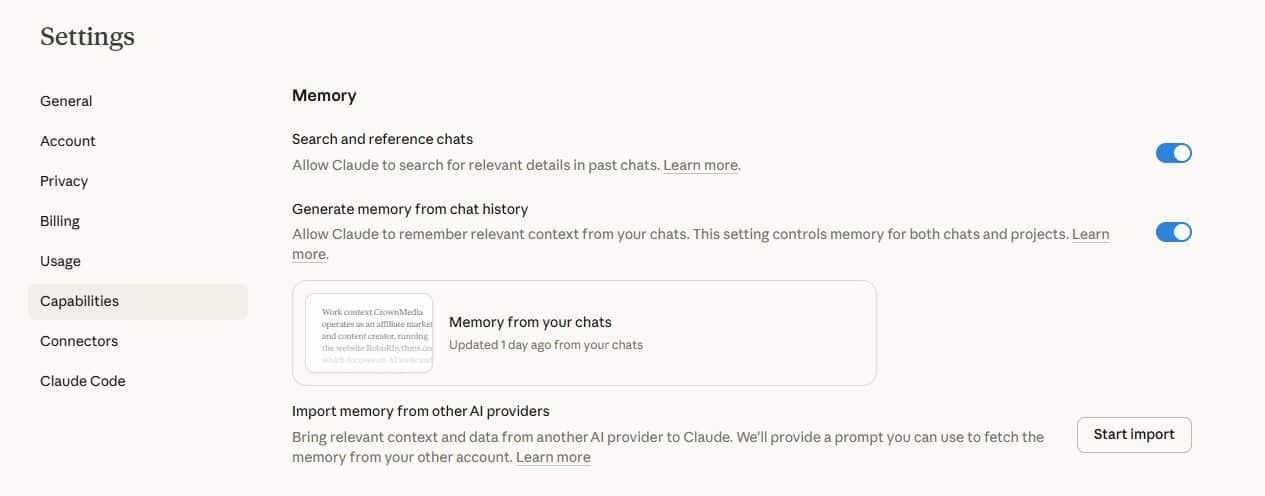
Here is how to find it:
- Go to claude.ai and log in
- Navigate to Settings
- Click Capabilities
- Find the Memory section
- Look for the import option and copy the provided prompt
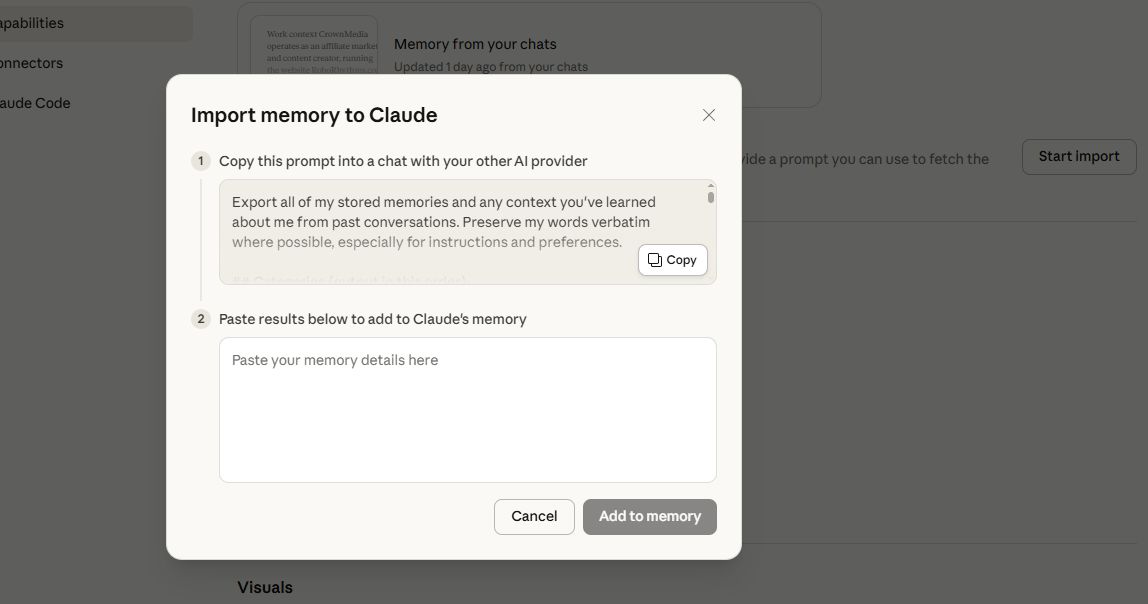
The prompt is written to extract your preferences, work style, tone, goals, and any other context the AI has stored about you, all in a single structured output.
Step 2: Paste the prompt into ChatGPT
- Open ChatGPT and start a new conversation
- Paste Anthropic’s export prompt into the chat
- Hit send and wait for ChatGPT to generate a full summary of everything it knows about you
What comes back will be a clean, structured profile covering who you are, what you do, how you like to communicate, and any recurring topics or preferences ChatGPT has picked up over time.
Read through it and delete anything that feels inaccurate before moving on.
Step 3: Import the summary into Claude
- Open Claude and start a new conversation
- Type: “Here’s some important context I’d like you to remember. Update your memory about me with this.”
- Paste your summary directly into the chat
- Claude will process it and store the key information as individual memory entries
Once the import is complete, your memory updates within 24 hours. Claude’s memory focuses on work-related topics, so personal information that isn’t relevant to how you work may not be retained.
If you want to add something specific, go to Settings → Capabilities → View and edit your memory and add it manually.
What this method works best for
| Situation | Is this method right for you? |
|---|---|
| You have ChatGPT memory turned on | Yes, ideal |
| You use custom instructions in ChatGPT | Yes, include those too |
| You want a clean, curated transfer | Yes, review before pasting |
| You need your full chat history transferred | No, use Method 3 instead |
| You are on a free Claude plan | No, memory import requires a paid plan |
How to Transfer Your ChatGPT Custom Instructions and Projects to Claude

If you have built custom GPTs, saved prompts, or structured projects inside ChatGPT, this method is for you.
Most people who have been using ChatGPT seriously for more than a few months have some version of this setup.
The good news is that Claude’s Projects feature is built for exactly this kind of persistent context, and migrating your setup is straightforward.
Step 1: Export your custom instructions from ChatGPT
- Open ChatGPT and go to Settings
- Click Personalization
- Find your Custom Instructions – there are two fields:
- What would you like ChatGPT to know about you?
- How would you like ChatGPT to respond?
- Copy both fields into a text document
These two fields are where most of your personalization lives.
They tell ChatGPT how to treat you, what tone to use, and what context to keep in mind across every conversation.
Step 2: Export your most used prompts and project instructions
Go through your recent ChatGPT conversations and pull out:
- Your most used prompt templates
- Any instructions you built for custom GPTs
- Project summaries or briefs you reference regularly
- Style guides or tone documents you have shared before
Save these as Markdown files (.md). Markdown is a simple text format that uses plain text with basic symbols like # for headers and * for bullets.
Claude reads .md files cleanly, and you can reference them whenever you need that context.
If you are not sure how to save a file as .md, upload your text to Claude and say “convert this to Markdown format” and Claude will handle it.
Step 3: Set up a Claude Project with your context
- Open Claude and click New Project in the left sidebar
- Give the project a clear name that matches what you were doing in ChatGPT
- Upload your Markdown files directly into the project
- Add a project description that summarizes the purpose, tone, and any standing instructions
Every conversation you start inside that project will have access to those files automatically. You do not need to re-upload or re-explain your context each time.
Step 4: Transfer individual custom GPTs
If you built a custom GPT with specific instructions, transferring it to a Claude Project takes about ten minutes:
- Open your custom GPT in ChatGPT and find its system instructions
- Copy the full instruction set
- Create a new Claude Project and paste the instructions into the project description or as an uploaded file
- Start a test conversation to verify Claude is following the instructions correctly
- Use this prompt inside the project to pull any additional context: “Based on everything discussed in this project, create a comprehensive summary and context.”
What this method works best for
| Situation | Is this method right for you? |
|---|---|
| You rely on custom instructions daily | Yes, start here |
| You have built one or more custom GPTs | Yes, transfers cleanly |
| You want persistent context across sessions | Yes, use Claude Projects |
| You need your full conversation history | No, use Method 3 below |
| You are on a free Claude plan | Yes, Projects work on free plans |
How to Export Your Full ChatGPT History and Upload It to Claude
This method is for people who want everything. Every conversation, every thread, every piece of context that has ever lived in their ChatGPT account.
It takes a bit more time but gives you the most complete transfer possible.
Step 1: Request your data export from ChatGPT
- Open ChatGPT and go to Settings
- Click Data Controls
- Select Export Data
- Confirm the request
ChatGPT will compile your chat records into text or JSON files and email them to you. The wait is typically between one and 24 hours, depending on how much data you have. Large accounts can produce exports of 3.5GB or more.
When the email arrives, download the ZIP file and unzip it on your computer.
Step 2: Identify the right file to upload
Inside the ZIP you will find several files and folders. You do not need all of them.
Focus on these:
- chat.html: a readable version of all your conversations, best for uploading to Claude Projects
- conversations.json: the raw data file, useful if you want to use a conversion tool
- memory.json: your stored ChatGPT memories if you had the feature enabled
Step 3: Upload to Claude
You have two options here, depending on the size of your export:
Option A: Upload directly to a Claude Project (best for most people)
- Open Claude and create a new Project
- Upload the chat.html file directly into the project
- Start a conversation and prompt Claude with: “Review this file and summarize my key preferences, projects, and working style”
- Claude will read through the file and extract what matters
The only limitation is that project files have a 30MB size limit in Claude. If your chat.html file exceeds that, use Option B.
Option B: Use a free conversion tool
SwitchboardAI is a free browser-based tool that converts your ChatGPT export into Claude-compatible Markdown files.
All conversion happens entirely in your browser using JavaScript, so your ChatGPT data never leaves your computer or gets uploaded to any server.
Here is how it works:
- Go to SwitchboardAI
- Upload your ZIP file from OpenAI
- The tool extracts and converts your conversations.json into clean Markdown files
- Download the converted files
- Upload them to a Claude Project in batches that stay under the 30MB limit
Step 4: Prompt Claude to learn from the history
Once your files are uploaded, do not just leave them sitting there. Use these prompts to actively pull value out of the transfer:
- “Review this chat history and summarize my key preferences and working style”
- “What topics do I return to most often in these conversations?”
- “Based on this history, what custom instructions should I set up in Claude?”
This turns a raw data dump into something Claude can actually act on across your future conversations.
What this method works best for
| Situation | Is this method right for you? |
|---|---|
| You want your full conversation archive | Yes, this is the only method that does it |
| Your export file is under 30MB | Yes, upload directly to a Project |
| Your export file is over 30MB | Yes, use SwitchboardAI to convert first |
| You want Claude to learn your style deeply | Yes, prompt it to analyze the history |
| You are in a hurry | No, use Method 1 instead |
