
TL;DR: AMD GAIA 0.17.6 added a local Gmail triage agent that runs entirely on your Ryzen AI machine. Install GAIA, run
gaia init, authorise Gmail with OAuth PKCE, and you have 25 inbox tools driven by a local Llama or Phi model. No cloud, no API costs, seven destructive actions are confirmation-gated.
A private Gmail agent that reads, replies, and triages without sending a single message to OpenAI is no longer a research project. AMD shipped it on May 7, 2026, in GAIA 0.17.6, and the install path is short enough to fit in a coffee break.
I’ve been watching local LLM tooling since the Ollama era, and the gap between “I can run a model on my PC” and “I can wire that model into the apps I use every day” was where most projects stalled. GAIA closes that gap for Gmail in one release.
The framework runs Llama and Phi derivatives on a Ryzen AI 300-series chip, hosts an OpenAI-compatible REST endpoint locally, and now ships a 25-tool email agent that respects OAuth PKCE.
This guide walks the install, the Gmail handshake, the first useful triage prompt, and the moment-to-pull-the-cord scenarios where you should still use a cloud workflow instead.

Why a Local Gmail Agent Is Suddenly Worth Running
A local Gmail agent on AMD GAIA is worth running when you handle sensitive email and want zero cloud round-trips. It’s not faster than a cloud LLM, it’s quieter and cheaper.
The case for running an LLM on your own machine has always been privacy first and cost second. Until this release, most local-LLM tutorials stopped at “you can chat with a model” and never reached “you can give that model a real job.” The Gmail integration changes the equation because email is the most common high-stakes data most operators handle, and shipping every message body to OpenAI to triage it has always been a quiet liability.
GAIA solves the routing problem with a Lemonade Server that exposes an OpenAI-compatible REST API on localhost. Anything that talks to the OpenAI Chat Completions API can talk to GAIA without code changes, which means the agent shell does not need a custom integration layer. The Gmail tool surface is built on top of that, and OAuth PKCE handles the Google handshake without any client secret leaving your machine.
The cost angle matters too. A medium-volume operator triaging 200 emails a day on GPT-5 hits roughly six dollars a month in API spend.
Running the same workload on a Ryzen AI 300 with a 7B model is electricity-only, and over a year that’s enough to buy the chip. The math is similar to what I worked through in the Claude Code on local vLLM piece, where the break-even on local hardware lands inside 12 months of moderate use.
What Hardware You Actually Need to Run GAIA
The minimum hardware is a Ryzen AI 300-series processor, 16 GB of RAM, and Windows 11 or Linux. The recommended config is the Ryzen AI Max+ 395 with 64 GB of RAM if you want the larger models to feel snappy.
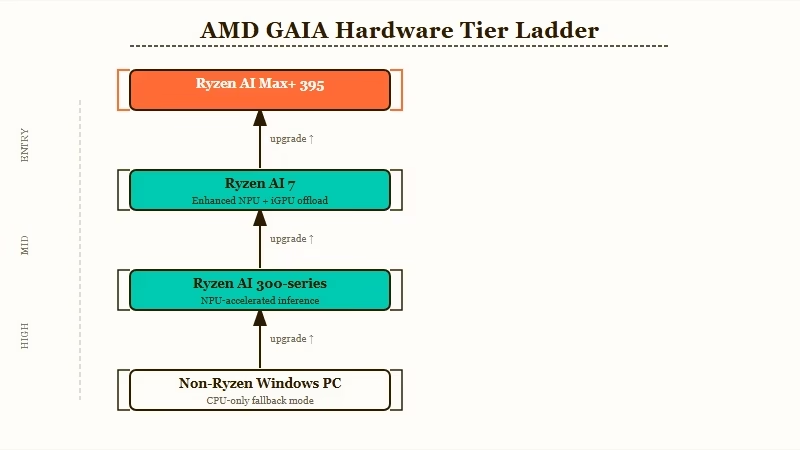
The hybrid pipeline is what makes Ryzen AI interesting for this workload. GAIA can split inference across the NPU (Neural Processing Unit) and the iGPU (integrated GPU) at the same time, running quantized models more efficiently than either component on its own.
On a non-Ryzen Windows PC, GAIA still installs and runs, just without NPU acceleration, so first-token latency is noticeably worse.
Here is the practical hardware tier table:
| Tier | Chip | RAM | Realistic model size | First-token latency |
|---|---|---|---|---|
| Minimum viable | Ryzen AI 300-series | 16 GB | Phi-3 Mini 3.8B | 800 ms-1.2 s |
| Comfortable | Ryzen AI 7 series | 32 GB | Llama 3 8B Q4 | 400-700 ms |
| Recommended | Ryzen AI Max+ 395 | 64 GB | Llama 3 70B Q4 | 200-400 ms |
| Fallback | Any Windows PC | 16 GB | Phi-3 Mini 3.8B | 1.5-3 s |
For the Gmail use case, the Phi-3 Mini tier is enough. Triage prompts are short, structured, and benefit more from low latency than from raw model intelligence. I’d run Llama 3 8B for the daily inbox and reach for the bigger models only when you’re drafting replies on something delicate.
Step-by-Step: Install GAIA and Connect Gmail
The full install is six steps and takes 15 to 25 minutes the first time, mostly download time for the model weights. The Gmail handshake itself is two clicks once GAIA is running.
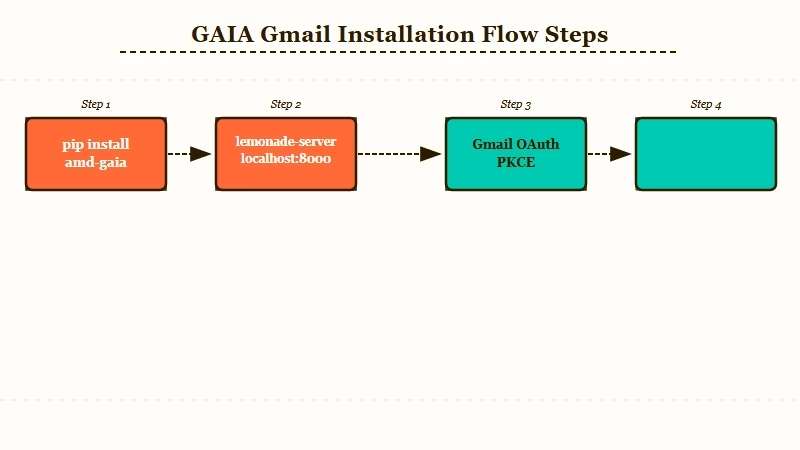
Run these in order on a fresh Windows 11 or Ubuntu 22.04+ machine. The PowerShell commands assume Windows; the bash equivalents are identical except for the path syntax.
- Install AMD GAIA via the official installer or pip:
pip install amd-gaia==0.17.6The installer also bundles the Lemonade Server. If you prefer the standalone binary, grab the v0.17.6 release from the GAIA repository.
- Run
gaia initto bootstrap the local environment. This command checks that Lemonade Server is installed, downloads the model weights for the profile you select, and writes the runtime config:
gaia init --profile gmail-agent --model llama3-8b-q4The gmail-agent profile pre-configures the agent UI for inbox work. The first run downloads roughly 5 GB.
- Start the Lemonade Server. It runs on
localhost:8000by default and exposes the OpenAI-compatible REST endpoint:
lemonade-server --port 8000Confirm it’s up by hitting http://localhost:8000/v1/models in a browser. You should see the model you downloaded listed.
- Launch the GAIA agent UI and pick the email triage agent from the agent list:
gaia ui --agent email-triageThis opens a local web UI on localhost:7860. The Gmail OAuth handshake button is in the top-right.
- Authorise Gmail. Click “Connect Gmail,” sign in with the Google account you want the agent to manage, and approve the requested scopes. GAIA uses OAuth PKCE, which means no client secret leaves your machine. The token is stored locally and refreshed silently.
- Run your first triage prompt. The default agent prompt is intentionally generic. Replace it with something useful:
Vague: “Triage my inbox.”
Specific: “Look through my last 24 hours of emails. Label anything from a known recruiter as ‘Recruiting’. Draft polite passes for any cold sales pitch and leave them in Drafts. Flag any email containing the words ‘invoice’ or ‘contract’ as priority. Do not delete anything without asking me.”
The specific prompt is what unlocks the value. The agent’s tool set is broad, but it only does what you tell it to.
What the 25 Email Triage Tools Can and Cannot Do
The agent has 25 Gmail tools across read, organise, reply, calendar, and delete categories. Seven destructive actions are confirmation-gated.
The trust threshold for autonomous email interaction has not yet been crossed, and AMD acknowledges that explicitly in the release notes.
Here’s the working capability map:
| Category | Examples | Confirmation-gated |
|---|---|---|
| Read | List recent emails, get full message body, parse attachments | No |
| Organise | Apply labels, archive, move to folder, mark read or unread | No |
| Reply | Draft a reply, send a reply | Send only |
| Calendar | Create event, list upcoming events, accept invite | Create or accept |
| Delete | Move to trash, permanently delete, empty trash | Yes (all 3) |
The seven gates are the destructive actions where a wrong autonomous decision would lose data: send, delete, permanent delete, empty trash, calendar create, calendar accept, and bulk archive over a threshold. Each one prompts the user in the GAIA UI before the call goes out.
What the agent can’t do, even with explicit prompting:
- Read other people’s mailboxes (OAuth scope is per-account)
- Access Drive or Docs (separate integration, not yet shipped)
- Run on a schedule without the GAIA UI open (no daemon mode in 0.17.6, expected in 0.18)
- Bypass the 7 confirmation gates programmatically
For high-volume daily triage, the no-daemon-mode constraint is the biggest practical limitation right now. You either keep the GAIA UI open in a background tab or wait for the 0.18 release that adds a service mode.
When to Use GAIA Versus a Cloud Automation Tool
Use GAIA when privacy or cost is the binding constraint. Use a cloud automation tool when scheduling and reliability matter more than data locality.
This is the call I’d make for an operator setting up email triage in 2026:
- Sensitive content (legal, financial, medical, client-confidential) → GAIA. No cloud round-trip is the entire value proposition. Even with enterprise OpenAI agreements, “data never left my machine” is a stronger compliance story.
- Bulk volume + scheduled runs (5,000+ emails/day, must run unattended) → cloud automation. Make.com’s email automation and similar platforms have native scheduling, retry logic, and error monitoring. GAIA’s no-daemon mode in 0.17.6 is a real gap for this workload, and the n8n vs Make.com breakdown covers which one fits which workload.
- Mixed personal and work inbox, moderate volume → GAIA. This is the sweet spot. The latency is acceptable, the privacy is real, and you do not pay per email.
- You don’t own a Ryzen AI machine → cloud, or wait. GAIA on a non-NPU PC works but the latency makes it frustrating for daily use.
For most solo operators and small teams I’ve watched evaluate this trade, the answer is “GAIA for sensitive accounts, cloud for everything else.” The two are not mutually exclusive.
Frequently Asked Questions
Does AMD GAIA send any of my email content to AMD or to the cloud?
No. GAIA runs entirely on the Lemonade Server hosted locally on your machine. Email content stays on-device. The only network traffic is the OAuth handshake with Google to fetch and refresh the access token.
Do I need an AMD Ryzen AI chip to run the Gmail agent?
The minimum-spec Ryzen AI 300-series is what GAIA is optimized for, and the NPU acceleration is what makes the latency tolerable. GAIA installs and runs on any Windows PC, but without NPU support the first-token latency on a 7B model is in the 1.5-3 second range.
Can I use GAIA alongside other local LLM tools?
Yes. Anything that talks to the OpenAI Chat Completions API can route through GAIA’s local endpoint. If you already run AnythingLLM for document RAG, you can point its model selector at localhost:8000 and reuse the same Lemonade Server.
What models work well with the email triage agent?
Llama 3 8B Q4 is the default sweet spot for inbox work. Phi-3 Mini 3.8B is faster and lighter, fine for simple triage. The Llama 3 70B Q4 model is overkill for triage but worth running on a Ryzen AI Max+ 395 if you also draft long replies.
Is the Gmail agent safe with my emails? Can it accidentally delete things?
Seven destructive actions, including all three delete operations and message sending, are confirmation-gated in the UI. The agent cannot autonomously delete, send, or empty trash without your explicit approval each time. The trust threshold for autonomous email is not yet there, and AMD designed the agent around that constraint.
Can I write my own custom Gmail tools beyond the 25 built-in ones?
Yes. The 0.17.6 release adds custom Python agent support to the GAIA UI, and a C++17 port of the framework lets you embed the agent runtime in native applications without a Python dependency. The 25 default tools are a starting point, not a ceiling.
How does GAIA’s email triage compare with running an OpenAI-based agent through a cloud automation platform?
Cloud agents are faster per-token and have better scheduling. GAIA wins on privacy (data never leaves your machine), cost (electricity-only after the chip is paid for), and on no-API-quota constraints. For sensitive accounts, GAIA is the better default. For high-volume scheduled runs, cloud automation still has the edge in 0.17.6.
