
What’s Changed: X is showing a “One Grok, everywhere” prompt that links Grok on X to a grok.com account. The two kept separate chat histories, so after linking you may be looking at a different account, and some people with long Grok-on-X chats lost part or all of them. Check the other app and your older sign-in before you assume the chats are deleted.
Grok chats disappeared for a steady stream of X users from October 2026 on, and the stories follow one script.
Grok on X put up a prompt, they tapped Continue, and months of history were gone. One r/grok post sums it up: “I was forced to log into Grok.com from my Twitter account, I did it, and now all of my chats are missing.”
The prompt is called “One Grok, everywhere” and says “Link your account to keep your chats in sync across X and Grok.” Its fine print adds that continuing lets X share your information with SpaceXAI, the SpaceX-owned company behind Grok, “for the purpose of identifying your accounts.”
It says nothing about the chats you already have, and that silence is what bothers me most about it.
A missing chat can still be sitting under another login. Below are where the chats go, the checks to run in order, what Continue and Not now do, and how to unlink and back up.

Why Have My Grok Chats Disappeared After Linking X?
Your Grok chats most likely disappeared after linking because Grok on X and grok.com kept separate histories. The link adds X as a sign-in to an xAI account, so what you see depends on which account that login opens.
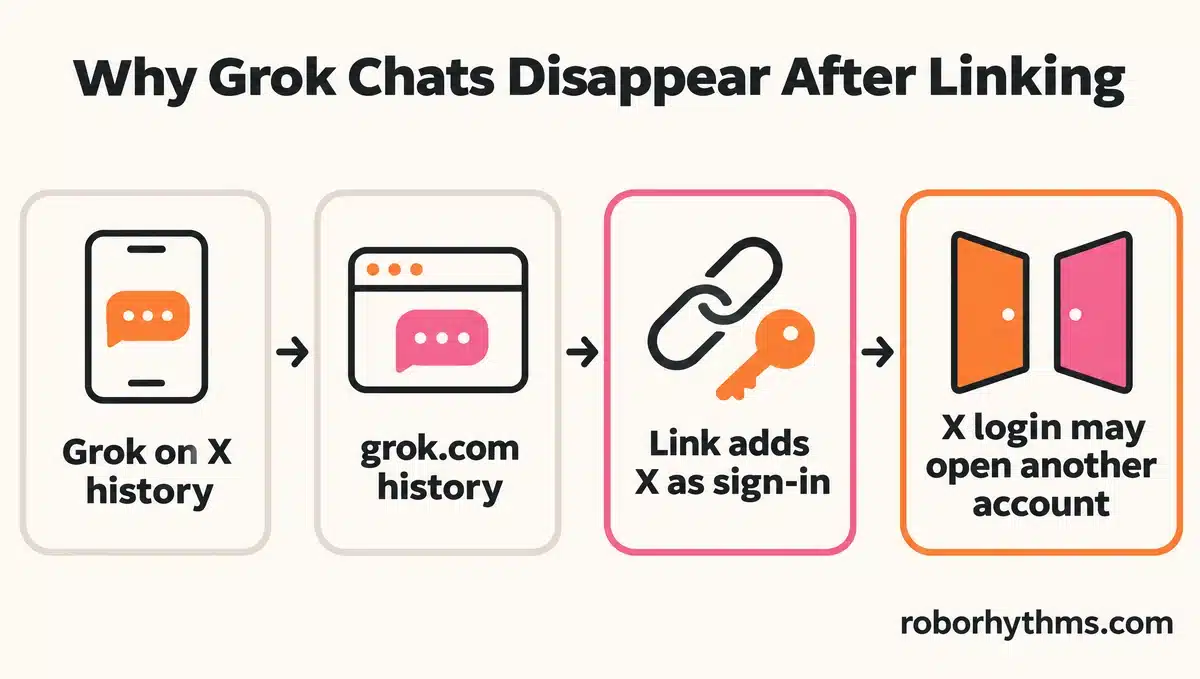
Grok’s own reply bot on X was telling people in March 2025 that syncing the Grok app with X was not possible: “separate systems, separate histories.” The link prompt is the first attempt to join those two systems.
xAI, which makes Grok, describes connecting X in its own help docs as adding “X account as a sign-in method” for your xAI account.
If you already had a grok.com account under Google, Apple or email, the X sign-in can open a different account with a different history. xAI’s docs flag the same mix-up for paid plans, where a subscription “may not appear if you’re signed in with a different login.”
The first check takes two minutes. Open grok.com in a browser, sign in with the method you used before the prompt appeared, then open Grok in the X app and compare the two history lists. I check grok.com/history first, because its status filter shows archived chats too.
If you mostly used Grok for companion-style chat and would rather keep that history away from your X profile entirely, Candy AI runs on its own account, separate from X.
Long chats take the worst of it. The original post in an October r/grok thread warning people not to link says long Grok-on-X conversations were “gone for good.”
Replies in that thread run from half of one long chat transferring to nothing lost at all.
Why Did Deleted Grok Images Come Back After Linking?
Deleted Grok images most likely came back after linking because deleting them on X did not remove them from the Grok library, where they were still stored.
One r/grok post from someone who only ever used Grok on X describes images deleted in early 2026 reappearing once the accounts synced.
The poster’s own explanation is that X deletions never reached the library.
Deleting them from the Grok library removed them from X as well. A reply in that thread found about 10% of them still in a data export a day later, so a library delete is not instant either.
How Do You Get Disappeared Grok Chats Back?
You find disappeared Grok chats by checking every place a Grok history can live, which means the other app, your older sign-in, the Archived filter and the 30-day Deleted Conversations page.
Work cheapest first, because the usual fix is signing in with the right method.
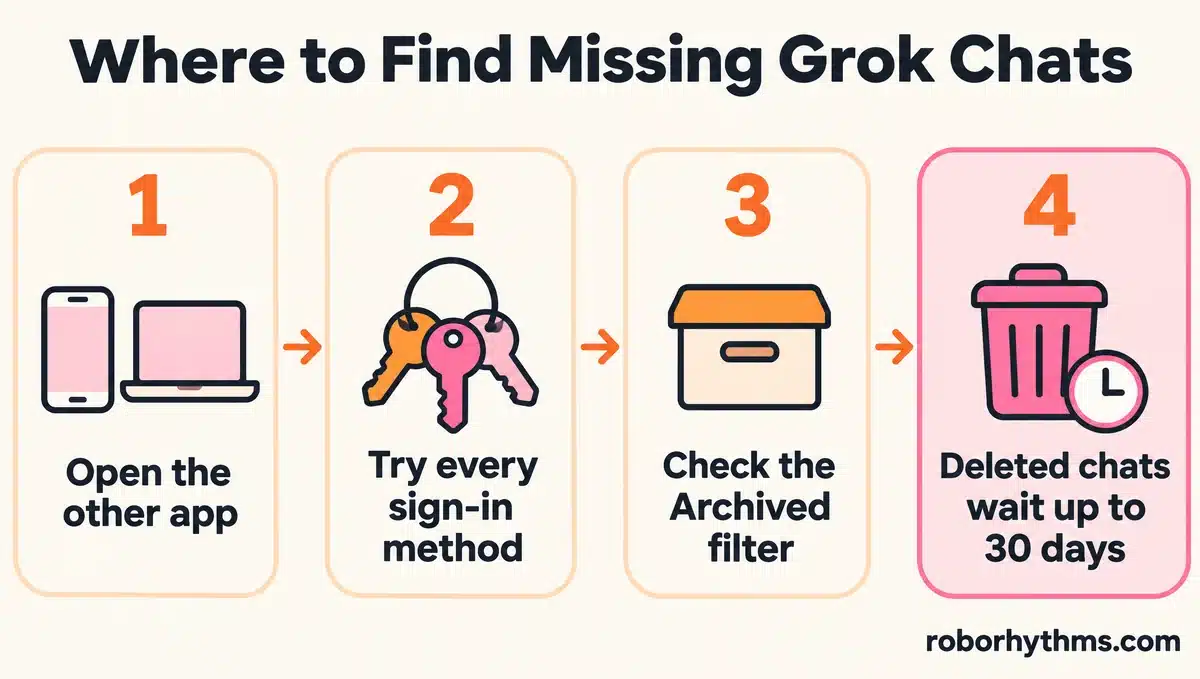
This is the order I run through, and it stops at the first step that finds the chats:
- Open the other app. Chats made in the X app can still show in the X app’s Grok history when grok.com looks empty, and the reverse.
- Sign in to grok.com with every method you have ever used for Grok, including Google, Apple, email and X. xAI lists your sign-in methods at accounts.x.ai.
- Open grok.com/history and switch the status filter to Archived. The Archive option hides a chat from the sidebar without deleting it.
- Open grok.com/deleted-conversations. A deleted chat takes up to 30 days to leave xAI’s systems, per its Consumer FAQs, and the guide to deleting Grok conversations covers that page.
- On the website, search your browser history and cache for old chat pages. Partial recoveries came from the browser cache and from old /chat requests in the developer tools Network tab.
- Email support@x.ai with your account email, every sign-in method you used and the rough dates of the missing chats.
| What you see | Likely cause | What to try |
|---|---|---|
| History empty right after tapping Continue | The X sign-in opened a different xAI account | Sign in to grok.com with your older method |
| A long chat is only half there | Partial transfer of a long Grok-on-X chat | Check the Grok history inside the X app |
| Chat shows on X but not on grok.com | The two kept separate histories | Keep using it where it lives |
| Chat vanished after you used the chat menu | You archived it | Archived filter on grok.com/history |
| Chat gone after you deleted it | Deletion takes up to 30 days | grok.com/deleted-conversations |
| Chat never showed up in history | It was a Private Chat | Not recoverable |
Before: You tap Continue on X, open Grok, see an empty history, and assume months of chats are gone.
After: You open grok.com in a browser, sign in with the Google account you first used for Grok, and check the history and the Archived filter before writing anything off.
Leave support for last. xAI’s help docs describe no tool for restoring chats lost in a link, so a reply is a long shot, and the email still costs nothing to send.
Should You Tap Continue or Not Now on the One Grok Prompt?
Tap Not now if you have long Grok chats you cannot afford to lose, and expect the prompt to come back, because on X’s website it returns right after you dismiss it.
Grok’s automated replies on X call it “the optional ‘One Grok, everywhere’ prompt” and say to “Tap Not now to skip it.” As of November 19, 2026, tapping Not now on X’s website reloads Grok at x.com/i/jf/grok/entry and shows the same prompt again, with the chat box sitting behind it.
An r/grok post from November 18 describes the same wall, with no writing bar and no way into old chats.
Not now only delays the prompt, and I treat it as a delay. Use it to copy out the chats you care about, then decide.
Continue also settles a data question. The fine print covers sharing your information with SpaceXAI to identify your accounts, and an X news account citing X says agreeing “also turns on data sharing between X and SpaceXAI.”
The two companies have been tied together since xAI bought X in March 2025 in an all-stock deal that valued X at $33 billion.
SpaceX bought xAI in February 2026, xAI now trades as SpaceX Super Intelligence, and its FAQ calls it “a separate company from X Corp.”
Grok on X still runs under X’s terms instead of xAI’s Terms of Service. If the data side worries you more than the chats, what Grok keeps is worth reading before you agree.
Can You Unlink X From Your Grok Account?
You can unlink X from a Grok account by removing it as a sign-in method, and the safer order is to add an email sign-in first so the account still has a way in.
xAI’s help docs say you manage sign-in methods at accounts.x.ai. In the October r/grok thread, most replies on unlinking describe adding an email or another sign-in on grok.com first, after which the option to unlink X appeared. Another reply there points to Settings, then your account, then Manage.
A November reply in that thread describes getting the old history back by changing the account email, logging out, and signing in to grok.com in a private window with the original email.
That is a single user’s report, and xAI documents nothing like it, so try it only on an account you have already backed up. I would add an email sign-in before touching anything else, because an account with X as its only sign-in has nothing to fall back on.
Keep the chat link apart from The X Subscription, the paid plan that bundles Grok, Cursor and X Premium. For that plan, xAI’s eligibility page says each X account “can be combined with only one Grok account” and that the switch “is permanent.”
Grok’s plan prices are a separate decision from the chat prompt.
Why Else Do Grok Chats Disappear?
Grok chats also disappear when they were Private Chats, were archived, or sit on an older branch after an edit. A full history delete on X and more than 120 days of inactivity on an xAI account can wipe them too.
- Private Chat. The ghost icon in the top right starts a chat that never enters your history, and xAI deletes it within 30 days.
- Archive. Archiving from the chat menu hides a chat from the sidebar but keeps it in your account.
- Edited prompts. Editing an earlier message starts a new branch, and the older replies stay on the branch you left.
- X’s delete button. Grok on X deletes your conversation history all at once, and X removes it within 30 days, per X’s Grok help page.
- Inactivity. xAI’s Terms of Service, updated October 27, 2026, let it “delete your account at any time without notice” when “your account has been inactive for more than 120 days.”
- Account action. A suspended account can lose access to its history, and a banned Grok account has its own appeal steps.
- Stale session. An expired login can show an out-of-date or empty list, and signing out and back in with the same method rules that out.
The 120-day clause worries me more than any bug on this list, because nothing in the app warns you before it applies. Sign in to grok.com every few months if it holds chats you want to keep.
How Do You Back Up Grok Chats Before Linking?
Back up Grok chats before linking by copying the ones you care about into a document and saving what each app lets you download. xAI documents no way to restore chats lost in a link.
The steps I trust before any sync change are dull ones:
- Copy every long chat you would hate to lose into a plain document. Do it before linking, because some linked accounts lost the Copy Conversation option.
- On X, request your data archive from Settings and privacy, then Your account, then Download an archive of your data.
- On grok.com, open Settings, then Data Controls, where xAI keeps its data tools.
- Only then decide what to do with the prompt.
If the chats you are protecting are companion roleplay, this is a good moment to move that habit to an app that does not ride on a social account.
Candy AI is the one I point people to when that is the goal, since it keeps chats on its own sign-in and its Premium plan lists unlimited text messages.
The catch is price, because the free tier stops at 5 messages and Premium costs $9.99 for the first month, then $13.99 a month (Candy’s subscription page, checked November 19, 2026).
Quick Takeaways
- Grok chats that vanish after the “One Grok, everywhere” prompt can be sitting under a different login, so sign in to grok.com with your older method before assuming they are gone.
- Long Grok-on-X chats are the ones most likely to lose part or all of their history in the link.
- Not now on X’s website brings the prompt straight back, so use the delay to copy out the chats you care about.
- Unlinking starts with adding another sign-in method, and The X Subscription merge is a separate, permanent step.
- Deleted chats sit on grok.com/deleted-conversations for up to 30 days, and Private Chats never come back.
