
What’s Changed: SpicyChat is slowly rolling out Themes, a Chat appearance editor with six themes, custom colors, six fonts and seven bubble shapes. It reaches accounts in stages, so an All In plan does not guarantee you have it yet. To remove the new formatting keys bar, open Chat appearance and switch off formatting keys at the bottom of the chat options.
SpicyChat themes started reaching accounts on November 10, 2026, and one of the six new looks is called Classic.
SpicyChat’s own code describes it in two words: “Original layout.” That lands hard for anyone who remembers the May 2025 redesign, when a feedback post on r/SpicyChatAI asked for “a choice between the classic and new interface.”
The answer back then was no. “It’s not possible for us to maintain two separate UI versions,” Team SpicyChat wrote in June 2025.
What surprised me is that SpicyChat brought back what it calls the original layout anyway, as a theme you can pick, 17 months later. A reply in the rollout thread put it as “THE OG LAYOUT YESSS!”
Two things make this update confusing. The rollout is slow, so plenty of people, paying members included, still cannot find it, and the accounts that do have it also got a row of formatting keys above the message box.
You will know where the editor lives, why your account may not have it yet, and the exact switch that removes that bar.
If you came here looking for bot genres, SpicyChat calls those tags, and Themes leaves them alone.
What Do SpicyChat Themes Change in Your Chat?
SpicyChat themes are a new Chat appearance editor that restyles your chat window, from colors and fonts to text size, bubbles and avatars.
Your bot, its replies and your model settings stay exactly as they were.
You can open it from two places. Your profile settings list it as Chat appearance, with “Theme, colors, text and bubbles” underneath. Inside a chat, it sits in the chat menu just above generation settings, the menu where you pick which model you run.
If the slow rollout is the part that bugs you, Nectar AI is the companion app I point people to while they wait, mostly for its Fantasies. Those put the same characters into different storylines.
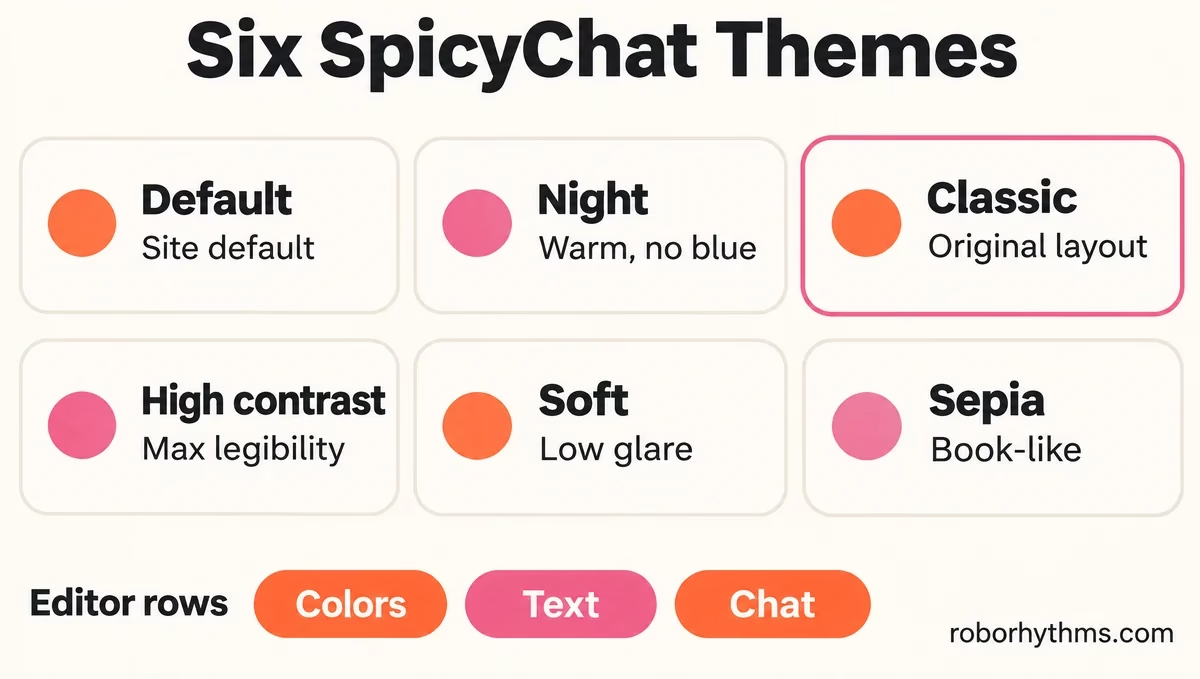
| Theme | SpicyChat’s own description | Where it fits |
|---|---|---|
| Default | Site default | Keeping the look you have today |
| Night | Warm, no blue | Late sessions in a dark room |
| Classic | Original layout | People who preferred the older chat window |
| High contrast | Max legibility | Small screens and bright rooms |
| Soft | Low glare | Long sessions that tire your eyes |
| Sepia | Book-like | Story-style roleplay |
Night and Sepia look like the strongest picks for long story sessions to me. Each theme has its own dark and light colors, and the sun and moon button in the site header still switches the whole site between dark and light.
Older advice to restyle SpicyChat with third-party browser styles is out of date for the chat window. Once Themes reaches your account, colors, fonts and bubbles are built in, so a browser add-on is no longer needed for any of them.
What Can You Customize in the SpicyChat Chat Appearance Editor?
The SpicyChat chat appearance editor splits its settings into three rows, called Colors, Text and Chat.
Each row goes deeper than most people will need.
| Row | What you can change | Options and ranges |
|---|---|---|
| Colors | Narration, dialogue, plain text, bold, highlight, commands, the bot’s bubble, your bubble, background | Any hex color, set separately for dark and light |
| Text | Font, size, line height, letter spacing | 6 fonts, 13 to 24 px (16 by default), line height 120% to 200% (150% by default), spacing 0 to 12, or “Device size” |
| Chat | Bubble shape and opacity, chat width, avatars, header, speaker colors, commands | 7 bubble shapes, opacity 0% to 100%, width 640 to 1,600 px, avatars from Off to XL (96 px), header Mirrored, Left or Right |
The editor also warns you when a color hurts readability, with lines such as “Bold is hard to read on your messages.” You can preview every change on the chat you are in or on a sample chat before you keep it.
The font list is the part of this editor I rate highest. Next to Default, Serif and Typewriter, SpicyChat offers OpenDyslexic, Atkinson and Lexend, each with a note on who it helps. Atkinson’s reads “Designed for low vision: every letter shape is distinct, so I, l and 1 never look alike.”
Read those notes as comfort settings. A 2017 Annals of Dyslexia study found OpenDyslexic gave students with dyslexia no improvement in reading speed or accuracy over Arial or Times New Roman, so pick whichever font feels easiest on your eyes.
Speaker colors (Bright, Soft or Earthy) give each character in a group chat a color of its own. For chats with multiple characters, that color coding is the most useful setting in the editor to me.
How Do You Get the Old SpicyChat Layout Back?
You get the closest thing to the old SpicyChat layout by picking the Classic theme, which SpicyChat labels “Original layout.”
The Chat row then covers details the 2025 redesign changed, such as avatar size, with options up to XL at 96 px.
The 2025 complaints were specific. The redesign moved text to the left, swapped the big square avatar for a small circle above the text, and added a gray background between messages, according to that May 2025 post. My starting point for the old look would be this combination, tuned from the preview:
Vague: “Make SpicyChat look like it used to.”
Specific: Classic theme, Classic bubble shape, bot and user avatars at L (64 px), header layout Left.
Why Don’t You Have SpicyChat Themes Yet?
You don’t have SpicyChat themes yet because the update reaches accounts in stages, and yours has not been switched on.
Kevin_ND from SpicyChat’s support team said so in the rollout thread: “this is a slow roll out. If you do not have this feature, please give us a bit more time.”
I don’t buy the idea that this is a perk of All In, SpicyChat’s top paid tier. All In supporters in the same thread did not have it yet, and the switch that turns it on sits on SpicyChat’s side.
The site’s code (version 4.10.6 on November 12) hides the whole editor, the style import banner and the shared-style page behind one feature flag that SpicyChat switches on from its end.
Nothing in your own settings unlocks it early. SpicyChat’s help docs have no Themes page yet either, which leaves Kevin_ND’s note as the only official word so far.
This is the order I check in, and it takes under a minute:
- Open SpicyChat in a browser and sign in.
- Open your profile settings and look for Chat appearance.
- Open any chat and check the chat menu, just above generation settings.
- If neither place shows it, your account is not in the rollout yet, so check back in a few days.
Themes will not help a bot that forgets things. If memory is the bigger headache, the SpicyChat memory fixes are the place to start.
Do SpicyChat Themes Work on iPhone and Android?
SpicyChat themes are built for the app as well as the website, but there is no native iPhone app, so iPhone users get them through the website.
The editor’s code carries app settings next to the web ones, and one of its error messages tells people to update the app.
Whether the Android app, which comes from SpicyChat’s own site rather than Google Play, shows the editor to everyone yet is not confirmed.
My advice for iPhone users is to stop waiting for an App Store update, because the home-screen web app picks up website features like this one as they roll out.
How Do You Remove the Formatting Keys Bar in SpicyChat?
You remove the SpicyChat formatting keys bar from Chat appearance, where a formatting keys switch sits at the bottom of the chat options.
The bar arrived with Themes, and the formatting bar thread has one report of it on every bot and another of it on a single bot so far.
What is the formatting keys bar: A row of buttons above SpicyChat’s message box that types formatting marks for you, brackets included, so you do not have to type them by hand.
For plain chatting the bar is clutter to me, and it is the first thing worth switching off. The path comes from the same thread, where someone asked how to get rid of it:
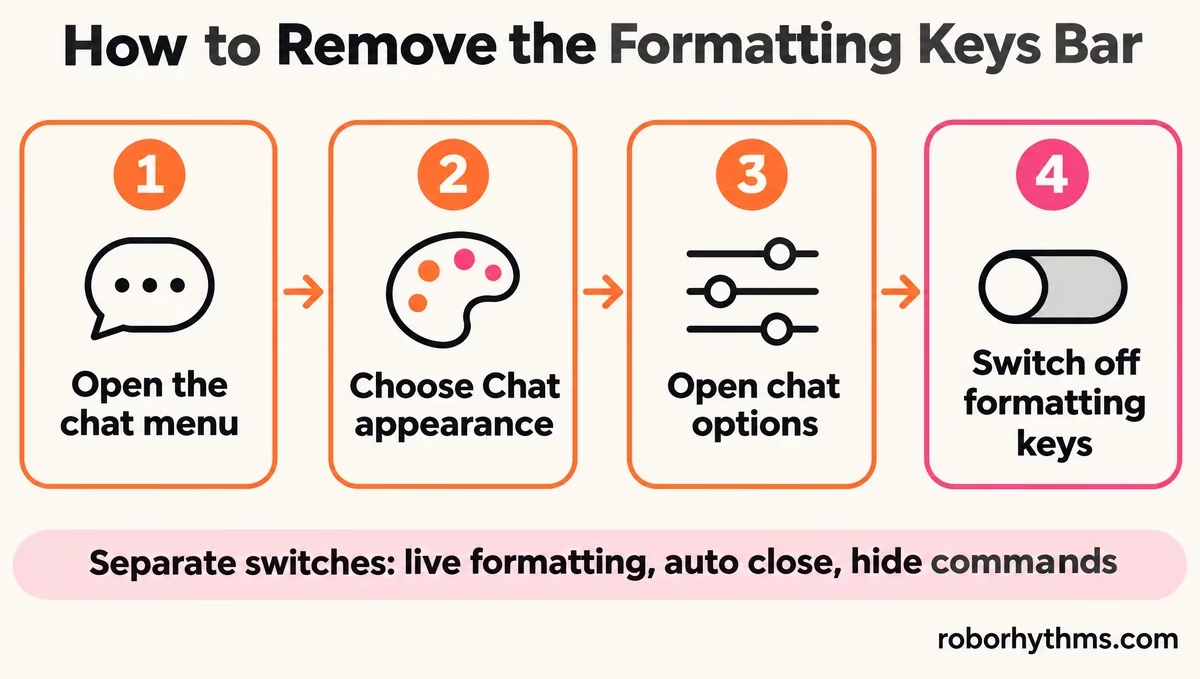
- Open any chat and open the chat menu.
- Choose Chat appearance, just above generation settings. You can also reach it from Chat appearance in your profile settings.
- Open the chat options tab.
- Scroll to the bottom and switch off formatting keys.
If the bar is there but the switch is not, your account may be on an earlier stage of the rollout, so check again in a day or two. If this update is the last straw for you, Candy AI is the next app on my list.
The catch, per Candy’s own help center, is that its free plan stops at 5 messages in total, so it only makes sense if you plan to pay.
| Symptom | Likely cause | Fix |
|---|---|---|
| A row of keys appeared above the message box | The formatting keys bar came with Themes | Chat appearance, chat options, switch off formatting keys |
| An extra asterisk or bracket appears as you type | Auto close is on | Switch off auto close in the same list |
| Text turns bold or italic while you are still typing | Live formatting is on | Switch off live formatting |
| Command lines clutter the chat | Commands are set to shown | Set commands to hidden |
| A color you picked is hard to read | It clashes with a bubble color | Follow the editor’s readability warning and pick another |
| No Chat appearance option anywhere | Your account is not in the rollout yet | Wait, as SpicyChat’s staff asked |
What Do SpicyChat’s Live Formatting and Auto Close Settings Do?
Live formatting and auto close are two more SpicyChat switches next to formatting keys, and each one turns off on its own.
SpicyChat stores formatting keys, live formatting, auto close and hide commands as four separate settings, so you can drop the bar and keep the rest.
Going by their names, live formatting styles bold and italic text as you type, and auto close adds the closing asterisk or bracket for you. Auto close is the switch I’d look at first if stray asterisks keep showing up in your messages.
The bracket keys are handy for out-of-character “ooc:” notes that steer a scene, per the same thread. With the bar off, you can still format by hand, and SpicyChat’s Markdowns help page lists the marks:
*text*for blue italic text**text**for white bold text- One backtick on each side of the text for highlighted text
~~text~~for strikethrough text- A
#at the start of a line for a heading, with up to six for smaller headings
For more ways to steer a scene once it is formatted the way you like, these SpicyChat roleplay prompts are a good next stop.
Can You Save and Share a SpicyChat Theme?
Yes, SpicyChat lets you save up to 20 styles and share any of them as a link.
Each saved style takes a name of up to 40 characters, or a default like “My style 1”. The 21st save gets “You reached the maximum of 20 saved styles. Delete one to save another.”
The cap of 20 does not worry me. A shared style only works for someone signed in, though, and a signed-out visitor who opens your link sees “Sign in to use this style.”
Opening a shared link shows a “Shared chat style” card with its theme, custom colors, font, bubble shape and opacity, speaker colors and avatar sizes.
You can try it on a chat first, under a “Trying” banner with Apply and Discard, so nothing changes until you choose Apply.
There is no official place to trade styles yet, and one reply in the rollout thread already asks whether “a theme share thread” is coming to the subreddit.
Why Won’t a Shared SpicyChat Style Link Work?
A shared SpicyChat style link fails with a specific error, and each message tells you what went wrong.
I like that SpicyChat wrote these in plain English, because most of them name the fix outright.
- “This link needs a newer app” means the style was made on a newer version, so update the app and open the link again.
- “Nothing to import” means the link carries no style, so ask for a new one.
- “This link could not be read” means the link is incomplete or damaged, so copy the whole link again.
- “This link exceeds the supported length” means the style is too big to travel as a link.
- “Your sign-in has expired” means you need to sign in again, then apply the style.
- “Your chat appearance changed somewhere else since this link opened” means you changed settings in another tab or device, so reopen the link and apply again.
Quick Takeaways
- SpicyChat Themes reaches accounts in stages, and an All In plan is no guarantee you have it.
- Look for Chat appearance in your profile settings, or just above generation settings inside a chat.
- The formatting keys bar switches off at the bottom of the chat options, separately from live formatting and auto close.
- Classic is the theme SpicyChat labels “Original layout,” and the one to try first if you miss the older chat window.
- You can save 20 styles and share them as links, but the person opening a link has to be signed in.
