
Bottom Line: Vizard AI is worth it if you repurpose long podcasts, webinars, or interviews and want transcript-level control over your clips. It is not the best pick for fast viral hook detection or for creators on a tight budget, because the credit system charges by upload length. This review covers the pricing, the credit math, clip quality, and how it stacks up against OpusClip.
Most people writing a Vizard AI review quote the monthly price and move on. The number that really decides whether this tool fits your budget is buried in the credit system, and almost nobody spells it out before you pay.
I have spent enough time inside long-form repurposing tools to know that the sticker price is rarely the real price. Vizard turns a long video into short, captioned clips in minutes, and on speed it delivers. The catch is how it counts what you feed it.
This is the part I wish someone had walked me through first. Stick with me and you will know exactly what Vizard costs in practice, how good the clips really are, where it beats OpusClip, and the one buying mistake that quietly doubles your bill. If you want to follow along, you can open Vizard in another tab.
What Is Vizard AI and Who Is It Built For
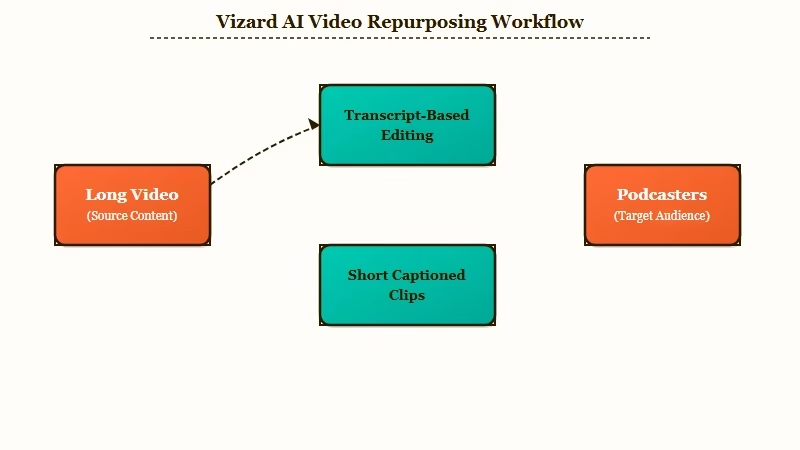
Vizard AI is a clip-repurposing tool that takes one long video and produces multiple short, captioned, social-ready clips using transcript-based AI editing.
It is built for podcasters, webinar hosts, and interview-heavy creators, not for people filming short clips from scratch.
What is clip repurposing: Turning a single long recording, like a podcast or webinar, into several standalone short videos sized for Reels, Shorts, and TikTok.
The company behind it is Vizard Corp, led by CEO Gary Zhang, and the platform claims more than 10 million creators and businesses on board. That scale shows up in the polish, where speaker detection, auto-reframing to vertical, and captioning all work without much hand-holding.
Where it stands apart is the editing model. Instead of dropping you into a timeline, Vizard hands you a transcript, and you trim the video by trimming words. For talking-head content, that is a faster mental model than scrubbing a waveform.
How Much Does Vizard AI Cost in 2026
Vizard AI costs nothing on the free plan, $16.90 a month for Creator and $22.80 a month for Business when billed annually. Monthly billing jumps those to $29 and $39. Enterprise is custom-priced.
Here is how the tiers break down, and how I would read them as a buyer rather than a spec sheet.
| Plan | Price (annual) | Credits | Key limits |
|---|---|---|---|
| Free | $0 | 60 / month | 720p, watermark, 3-day storage |
| Creator | $16.90 / mo ($29 monthly) | 600 / month | 4K export, no watermark, 6 social accounts |
| Business | $22.80 / mo ($39 monthly) | 600+ / month | 20 social accounts, team features |
| Enterprise | Custom | 10,000+ | 99.99% SLA |
The free plan looks generous until you read the fine print. With 720p exports, a watermark, and three-day storage, I would treat it as an evaluation sandbox, not a tier you can run a channel on. It exists so you can test the clipping engine before you commit.
The jump that matters for most solo creators is Creator at $16.90 a month. That price is fair on its face. What it does not tell you is how fast those 600 credits disappear, which is the next section.
The Credit Math That Changes the Real Cost
One Vizard credit equals one minute of uploaded video, not one minute of finished clip. That single rule is the most important number in this review, and it is the one buyers miss.
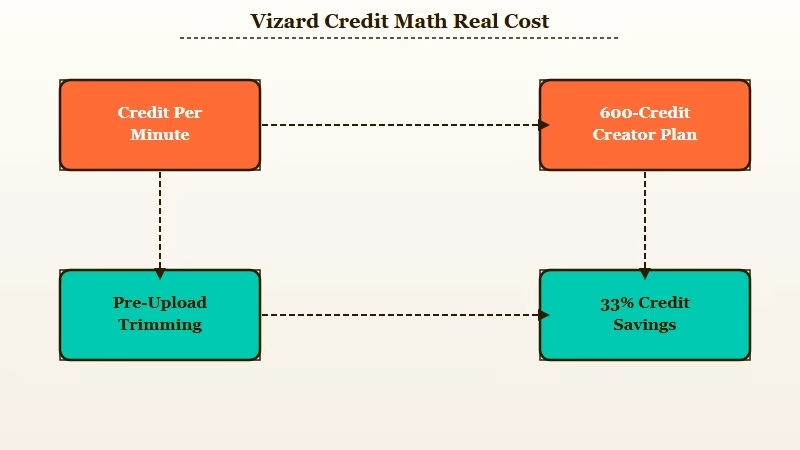
Read that again, because the wording is doing a lot of work. You are charged for the length of the source file you upload, before Vizard cuts a single clip. A 600-credit Creator plan is really 600 minutes, about 10 hours, of raw footage per month.
That sounds like plenty until you do the math on a real podcast. Here is the trap in concrete terms.
Before: You upload a raw 90-minute podcast recording with 12 minutes of pre-show chatter and dead air. Vizard charges 90 credits the moment it ingests the file, whether you keep two clips or twenty.
After: You trim the recording to the 60 minutes that carry the episode in a basic editor first, then upload. Now the same job costs 60 credits, and you have saved a third of your monthly allowance on one episode.
What I would take from this is simple: Vizard rewards people who pre-trim and punishes people who dump raw files. On a weekly podcast, that habit alone is the difference between the Creator plan lasting the month and running dry in week three.
If you want the broader view on which tools handle long videos without nickel-and-diming you, that comparison is worth a read before you commit.
How Good Are the Clips and the Captions
Vizard produces high-quality clips with roughly 98% English caption accuracy and 4K export, but the AI often cuts a second early or late, so expect light manual trimming.
The captions are the strong point; the clip boundaries are the weak one.
In practice the transcription engine is reliable for English. The honest caveat is the language story. Vizard markets “100+ languages,” but that figure is a combined total across transcription, translation, and dubbing. Tested transcription support sits closer to 25 languages, and accuracy on those drops from about 98% for English to roughly 95%. For an international creator, that is a measurable quality tax worth knowing before you pay.
The b-roll feature is the interesting one. When stock footage from libraries like Pexels and Storyblocks is not enough, Vizard can generate custom visuals using frontier video models, specifically Sora and Kling.
That is a real differentiator on paper, though the generated footage is hit or miss depending on the niche. If you are curious how those underlying models behave on their own, the Sora and Veo comparison covers their strengths in detail.
One ceiling to flag: Vizard is a linear clipper. It cannot stitch non-contiguous parts of a video into a single “greatest hits” clip inside its editor, so highlight reels still need a traditional tool.
Vizard AI vs OpusClip and Submagic
Vizard wins on long-form control and source-length flexibility; OpusClip wins on viral hook detection and audio cleanup. Which one is right depends on whether you value accuracy or automation more.
In a 2026 benchmark of nine clipping tools tested on a 90-minute podcast, Vizard reached a usable first clip in about 10 minutes. That is meaningfully faster than OpusClip at roughly 25 minutes, though both trail the new speed leader Reap at four to five minutes. Speed is not everything, but on high volume it adds up.
The way I see it, the split is about temperament. OpusClip is built to chase viral moments automatically and includes AI audio enhancement that Vizard does not match. Vizard is built for people who want to keep editorial control through the transcript. Here is how I would route the decision.
| Your situation | Better pick | Why |
|---|---|---|
| Hour-long podcasts and webinars | Vizard | Transcript editing preserves context |
| Fast, hands-off viral clips | OpusClip | Stronger automated hook detection |
| Noisy source recordings | OpusClip | Built-in audio enhancement |
| Caption-first short clips | Submagic | Caption styling is its core focus |
| Tight monthly credit budget | Vizard with pre-trimming | Upload-based credits reward trimming |
If captions are the whole reason you are shopping, weigh a caption-specialist tool against an all-rounder. The same logic applies to picking a voice generator when narration matters more than clipping.
Pros and Cons of Vizard AI
Vizard’s strengths are control and source flexibility; its weaknesses are the upload-based credits, weaker viral detection, and a restrictive refund policy. Here is the honest ledger after weighing the research.
What I would call the genuine advantages:
- Transcript-based editing gives you real control over long-form content instead of pure automation.
- Fast processing, with a 45-minute video typically clipped in three to six minutes.
- Generous source limits, supporting files up to 10 GB and 10 hours long on paid plans.
- Strong English captioning at about 98% accuracy with 4K export on paid tiers.
- Generative b-roll through Sora and Kling when stock libraries fall short.
The drawbacks I would not gloss over:
- Credits are billed by upload length, so raw uploads waste your allowance fast.
- Viral hook detection is weaker than OpusClip, so clips often need precision trimming.
- No built-in audio enhancement for noisy recordings.
- The “100+ languages” claim overstates real transcription coverage of about 25 languages.
- The refund window is strict, which leads into the warning below.
The Refund Policy You Should Read First
Vizard offers refunds within 7 days, but only for unused services, and uploading a single video can count as using the service. That makes the window far narrower than it sounds.
The official policy states that eligibility applies to unused services, and that uploading data or using the tools counts as use. In plain terms, if you subscribe and immediately test the tool with one upload, you may have already forfeited your refund. Approved refunds return to your original payment method within five to ten business days, and processing fees may be deducted unless the charge was a billing error.
What I would recommend is testing thoroughly on the free plan first, then upgrading only when you are sure. Treat the paid subscription as a commitment, not a trial. For context on how Vizard sits among broader video tools, the HeyGen and Pictory breakdown is a useful neighbor read.
Who Should Use Vizard AI and Who Should Skip It
Vizard is the right pick for podcasters, webinar hosts, and agencies repurposing long interviews who want control over the cut. It is the wrong pick for creators chasing fully automated viral clips or anyone unwilling to pre-trim source files.
From my read of the evidence, the ideal user records a lot of long-form talking content and cares about accuracy and branding more than hands-off speed. If that is you, the Creator plan plus a pre-trimming habit is a strong, affordable setup.
Skip it if your recordings are short, noisy, or if you want the AI to find the viral moment for you with zero oversight. In those cases OpusClip’s automation will frustrate you less.
Verdict on Vizard AI
Vizard AI earns a solid recommendation for long-form creators, with the firm caveat that the credit system rewards discipline. It holds a 4.7 out of 5 rating across 367 reviews on G2, which matches what I would expect from a tool this polished.
The way I see it, Vizard is not trying to be the flashiest viral-clip machine, and that is fine. It is trying to give long-form creators control and speed at a fair price, and it succeeds, as long as you understand the upload-based math going in. Sign up through the Vizard plans page once you have tested it on the free tier.
If you produce hours of podcast or webinar footage every month and you are willing to trim before you upload, it is worth the Creator subscription. If you want magic-button virality, look elsewhere.
Frequently Asked Questions
Is Vizard AI free to use?
Vizard has a free plan with 60 credits per month, but it limits exports to 720p, adds a watermark, and stores files for only three days. It works for testing the clipping engine, not for running a channel. Paid plans start at $16.90 a month.
How much does Vizard AI cost?
Vizard Creator costs $16.90 a month and Business costs $22.80 a month when billed annually. Monthly billing raises those to $29 and $39. Enterprise pricing is custom and includes 10,000 or more credits.
How do Vizard credits work?
One credit equals one minute of uploaded video, charged on the source file length before any clipping. The Creator plan includes 600 credits, about 10 hours of footage per month. Trimming videos before upload saves credits.
Is Vizard better than OpusClip?
It depends on your goal. Vizard is better for long podcasts and webinars where transcript control matters. OpusClip is better for fast, automated viral clip detection and includes audio enhancement that Vizard lacks.
Does Vizard AI add a watermark?
Yes, the free plan applies a Vizard watermark to every export. To remove it you need a paid plan such as Creator or Business, both of which also unlock 4K export and remove the storage limit.
Can you get a refund from Vizard?
Refunds are available within 7 days, but only for unused services. Uploading data or using the tools counts as use and can void eligibility, so test on the free plan before subscribing.
Quick Takeaways
- Vizard charges credits by upload length, so a 600-credit plan is 10 hours of source footage, not finished clips.
- Pre-trim raw recordings before uploading to avoid burning a third of your monthly credits on dead air.
- Vizard beats OpusClip on long-form control but loses on viral hook detection and audio cleanup.
- Test on the free plan first, because uploading after you subscribe can void your 7-day refund.
- At $16.90 a month, Creator is a fair deal for disciplined podcasters and webinar hosts.

The credit breakdown is the part every other review skips, so this is genuinely useful. The transcript-based editing sounds great for podcast repurposing, but the cost per upload length is easy to underestimate. I wish the pricing comparison had gone a bit deeper on how far 600 credits actually goes in practice, though the warning about quietly doubling your bill is fair. For someone deciding between this and OpusClip, having the real cost explained before signing up makes a big difference.