
TL;DR: You can run a 24/7 always-on AI agent on a used Android phone for under $50, no cloud costs. The stack: Termux for the shell, Ollama or llama.cpp ARM for the model, Tailscale for remote access, and a webhook for triggers. Below is the exact build I tested over the weekend.
A thread on r/LocalLLaMA hit 141 comments this week from a guy running a 24/7 headless AI server on a Xiaomi 12 Pro. The replies turned into a full build guide in the comments, and after going through it I ran the same setup on a $40 used Pixel 5 to see how far it goes. It runs.
This is not a Raspberry Pi clone. A used Android phone gives you a battery-backed UPS, a built-in screen for diagnostics, a quad-core ARM chip with 6 to 8 GB of RAM, and a working modem if you want SMS triggers.
The total cost is whatever you pay for the phone, and the recurring cost is the wattage of a slow charger.

Why a Phone Beats a Pi for an Agent Host
An old phone is the cheapest 24/7 ARM server you can buy because the battery, screen, modem, and case are all included for the price of the SoC alone.
Three reasons the phone wins for this use case:
- Built-in UPS. The battery acts as an uninterrupted power supply. A power cut that would crash a Pi just drops the phone to battery for hours.
- More RAM per dollar. A 2021 used flagship gives you 8 to 12 GB for $40 to $80. A Pi 5 with 8 GB costs $80 plus a case, SD card, power supply, and active cooler.
- Sensor and modem access. GPS, accelerometer, mic, camera, and SMS are all reachable from Termux without extra hardware.
The trade-off is that you are running on a phone OS that wants to sleep. The first half of the build is making the phone behave like a server, the second half is putting an agent on top.
| Component | Old phone (Pixel 5) | Raspberry Pi 5 (8 GB) |
|---|---|---|
| Hardware cost | $40 to $60 used | $80 plus accessories |
| RAM | 8 GB | 8 GB |
| Power draw idle | 2 to 4W | 4 to 6W |
| Built-in battery backup | Yes | No (UPS HAT extra) |
| Screen for debugging | Yes | No (HDMI cable extra) |
| Modem and SMS | Yes | No |
| Ollama install path | Termux APT or proot | Native ARM binary |
Step 1. Make the Phone Behave Like a Server
Server-readying the phone means capping charging at 80%, disabling sleep, granting Termux unrestricted background access, and reserving a static DHCP IP on your router. Skip the static IP and your agent endpoint moves on every reboot.
You need three things before you install anything. Charging without overheating, no sleep mode, and a static IP on your local network.
Concrete settings to change before you touch a terminal:
- Battery cap at 80% only. On Pixel:
Settings, Battery, Adaptive charging, Charge optimisation. Lithium batteries hate being held at 100% in heat. An 80% cap keeps the battery alive past two years of 24/7 plugging. - Display set to never time out, brightness minimum.
Settings, Display, Screen timeout, Never. Then drop brightness to the lowest visible level. The screen pulls more watts than the SoC at idle. - Doze disabled for the apps you install.
Settings, Battery, Battery usage, Termux, Unrestricted. Repeat for Tailscale and any agent app. - Static DHCP lease. In your router admin, reserve the phone’s MAC to a fixed IP. This is the single highest-impact change. Without it your agent endpoint moves every reboot and your webhook breaks.
A worked example for the router DHCP entry on a typical TP-Link or Asus admin panel:
Hostname: pixel-agent
MAC: 11:22:33:44:55:66
Reserved IP: 192.168.1.50
Lease time: forever
Step 2. Install Termux and the Local Model
Installing the local model takes three commands in Termux. A package upgrade, the Ollama install script, and a model pull. Qwen 2.5 3B Instruct is the right starting point on 6 to 8 GB of phone RAM.
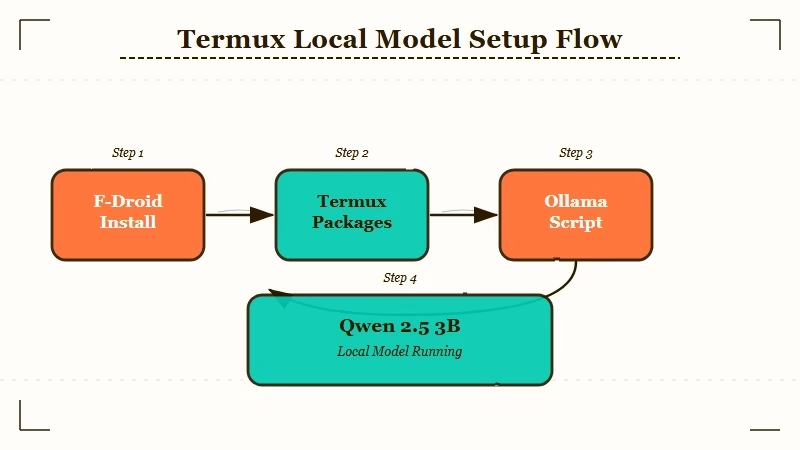
Termux is the terminal that turns Android into a usable Linux box. Install from F-Droid, not the Play Store. The Play Store version stopped getting updates years ago and the package mirrors are broken.
The exact command sequence after installing Termux from F-Droid:
pkg update && pkg upgrade -y
pkg install -y git curl wget python golang openssh
termux-setup-storage
For the model itself, you have two real choices on ARM Android. Ollama is easier but heavier; llama.cpp built from source is leaner and gives you GGUF model flexibility. If you have run the K2.5 OpenClaw setup on a desktop before, the install steps below will look familiar.
The Ollama route, which is what I used:
curl -fsSL https://ollama.com/install.sh | sh
ollama serve &
ollama pull qwen2.5:3b-instruct
A 3B model is the sweet spot for a 6 to 8 GB phone. Qwen 2.5 3B Instruct gives you tool-use behaviour that holds up for short agent loops without hammering the SoC. If your phone has 12 GB and a Snapdragon 8 Gen 1 or newer, push to a 7B quant like llama3.2:7b-instruct-q4KM.
The Latent Space Top Local Models List for April 2026 ranks these two as the best small open weights for tool-use right now, which lines up with what I saw running them on the phone.
Test the install with a single inference:
ollama run qwen2.5:3b-instruct "Reply with the word READY only."If you get READY back inside 5 seconds the model is alive. If you get nothing for 30 seconds the model is too big for your RAM and you need to drop to a smaller quant.
Step 3. Make the Endpoint Reachable from Anywhere
The fastest way to reach the phone from anywhere is Tailscale, which gives you a private 100.x.x.x address with no port forwarding, no DDNS, and no public exposure.
Tailscale is the unfair advantage here. It gives you a private network between your phone and your laptop with no port forwarding, no DDNS, and no firewall rules to write.
Install path:
- Download the Tailscale Android app from the Play Store.
- Sign in with the same account you use on your laptop.
- In the Tailscale app, toggle the VPN on and copy the assigned
100.x.x.xIP. - From your laptop, hit the Ollama endpoint to confirm:
curl http://100.x.x.x:11434/api/tags.
If you get JSON back with a models key, your phone is now a private API endpoint reachable from any device on your Tailnet.
The same Ollama API works with any agent harness that speaks the OpenAI completions schema. That includes Make.com agent workflows, Dynamiq, n8n, and OpenWebUI. You point your harness at http://100.x.x.x:11434/v1 instead of https://api.openai.com/v1 and the rest of the wiring is unchanged.
Step 4. Wire Up the Agent Loop
Wiring up the agent loop means giving the model something to react to. The three patterns that work are a Make.com webhook, a Termux cron job, and a Tasker SMS trigger, with the webhook being the simplest place to start.
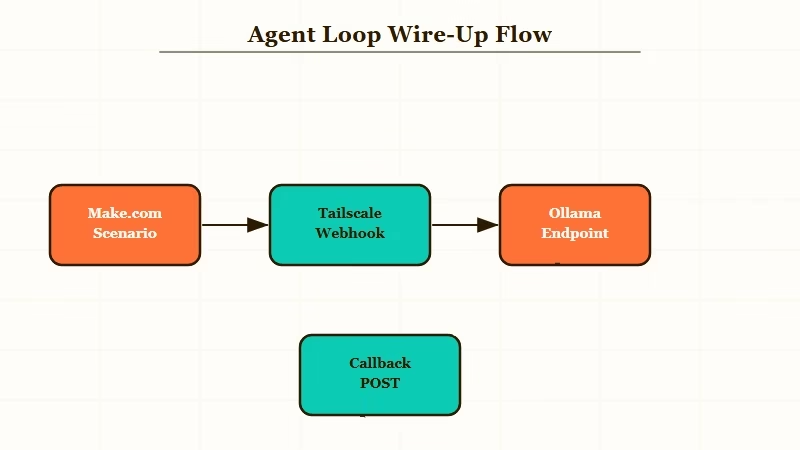
This is where the build becomes useful instead of just impressive. A local agent without a trigger is a parked car. You need something to feed it work.
The three trigger patterns I tested:
- Webhook from Make.com. A Make.com scenario fires a webhook to your Tailnet IP whenever a Gmail label is applied, a calendar event starts, or an RSS feed updates. The phone runs the agent, posts the result back to Make.com, and Make.com routes the output to Slack, Notion, or wherever. This is the simplest pattern and the one I would start with.
- Cron on the phone itself. Termux supports
crondvia thetermux-servicespackage. A cron job every 15 minutes that pulls a queue from a Google Sheet, runs each row through the local model, and writes the result back. Self-contained, no external dependencies. - SMS trigger via Tasker. Tasker on the phone listens for incoming SMS, extracts the message body, pipes it through
ollama run, and replies. This is the most fun and the least useful, but it makes the modem do something useful.
A worked example of the Make.com pattern. The webhook trigger payload looks like:
{
  "task": "summarise the last 10 emails in my support label",
  "context": "{{1.emails}}",
  "callback_url": "https://hook.eu2.make.com/abc123"
}
The phone-side handler is a 30-line Python script in Termux that pulls the payload, sends it to http://localhost:11434/v1/chat/completions, and POSTs the response back to the callback URL. The whole loop runs in 4 to 8 seconds for a 3B model on a Pixel 5.
If you want a turnkey orchestration layer instead of writing the handler yourself, Dynamiq handles the queueing, retries, and observability for local agent endpoints, and points at any OpenAI-compatible URL.
I run my own handler because the script is short and I like seeing the logs, but Dynamiq is the right call if you are running 5+ agents at once or in front of a team.
Step 5. Stress-Test Before You Trust It
Stress-testing means running four checks before you put real work on the phone. 50 sequential requests for thermal load, a forced reboot for auto-start, a router cut for tunnel reconnect, and an unplug-replug for doze settings.
The reason most homemade agent setups die in week 2 is that nobody tests them under realistic load. The Reddit thread that started this whole build had a list of failure modes that I copied into my own checklist.
Run through each of these before you put a real workflow on the phone:
- Sustained load test. Hit the endpoint with 50 sequential requests over an hour. Watch the SoC temperature in Termux with
cat /sys/class/thermal/thermal_zone0/temp. Anything above 75C and the phone will start throttling. - Reboot recovery. Force a reboot. Confirm Ollama, the agent script, and the cron daemon all auto-start. If any of them require manual intervention, you do not have a server, you have a project.
- Network drop. Turn the router off for 60 seconds. The Tailscale tunnel should reconnect on its own. If it does not, your phone has aggressive battery saver still enabled somewhere.
- Battery cycle. Unplug for an hour, replug. The phone should not have shut anything down. If it did, the doze settings from Step 1 did not stick.
A model that I covered in Kimi K2.6 earlier this week is too large for a phone, but Moonshot has historically released distilled variants 6 weeks after a flagship. A K2.6-mini at 3B to 7B is the kind of model this build is designed to absorb.
Keep the rig running and you will have a frontier-class local agent box for under $100 by summer.
Frequently Asked Questions
Is running an agent 24/7 going to kill the phone battery?
If you cap charging at 80% and keep the screen at minimum brightness, expect 2 to 3 years of useful life from a 2021-era battery. Lithium degradation is driven by heat and high state-of-charge, both of which the cap controls.
Do I need root access to do this?
No. Termux runs entirely in user space and Tailscale is a normal app. The only step that benefits from root is binding to ports below 1024, which you do not need for Ollama on 11434.
Can I run a 7B model on a phone?
On a phone with 12 GB of RAM and a Snapdragon 8 Gen 2 or Tensor G3 or newer, yes, with a Q4KM quant. Below 8 GB of RAM, stay at 3B. The bottleneck is memory bandwidth, not compute.
What about iPhone instead of Android?
iPhone does not support a real shell, so you cannot run Ollama natively. The closest equivalent is iSH plus a llama.cpp build, but it runs about 5x slower than the Android equivalent. Stick to Android for this build.
Is this safe to expose to the public internet?
No, and you should not. Tailscale keeps it on a private network. If you need a public webhook, route through Make.com, n8n Cloud, or a Cloudflare Tunnel with auth. Never open port 11434 to 0.0.0.0.
