
TL;DR: Bonsai 1-bit LLMs from PrismML run at 14x smaller memory footprint than standard models, with quality that holds up across chat, document summary, tool calling, and web search. The Bonsai 8B fits in under 1GB of RAM. Here is how to get it running locally with AnythingLLM today.
A 1-bit LLM that fits in 1GB and actually works for real tasks sounds like a benchmark trick. I thought so too until the creator of AnythingLLM posted his test results from running PrismML’s Bonsai 8B on his M4 Max MacBook Pro, chat, document summaries, tool calls, web search, all passing. That changed how I think about local AI hardware requirements.
The Bonsai models use a 1-bit quantization approach from PrismML that compresses weight representations to their extreme minimum. The 8B model drops to roughly 1GB on disk, compared to 4-7GB for a standard 4-bit quantized 8B model. That is not a minor improvement, it is the difference between running local AI on a gaming rig and running it on nearly anything with a modern CPU.
What I want to walk through here is the full setup: which model to pull, how to load it in AnythingLLM, and what to realistically expect from it. I will also cover where it falls short and why the 1.7B variant might matter even more for edge devices.
If you have been holding off on local models because of RAM requirements, this is the build that changes the math. For more on why local AI setups beat cloud-dependent ones for certain workflows, see why AI agents fail in production.

What Is the Bonsai 1-Bit Model and Why Does It Matter?
The Bonsai 1-bit LLM is a compression technique from PrismML that reduces model weights to 1-bit precision, shrinking an 8B parameter model to roughly 1GB while retaining usable quality for chat, summarization, and tool calling.
What is 1-bit quantization: A method of representing neural network weights using only two values (0 or 1) instead of floating point numbers. This reduces memory requirements by 14x or more compared to standard float16 weights.
Standard LLM quantization runs from 8-bit down to 2-bit, with quality dropping noticeably at the lower end. The 1-bit Bonsai approach is more aggressive than most q2_K quantizations but reportedly holds up better than you would expect at that compression level.
Tim from AnythingLLM ran the Bonsai 8B through a practical gauntlet: multi-turn chat, document summarization, structured tool calls, and live web search. His finding was that it worked. Not “worked for a demo”, worked for the tasks he would actually run day-to-day. That is the more meaningful benchmark than perplexity scores.
The community on r/LocalLLaMA independently benchmarked Bonsai 8B against Qwen3.5, with results showing competitive quality for the RAM footprint. One commenter summarized it well: “14x smaller is wild if the quality actually holds up.”
From what I have seen, the quality does hold for conversational and retrieval tasks. It falls shorter on code generation, the same commenter noted it could not produce working code in his tests, though it got impressively close for a 1GB model. Keep that in mind before replacing your coding workflow.
How to Download the Bonsai 8B Model
The Bonsai 8B GGUF is available directly on Hugging Face at the prism-ml/Bonsai-8B-gguf repository and can be loaded into any GGUF-compatible local inference engine.
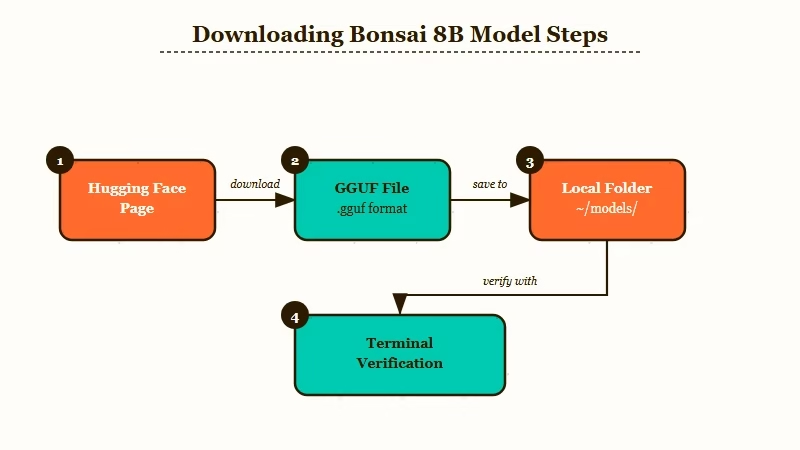
The download is around 1GB, which is a fraction of what you are used to for an 8B model. Here is the setup sequence:
- Go to Hugging Face: prism-ml/Bonsai-8B-gguf and download the latest GGUF file.
- Place it in your local models directory (on Mac this is typically
~/Library/Application Support/AnythingLLM/models/or wherever you have pointed AnythingLLM). - If you are using Ollama, the model is not in the registry yet, use direct GGUF loading via AnythingLLM’s model importer instead.
- Verify the file size: it should be under 1.1GB. If it is larger, you may have accidentally grabbed a higher-quant version.
One limitation worth flagging upfront: you cannot just drop Bonsai into your existing setup the same way you would swap a standard GGUF. There are format differences that require loading through a compatible interface. AnythingLLM handles this cleanly; raw Ollama may need extra steps depending on your version.
Vague approach: “Download the model and load it in your preferred interface.”
Specific approach:
1. Download: https://huggingface.co/prism-ml/Bonsai-8B-gguf
2. Open AnythingLLM -> Settings -> AI Providers -> Local AI -> Custom Model
3. Point it to your downloaded GGUF file path
4. Set context window to 4096 (start here, expand if your RAM allows)
5. Test with: "Summarize this document in 3 bullet points" on a PDF
How to Set Up AnythingLLM With Bonsai
AnythingLLM is the cleanest path to running Bonsai locally because it handles GGUF loading, document ingestion, tool calling, and web search through a single interface without requiring manual Python environment setup.
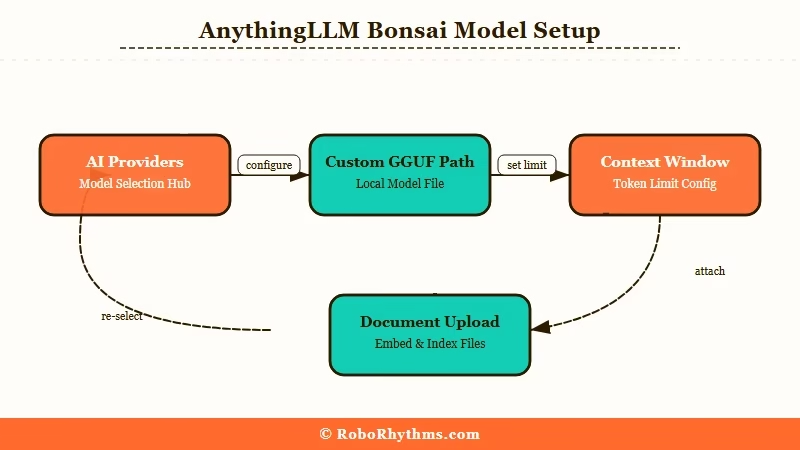
If you have not used AnythingLLM for local AI workflows before, it is an open-source platform that wraps a local inference server (LLM Studio or llamafile) with a chat interface, RAG pipeline, and tool calling in a single desktop app. No API key required.
Here is the full configuration sequence:
- Download and install AnythingLLM Desktop from useanything.com.
- Open Settings and navigate to AI Providers.
- Select “Local AI” and choose “Custom GGUF” as the model type.
- Browse to the Bonsai 8B GGUF file you downloaded.
- Set the context window. Start at 4096. If your machine has more than 8GB RAM free, try 8192.
- Save and close settings.
- Create a new workspace. Upload a document and send your first message.
The key settings to get right are the context window and the embedding model. Bonsai handles its own inference, but you still need an embedding model for document search. AnythingLLM defaults to a small local embedder, leave that as-is unless you have a specific reason to change it.
| Setting | Recommended value | Notes |
|---|---|---|
| Context window | 4096 | Expand to 8192 if RAM allows |
| Temperature | 0.7 | Lower for structured tasks, higher for creative |
| Embedding model | AnythingLLM default | No change needed for standard RAG |
| Max tokens | 512 | Increase for longer summaries |
| System prompt | Optional | Add your persona or task focus here |
From what I have seen, the biggest mistake people make is setting the context window too high for their hardware and then wondering why responses are slow. Start conservative and expand from there.
What to Realistically Expect
Bonsai 8B performs well for chat, document retrieval, and web search tasks, but trails standard-size models on code generation and multi-step reasoning that requires holding many variables simultaneously.
Tim’s test results from AnythingLLM paint a useful picture. Chat responses are coherent and contextually aware across multiple turns. Document summarization in 3-5 bullet points works reliably. Tool calling, where the model selects and invokes a function, passed in his tests, which is the most demanding non-coding task for a compressed model.
Web search integration also worked, meaning Bonsai could take a query, retrieve current information, and synthesize a response. That is genuinely useful for a 1GB model. Most 1-bit or heavily quantized models lose coherence on retrieval tasks because the compression degrades the model’s ability to reason over external context.
| Task | Result | Notes |
|---|---|---|
| Multi-turn chat | Passes | Coherent context tracking |
| Document summary | Passes | 3-5 bullet points reliable |
| Tool calling | Passes | Functional in AnythingLLM |
| Web search RAG | Passes | Synthesizes retrieved content |
| Code generation | Struggles | Gets close but rarely compiles |
| Complex reasoning | Partial | Drops variables in long chains |
The way I see it, this model is a solid daily driver for everything except coding. If you need code, keep a cloud model or a larger local model available for that one task.
Where Bonsai Falls Short
Bonsai 8B’s main weakness is code generation, it produces plausible-looking code that frequently fails to compile or run correctly, which is a known limitation of extreme quantization applied to structured output tasks.
The r/LocalLLaMA community noted this clearly. The model gets “impressively close” but not there. For someone using local AI to draft emails, summarize documents, or run research queries, that gap does not matter. For a developer workflow, it is a hard blocker.
Multi-step reasoning under pressure is the other soft spot. Tasks that require tracking many variables across a long chain, like following a complex set of instructions across 10+ steps, show degradation compared to a full-precision model. The 1-bit compression squeezes out exactly the nuanced weight differences that help models stay on track through complex sequences.
What this means practically: pair Bonsai with a heavier model if you need both document chat and code generation in the same workflow. Tools like n8n automation workflows with Claude let you route different task types to different models automatically, which is the cleanest solution.
Why the 1.7B Variant Matters
The Bonsai 1.7B model is even more significant than the 8B for edge deployment, it fits in under 200MB and runs on hardware with less than 1GB of available RAM, opening local AI to Raspberry Pi-class devices.
The 8B gets the headlines because it is the capability story. The 1.7B is the deployment story. If you are building something that needs to run on embedded hardware, IoT devices, or any system where 1GB of RAM for an AI model is still too much, the 1.7B is the one that matters.
From what I have seen in the LocalLLaMA community, the 1.7B is already being tested on Raspberry Pi 5 and similar ARM SBCs. Quality drops compared to the 8B, but for simple classification tasks, intent detection, or keyword extraction, the compression trade-off makes sense. These are use cases where a model does not need to write essays, it just needs to be right about simple things very fast.
The practical implication: if your pipeline only needs to answer yes/no questions or extract specific fields from text, the 1.7B running on minimal hardware beats a cloud API call in both latency and cost. That is a meaningful shift for anyone building AI agents for real-world automation.
Frequently Asked Questions
Does Bonsai 8B work with Ollama?
Bonsai GGUF is not in the Ollama model registry as of April 2026. You can load it via AnythingLLM’s custom GGUF importer or via llama.cpp directly. Ollama compatibility may improve as the format gains adoption.
What hardware do I need to run Bonsai 8B locally?
Bonsai 8B requires approximately 1.5GB of free RAM (1GB for the model plus overhead). Any modern CPU handles inference, though an Apple Silicon Mac or a machine with AVX2 support will be noticeably faster. No GPU is required.
Is Bonsai 8B good enough to replace GPT-4 for daily tasks?
For chat, summarization, and document retrieval, Bonsai 8B is a viable daily driver. It does not match GPT-4 on complex reasoning or code generation. The right framing is: use Bonsai for the 80% of tasks where a fast local response beats a slow API call.
How does 1-bit quantization compare to standard 4-bit quantization?
Standard 4-bit (Q4KM) quantization typically produces better output quality than 1-bit at the same parameter count. Bonsai’s 1-bit approach sacrifices some quality for a dramatic size reduction, roughly 4x smaller than a 4-bit model at the same parameter count. The quality trade-off is smaller than you would expect given the compression ratio.
Can I use Bonsai with LangChain or custom agent frameworks?
Yes. Because Bonsai loads as a standard GGUF via an OpenAI-compatible local server (AnythingLLM exposes one), any framework that supports a local OpenAI endpoint, LangChain, LlamaIndex, AutoGen, can connect to it. Set the base URL to your AnythingLLM server address and point at the Bonsai model.
