
Quick Summary
- Google Labs hosts a public directory of free AI experiments at labs.google/experiments.
- Pomelli turns an existing website URL into ad campaign concepts with image and video assets.
- Flow creates short videos by transitioning between generated start and end frames.
- ImageFX supports controlled image iteration using styles and seed locking.
- MusicFX is accessed from the ImageFX dropdown to generate music without leaving Google Labs.
Free AI tools keep popping up, yet most people still rely on the same paid platforms out of habit.
That leaves a lot of useful capability sitting unused, especially for marketers who need speed and flexibility without adding more subscriptions.
Google Labs quietly solves this gap, and it does so without making a big deal about it.
We are not talking about one experimental demo or a single novelty feature. Google Labs hosts a growing collection of AI tools that handle real marketing tasks like ad concepts, visuals, short videos, and creative iteration.
The tools feel practical because they focus on output, not theory, and they work together more smoothly than most people expect.
Access starts at the public experiments hub on Google Labs experiments, which acts as a central directory rather than a locked product page.
Once inside, the tools are laid out clearly, making it easy to test ideas without committing time or money upfront. That structure alone changes how experimentation feels.
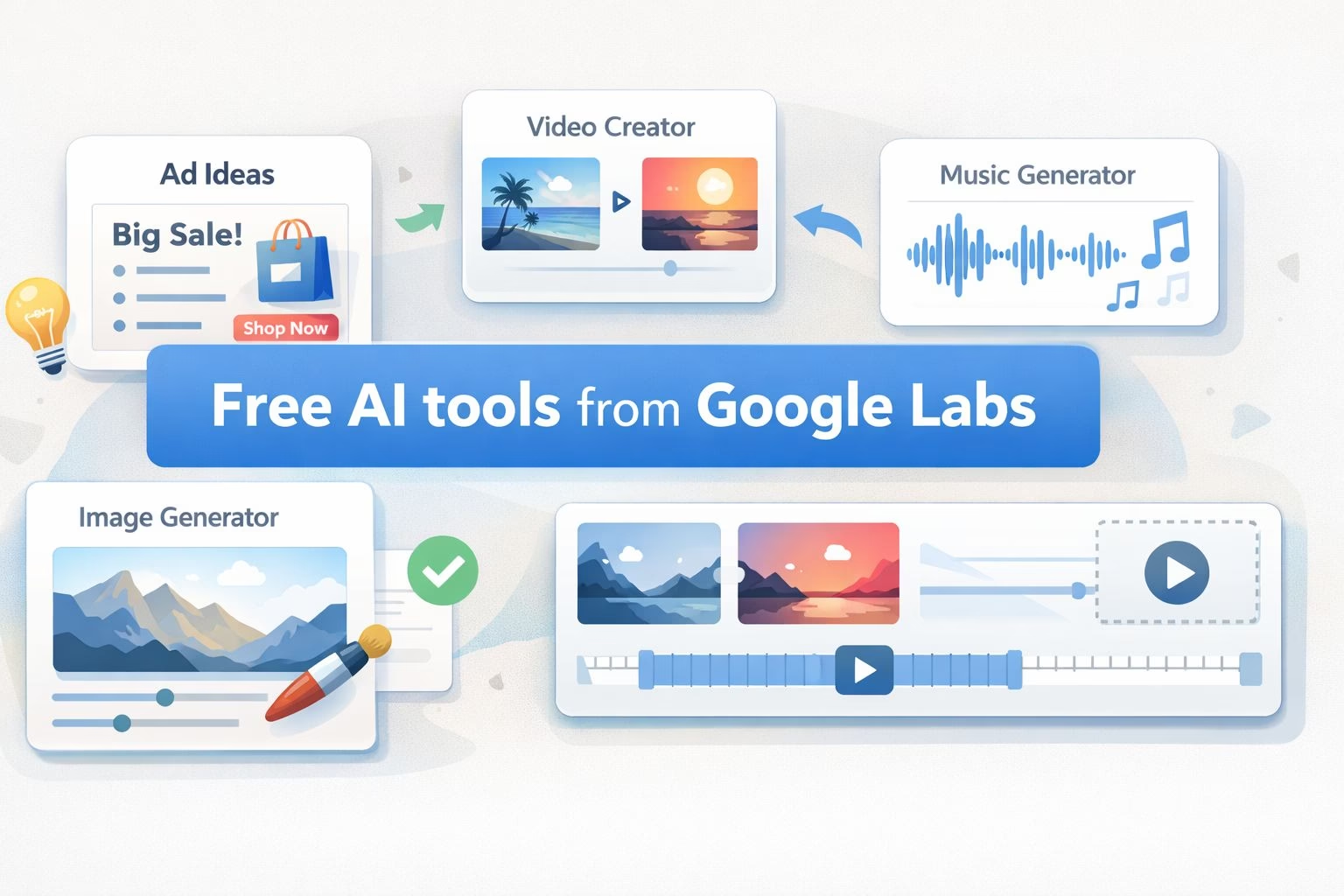
How to access Google Labs and locate free AI tools
This tutorial starts with finding the full list of available tools. Everything lives in one public directory, so there is no setup required before you begin.
You only need a browser and a Google account.
Open the Google Labs experiments hub.
Scroll through the page to view all active experiments.
Click any tool name to open its dedicated overview page.
Each experiment page explains what the tool does and what input it expects.
You do not need to enable anything globally. Opening a tool does not affect your account or other experiments.
The experiments page acts as a menu, not a workflow. You are free to open tools in any order, close them, and return later without losing progress elsewhere.
That makes it easy to test tools one at a time.
Once you confirm a tool matches your use case, keep the tab open and move directly into execution. No additional navigation is required.
How to generate ad campaigns using Pomelli
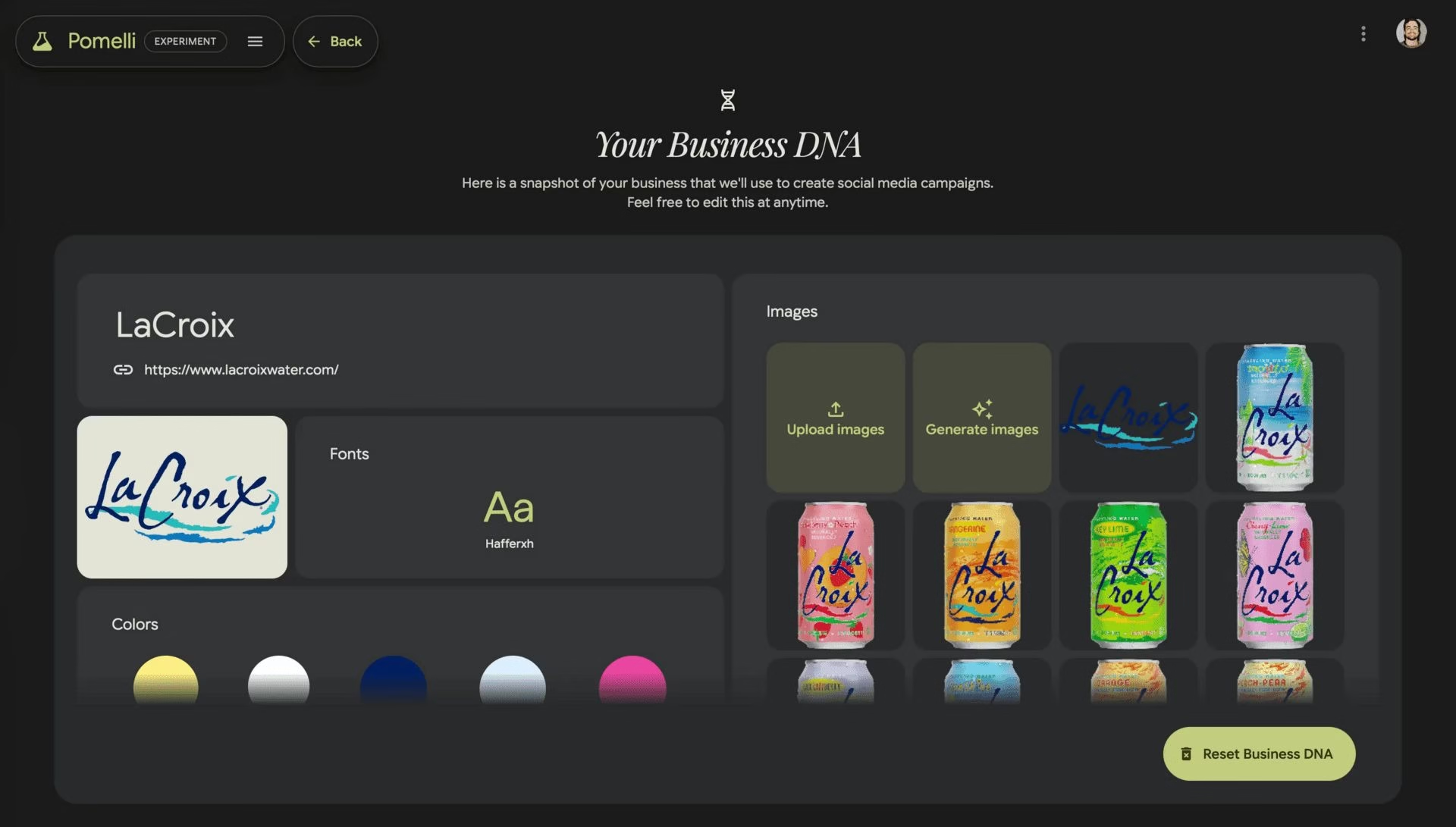
Pomelli turns an existing website into ad campaign ideas with supporting media.
This works best if your site already reflects your branding, copy style, and positioning.
The tool reads that context directly from the URL you provide.
Open Pomelli.
Copy your website homepage URL.
Paste the URL into the Pomelli input field.
Submit and wait several minutes while the tool processes your site.
After processing completes, Pomelli returns campaign concepts paired with image and video assets.
These outputs are grouped so you can review them as complete ideas rather than disconnected files.
Use these results as starting material. The value comes from speed and direction, not final polish.
How to create short videos using Flow
Flow handles simple video creation by stitching images into short clips.
The process relies on defining a starting frame, an ending frame, and a prompt that explains how the transition should happen.
This keeps the workflow predictable and easy to repeat.
Open Flow.
Use Create Image to generate a starting frame.
Create a second image to serve as the ending frame.
Add both images to Frames to Video.
Enter a prompt describing the transition, then generate the clip.
Flow produces short video segments rather than long edits.
That makes it suitable for ads, intros, or visual transitions instead of full productions.
The scene builder lets you stitch multiple clips together when needed.
Each clip remains editable because the frames stay visible in the timeline. If something feels off, replace one frame and regenerate instead of starting over.
This keeps iteration fast and contained.
Flow works best when prompts stay simple and focused on motion or mood.
Trying to force complex narratives usually slows the process without improving results.
How to refine and iterate images using ImageFX
ImageFX focuses on controlled image iteration rather than one-off generation.
The interface highlights styles and variations so you can refine an image instead of guessing new prompts every time.
This makes it useful once you already have a direction.
Open ImageFX.
Enter a prompt describing the image you want.
Review the suggested styles shown by the tool.
Apply a style and regenerate variations.
Lock the seed to keep outputs consistent across iterations.
Locking the seed allows you to adjust prompts without losing the core composition.
This helps when you need multiple visuals that feel related, such as a campaign set or brand series. The process reduces randomness without removing flexibility.
ImageFX also supports quick experimentation across styles without rewriting prompts. That speeds up learning because you can see how phrasing affects results.
Over time, this builds better prompting habits naturally.
A useful extension lives in the same menu. Selecting MusicFX from the dropdown lets you generate music using the same experimentation model, which pairs well with short video clips.
How to generate music using MusicFX inside ImageFX
MusicFX is not a separate tool you need to hunt down. It sits inside the same interface as ImageFX, which makes it easy to miss if you are focused only on visuals.
This step works best after you are already comfortable navigating ImageFX.
Open ImageFX.
Locate the dropdown menu near the top of the interface.
Click the dropdown and select MusicFX.
Enter a prompt describing the type of music you want.
Generate and review the output.
MusicFX follows the same experimentation model as ImageFX. You prompt, review, and iterate without committing to a final version.
That makes it useful for background tracks, short clips, or concept testing.
This works especially well alongside Flow outputs. You can generate visuals in Flow, refine imagery in ImageFX, then add music without leaving Google Labs.
Keeping everything in one place reduces friction.
This completes this tutorial.
