
Getting DeepSeek working inside Janitor AI sounds simple on paper, yet most failures come from small details that are easy to miss.
We kept seeing the same setup issues repeat until the pattern became obvious. Once the configuration matches what DeepSeek expects, the proxy connects cleanly, and responses start flowing.
This tutorial walks through the exact setup that works, without guesswork or extra tweaks. Each step builds on the previous one, so skipping ahead usually leads to network errors or failed checks.
The goal here is a clean proxy connection that stays stable after refreshes.
We are focusing only on what is proven to work based on direct testing. No alternate tools, no speculation, and no shortcuts that break later.
If a setting matters, it is called out clearly and explained.
The process starts on the DeepSeek platform, where the API account and credits must exist before anything else works.
You can access that setup directly at https://platform.deepseek.com/ before touching Janitor AI settings.
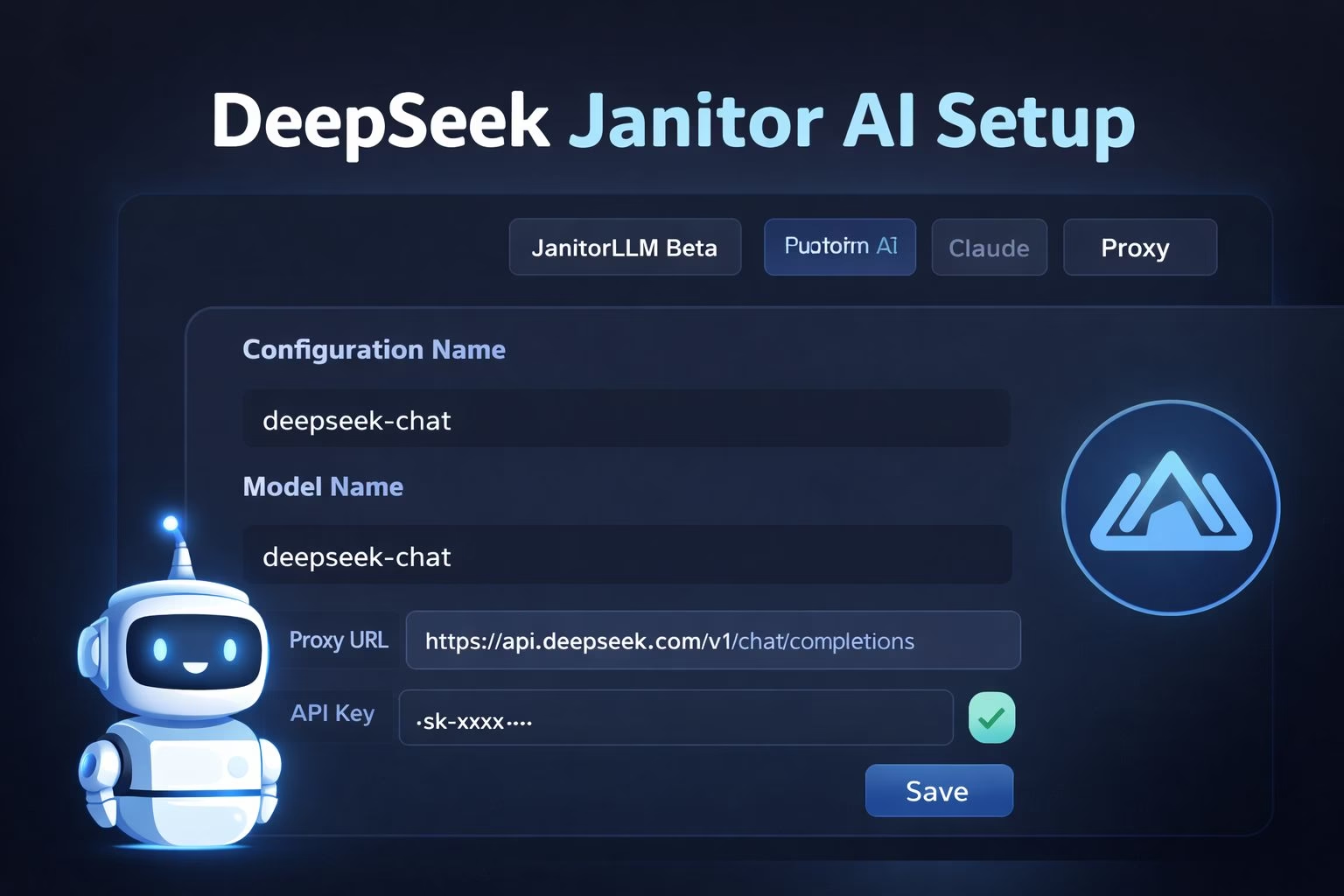
How to set up DeepSeek in Janitor AI
Step 1. Create and fund your DeepSeek API account
This setup only works after the DeepSeek account is active and funded. Creating an API key before adding credits leads to silent failures later.
The order matters, and skipping it causes most connection errors.
Start by creating an account on the DeepSeek platform. After logging in, add credits before doing anything else.
The account needs a balance first, or the API key will not function as expected.
Use the official DeepSeek platform link to get started: https://platform.deepseek.com/
Keep these points in mind before moving on:
Credits must be added before creating the API key
API keys created before funding will fail
Very small top-ups still work and last a long time
Once the account has credits, generate a new API key and keep it ready. Do not paste it anywhere yet.
Step 2. Configure the Janitor AI proxy settings correctly
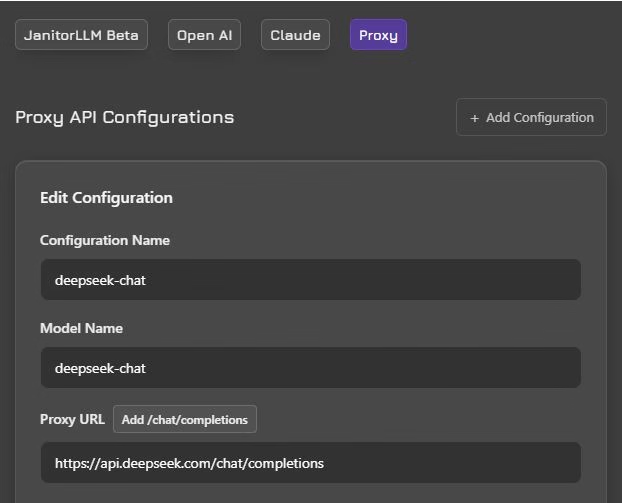
Open Janitor AI and go straight to the API settings area. Select Proxy, then choose Custom to unlock manual configuration. This is where precision matters.
Set the model name exactly as required. Even small spelling changes will trigger network errors or invalid model messages. The correct model name is deepseek-chat.
Enter the proxy URL exactly as shown below. Do not add extra characters, spaces, or parameters: https://api.deepseek.com/v1/chat/completions
Confirm these fields before saving:
Configuration name can be anything
Model name must be deepseek-chat
Proxy URL must match the endpoint exactly
No spaces anywhere in the URL field
Save the settings, refresh the page, then return to the API screen. Paste the DeepSeek API key you generated after funding the account.
Click Check API Key and wait for confirmation.
If the check passes, save again and refresh.
Step 3. Verify the connection and handle failed checks
After saving the proxy settings, the next checkpoint is the API verification step.
This is where most setups appear correct but still fail due to small execution mistakes. A clean verification confirms that Janitor AI can reach DeepSeek without interruptions.
Return to the API settings and click Check API Key. A successful check confirms both the key and the model name are valid.
If the page shows a network error, do not start changing values immediately.
Run through this verification flow instead:
Save the settings
Refresh the page
Click Check API Key again
Save once more if the check succeeds
Refresh before opening a chat
Several failures came down to missing a refresh or saving out of order. When the steps are followed cleanly, the connection stabilizes.
Step 4. Fix common errors and stalled responses
A successful API check does not always mean responses will generate instantly. Some setups showed infinite replying states or empty outputs even after verification.
These cases shared the same fixes.
First, confirm the model name is typed exactly as deepseek-chat. Quotation marks, apostrophes, or extra characters will break the request.
The model field must contain only the model name.
If responses stall or never complete, apply these fixes:
Enable text streaming inside the chat options
Refresh the page after changing any setting
Close and reopen the browser if errors persist
Recheck the proxy URL for spaces or extra characters
Network errors often came from minor formatting issues rather than actual outages. Once corrected, responses resumed without further changes.
Common network errors and why they keep happening
Network errors showed up even when every field looked correct. The pattern here was not outages first, but formatting mistakes that Janitor AI does not surface clearly.
A single extra space or character was enough to break the request.
The proxy URL caused the most confusion. Copying and pasting sometimes introduced hidden spaces, especially on mobile.
Cleaning the URL in a notes app before pasting fixed several cases without touching anything else.
Another repeated issue came from saving too quickly. Janitor AI needs the settings saved, refreshed, and rechecked in sequence.
Skipping the refresh step often caused the API check to fail even when the key itself was valid.
If the error persists, retrace the setup calmly. The steps work, but they do not forgive shortcuts.
When replies stall or generate endlessly
A different hitch appeared after successful verification. Chats would enter a replying state and never complete.
This behavior looked random at first, but followed a consistent pattern.
Text streaming being disabled caused many of these stalls. Enabling it inside the chat options allowed responses to stream properly instead of hanging.
Once enabled, the same chats began responding normally.
Another cause was repeated regeneration. Each regeneration uses tokens, and hitting limits led to stalled outputs that looked like connection failures.
Editing the reply manually instead of regenerating reduced this issue significantly. A different length problem shows up once replies do generate: DeepSeek often runs long and drowns the scene in detail, which is a fix for Janitor AI responses that are too long handled in Generation Settings rather than the proxy setup.
Patience mattered here. Refreshing the page after enabling text streaming often resolved the problem immediately.
