
Summary
- Start the project inside Cursor with index.html and styles.css so design decisions happen where the code lives.
- Open Live Server for a real-time preview, enable the selector, click elements, adjust properties in the Design pane, then Apply changes to stage them.
- Use Keep or Keep All to lock in updates so styling remains consistent across matching elements in the project.
- Commit confirmed progress with Git to protect layout decisions and revert easily if needed.
Switching between a code editor and a design tool slows everything down.
Cursor’s visual design editor removes that back-and-forth by letting you edit structure and styling directly in the same space where the code lives.
The workflow feels more like adjusting a live prototype than wrestling with separate windows and exports.
We treat this as an actual design environment instead of a side feature.
The live preview, the ability to click elements, and immediate styling changes create a smoother loop for refining frontend decisions.
Cursor makes layout adjustments feel less like manual labor and more like guided editing.
Here is what we’re about to cover:
Setup steps that match the process described
How the selector and Design pane influence edits
When to apply changes and save progress
A brief mention of Git version control as stated
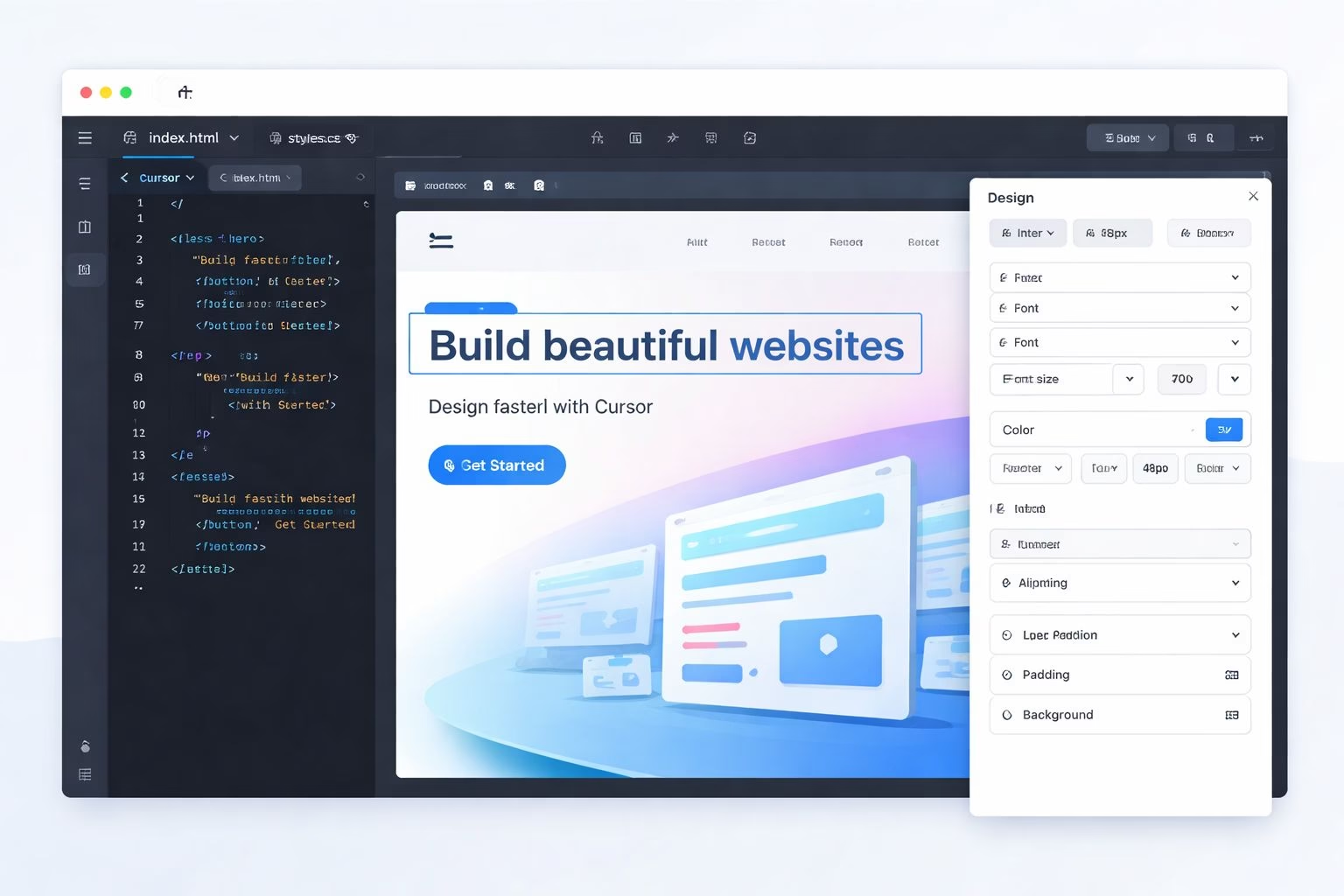
Stack Overflow’s 2024 Developer Survey found that 76 percent of professional developers were using or planning to use AI tools in their workflow, with code editors leading the category. Cursor’s visual design editor sits directly on top of that adoption curve: it gives front-end work the same conversational scaffolding that pure code already has.
Setup for using Cursor visual design editor
Start inside Cursor with a clean project so the visual editor, code, and preview stay in one environment.
Treat this like setting your workbench before touching design choices.
A basic index.html and styles.css give you a starting point. Cursor’s agent can create them, or you can pull in a template, but the key is to begin here so the editor, preview, and agent work together.
To set it up:
Create or open a project in Cursor with index.html and styles.css ready to edit.
Ask the Cursor agent to scaffold a simple page or use a template.
Install the Live Server extension (CMD+Shift+P → “Open with Live Server”).
Copy the server URL and open it in Cursor’s internal browser (CMD+Shift+B) for a live preview.
As you start working, save progress with Git. The provided material makes it clear this matters because it gives you an easy rollback path if design changes go the wrong direction.
Editing elements inside Cursor’s visual editor
Once the project is open, the selector becomes your main tool.
Clicking elements in the live preview lets you adjust structure or styling without digging through code first.
The Design pane handles the styling changes. When you apply an edit, Cursor updates the classes so the affected elements stay consistent across the page.
It turns visual tweaks into real code updates instead of throwaway previews.
To make changes:
Turn on the element selector.
Click the part of the page you want to adjust.
Edit properties inside the Design pane or describe the change to the agent.
Press Apply, then confirm with Keep or Keep All to save the update.
This creates a loop: click an element, adjust it, apply the change, confirm. It feels more like sculpting the page than rewriting it line by line.
Applying changes and keeping them synced
The editor only becomes useful when changes stick. Cursor handles this through Apply, then Keep or Keep All.
Apply commits the adjustment the editor just made. Keep saves that specific update. Keep All confirms every pending change in that batch.
This matches a practical loop. You preview the modification, decide if it actually improves the layout, then lock it in.
Nothing drifts out of sync because the tool updates classes for any matching elements across the project when you confirm it.
Run this workflow as you refine:
Make the adjustment in the Design pane.
Press Apply to stage the change.
Choose Keep to save an individual edit or Keep All if the batch is correct.
Treat Keep All as the moment where the design becomes part of the codebase instead of a temporary preview.
Using Git to protect design progress
The provided material points to Git as the safety net. Saving progress as you work means you can roll back if a styling direction fails.
Cursor’s edits become easier to manage when each stage lives in version history.
You are not juggling backups or making copies. You are storing checkpoints each time a design direction settles.
It prevents the panic of losing a working layout after an aggressive round of edits.
This is the workflow the material supports:
Stage changes after a round of Apply and Keep All.
Commit to Git when the page looks correct.
Roll back only if a confirmed change hurts the layout.
Git keeps experimentation from feeling risky. It adds structure instead of hesitation.
Full process recap inside Cursor visual design editor
The workflow forms a straight line instead of a scattered loop. Start the project, open the preview, select elements, apply changes, then commit progress.
Cursor moves design decisions closer to execution by removing the constant switching between tools.
Each stage ties into the next. The selector leads to the Design pane. Apply leads to Keep or Keep All. Git commits preserve confirmed choices.
The point is to reinforce repetition until the editor feels natural.
Use this as your working sequence:
Open project with index.html and styles.css
Launch Live Server preview
Select an element and adjust it
Apply the change and confirm it
Commit progress to Git
Why this workflow matters for frontend speed
Cursor replaces the friction that comes from bouncing between code and design tools. Everything provided reinforces the same message.
Keeping styling, structure, and live preview in the same environment makes frontend adjustments faster because context switching disappears.
The agent helps when instructions need to be executed, but the visual editor keeps the human in control.
Design changes stay connected to the codebase through classes, not temporary overrides.
This creates a consistent improvement loop:
Visual feedback
Directed edits
Confirmation
Versioned progress
