
Quick Summary
- Connect Claude Code to GitHub at https://claude.ai/code/onboarding
- Add the Claude Slack app at https://slack.com/marketplace/A08SF47R6P4
- In Slack, click Connect Account and approve access.
- Add Claude to a channel by typing @claude and approving the add-to-channel prompt.
- Assign work by tagging @claude with a clear bug fix or feature instruction.
- Claude builds context from recent channel messages before working.
Teams already live inside Slack. Pulling engineers out of conversations just to open a code editor slows things down and breaks focus.
Claude Code changes that workflow by letting you assign real coding tasks directly from Slack, while the assistant handles context, fixes bugs, and ships features without leaving the channel.
This tutorial walks through the exact setup and usage flow for Claude Code inside Slack. Everything here sticks strictly to the steps and details provided, with no assumptions or extra features layered on.
You will learn what this setup enables and how the workflow fits into day-to-day development without touching a local editor.
What this tutorial covers:
What Claude Code does inside Slack
How Slack and GitHub connect to Claude Code
How to assign bug fixes and feature tasks from a channel
A simple usage tip that improves results
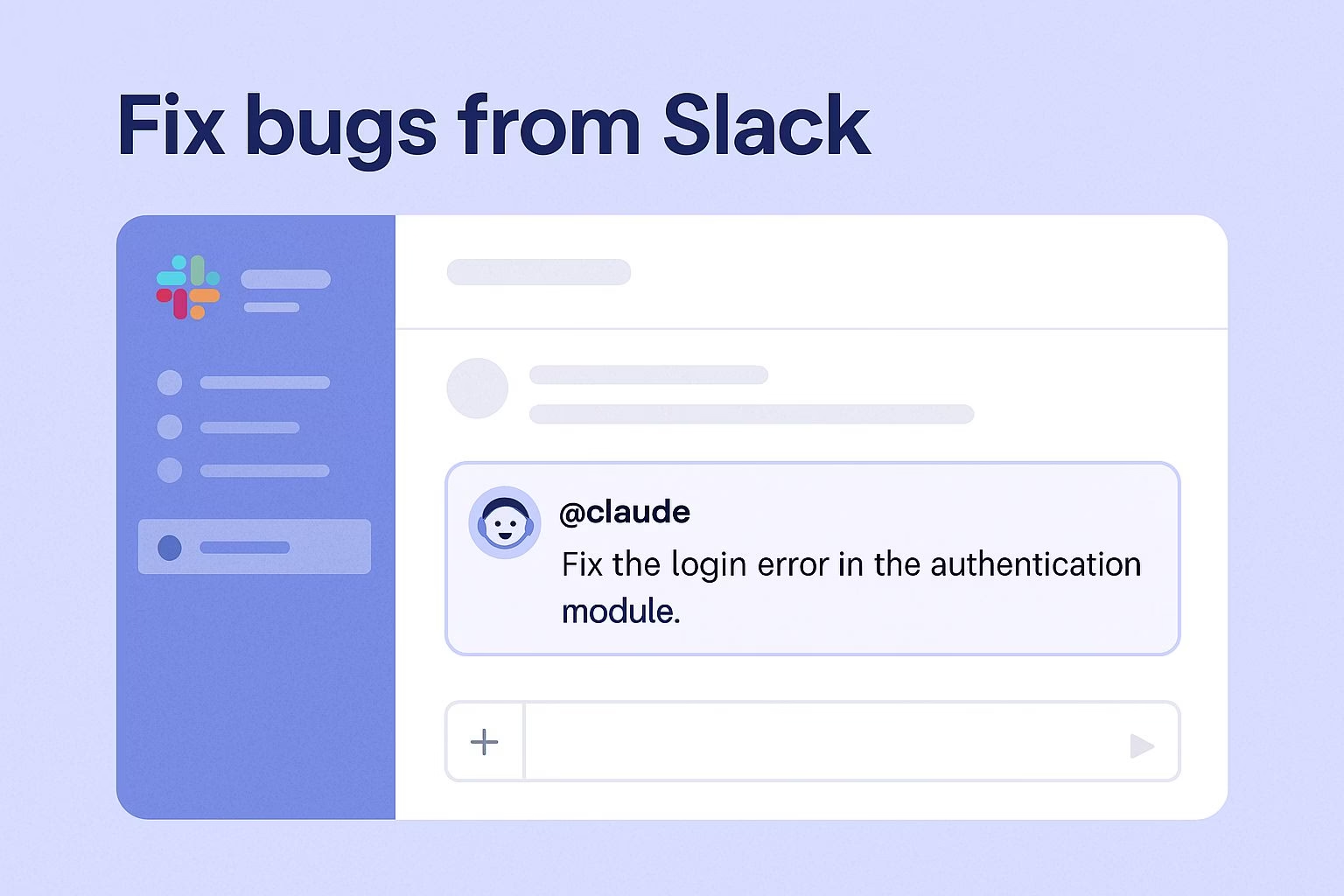
GitHub’s 2024 Octoverse report recorded a sharp year-over-year jump in AI-assisted repository contributions, with chat-driven coding workflows the fastest-growing developer category. Pulling Claude Code into Slack puts that workflow inside the channel where most engineering teams already triage bugs and feature requests.
What Claude Code Lets You Do Inside Slack
Claude Code allows you to fix bugs and implement new features directly from Slack without opening a code editor.
Once added to a Slack channel, it works as an autonomous coding assistant that responds to tasks you assign using plain language.
Claude builds context from recent messages in the channel. This context helps it understand what needs to be fixed or built before it starts working on the code.
This setup keeps conversations and execution in one place. You do not need to move between Slack and an editor just to start addressing an issue.
What Claude Code can do from Slack:
Fix bugs in an existing codebase
Implement new features
Work without opening a local code editor
Use recent Slack messages to understand context
These actions all begin inside a Slack channel where Claude has been added.
How to Connect Claude Code to GitHub
Claude Code must be connected to GitHub before it can fix bugs or ship features.
This connection gives the assistant access to the codebase it needs to work on.
You connect Claude Code to GitHub through the official onboarding page: https://claude.ai/code/onboarding
Once this connection is complete, Claude Code can interact with your repository when tasks are assigned from Slack.
What this step enables:
Access to your GitHub repository
Ability to modify code when tasks are assigned
Foundation required for all Slack-based coding tasks
Without connecting to GitHub, Claude Code cannot perform any coding work.
How to Add Claude Code to Your Slack Workspace
After connecting Claude Code to GitHub, the next step is adding it to your Slack workspace.
This allows the assistant to operate directly inside your existing channels.
Start by installing the Claude app from the Slack Marketplace: https://slack.com/marketplace/A08SF47R6P4
Once installed, Claude appears in Slack. Click Connect Account and approve access so Claude can interact within the workspace.
This approval is required before the assistant can be added to any channel.
To make Claude available in a channel, type @claude and press Enter. Slack will prompt you to add Claude to that channel.
Approve the request to complete the setup.
What happens after Claude is added:
Claude becomes available inside the selected channel
The assistant can read recent messages for context
Coding tasks can now be assigned directly from Slack
At this point, Claude Code is fully active inside Slack.
How to Assign Bug Fixes and Feature Tasks in Slack
Once Claude is present in a channel, you can assign coding tasks by tagging the assistant. Tasks are given in plain language and do not require any special syntax.
To assign a task, type @claude followed by a clear instruction describing the bug or feature you want handled.
Claude uses the recent conversation in the channel to understand context before working on the code.
This process works for both bug fixes and new feature implementations. Everything happens inside Slack, without opening a code editor or switching tools.
How task assignment works:
Tag
@claudein a Slack channelDescribe the bug or feature clearly
Claude uses recent messages to build context
The assistant works on the task using the connected repository
Clear instructions lead to better outcomes, since Claude relies on channel context to guide its work.
Best Practices for Using Claude Code in Slack
Claude Code performs better when tasks are scoped clearly inside Slack. One practical way to do this is by keeping each issue contained within its own Slack thread.
This keeps unrelated messages out of the context Claude uses to understand the task.
Using threads helps Claude focus on a single bug or feature at a time.
The assistant reads recent messages to build context, so a clean thread improves accuracy and relevance when it starts working on the code.
Claude Code is also accessible on mobile through the Slack app. This allows you to review progress or assign tasks even when you are not at your desk.
The workflow stays consistent whether you are on desktop or mobile.
Tips that improve results:
Start a dedicated Slack thread for each bug or feature
Keep task instructions clear and specific
Avoid mixing unrelated discussions in the same thread
Use Slack mobile access to stay responsive
These practices help Claude Code work with clearer context and fewer distractions.
FAQs
What does Claude Code allow you to do from Slack?
Claude Code allows you to fix bugs and implement new features directly from Slack without opening a code editor.
Does using Claude Code require opening a code editor?
Claude Code lets you fix bugs and ship features without ever opening a code editor.
How does Claude Code understand what task to work on?
Claude Code builds context based on recent messages in the Slack channel where it is added.
What must be connected before Claude Code can be used?
Claude Code must be connected to GitHub and added to a Slack workspace.
How do you connect Claude Code to GitHub?
Claude Code is connected to GitHub through the onboarding page at https://claude.ai/code/onboarding.
How do you add Claude Code to a Slack workspace?
Claude Code is added to Slack by installing the Claude app from https://slack.com/marketplace/A08SF47R6P4.
How do you add Claude Code to a Slack channel?
Claude Code is added to a channel by typing @claude and approving the request to add it.
How do you assign tasks to Claude Code?
Tasks are assigned by tagging @claude in a Slack channel and giving it instructions.
What types of tasks can Claude Code handle?
Claude Code can fix bugs and implement new features.
What improves Claude Code performance in Slack?
Starting a Slack thread for a specific issue improves Claude Code performance.
Can Claude Code be accessed on mobile?
Claude Code can be accessed on mobile through the Slack app.
